
How do I read the stripboard?
Each row is a scene strip, coloured by INT/EXT and day/night; each day’s strips close with an end-of-day row showing that day’s page and time totals, and coloured badges count scheduling warnings.
Strips
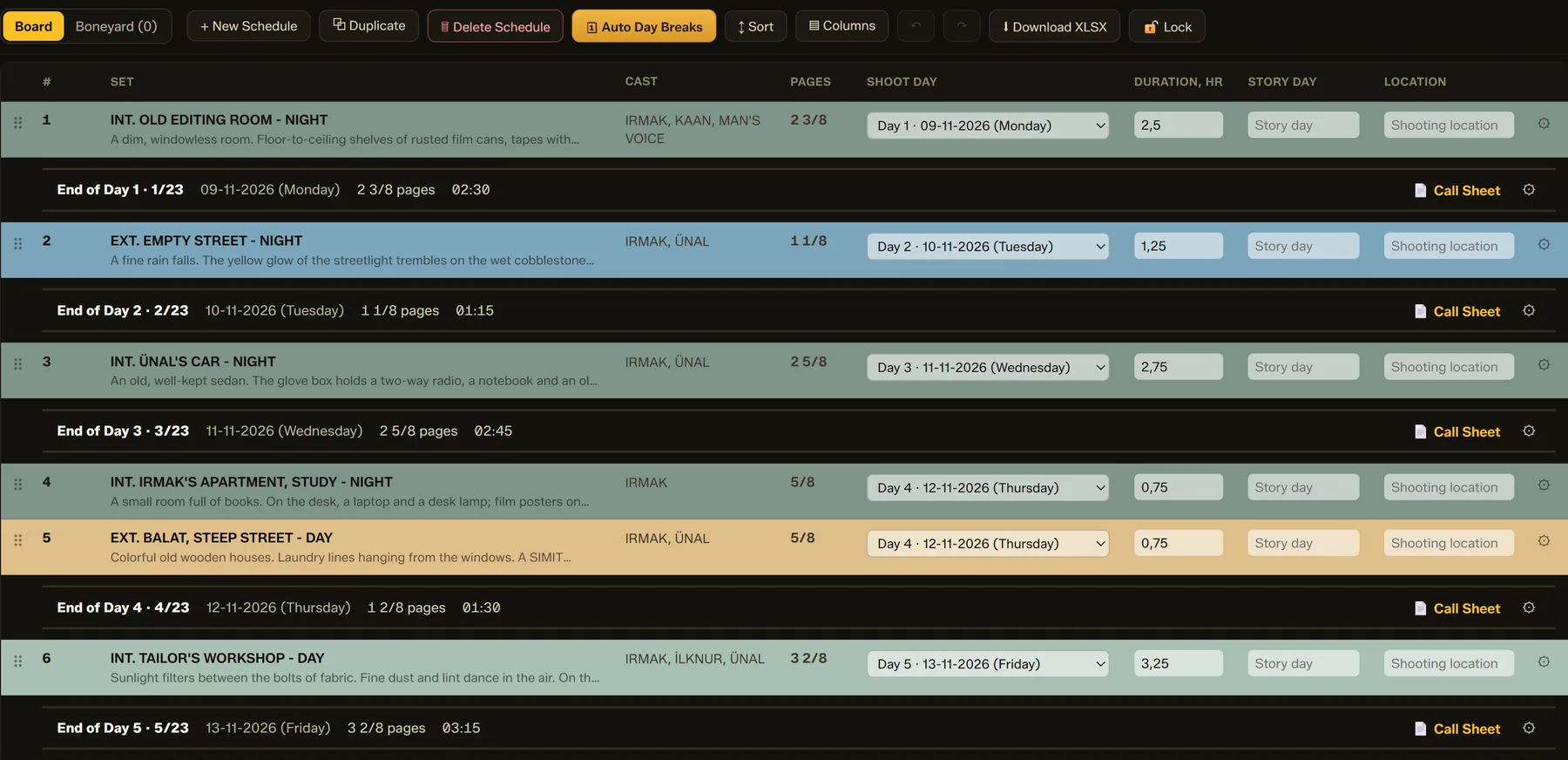
The Board tab at the top shows the whole schedule; the tab next to it shows only the Boneyard strips.
A strip’s colour comes from the scene heading: INT scenes are green, darker green at night. Of the other scenes, day and morning ones are sand yellow and night ones blue. Anything else is grey. If you gave the scene a colour yourself, the strip uses that colour.
Columns from left to right:
- #: scene number.
- Set: the scene heading, with the synopsis below it, or the start of the scene text if there’s no synopsis.
- Cast: the cast tagged in the scene.
- Pages: page length, in the project’s page unit. To change the unit: How do I edit a scene's details?
- Shoot Day: the strip’s day. Pick a day from the list to move it.
- Duration, Story Day, Location: click the cell and type. It saves when you press Enter or leave the cell. Enter the duration in hours. Story Day and Location suggest what you’ve typed before.
- ⚙: the strip’s menu.
Use ▤ Columns to hide or show columns.
Click a scene heading and the scene panel opens on the right. There you edit Story day, Shooting location, Duration (hours), the synopsis, Unavailable dates, Color and Note, then click Save. The panel also shows the scene’s tags and text. Having AI write the synopsis from here spends credits: How do I generate scene synopses with AI?
Marks on a strip:
- 🔒: a locked strip; it can’t be dragged.
- ⧉ and (copy): a duplicate strip of a scene.
- Struck through with ✓: Shot. ◐: Partially shot. Faded and struck through: Dropped. You set these on the Sides screen: How do I track the shoot in Sides?
The end-of-day row

A dark row sits under each day’s strips. From left to right: the day number and the total number of days, the date, the page total, the time total, that day’s warnings, and the Call Sheet link. Strips marked Dropped don’t count toward the page total. The time total is the strips’ and banners’ durations, shown as hours:minutes.
The row’s ⚙ menu has Edit date, Add banner and Delete day. Call Sheet opens that day’s call sheet: How do I create a call sheet?
When a day off or a holiday falls between two shooting days, a striped Day Off row appears between them.
Banners
Rows starting with ▤ are free notes: a meal break, a company move, a unit move.
- To add one, choose Add banner from an end-of-day row’s ⚙ menu, or Add banner below from a strip’s ⚙ menu.
- Type the note into the row. Enter the duration as hours:minutes; it’s added to the day’s time total. Pick a colour from the colour box in the row.
- A banner drags by its ⠿ handle just like a strip. Its ⚙ menu has duplicate, move to the boneyard or the board, clear colour and delete.
Warnings
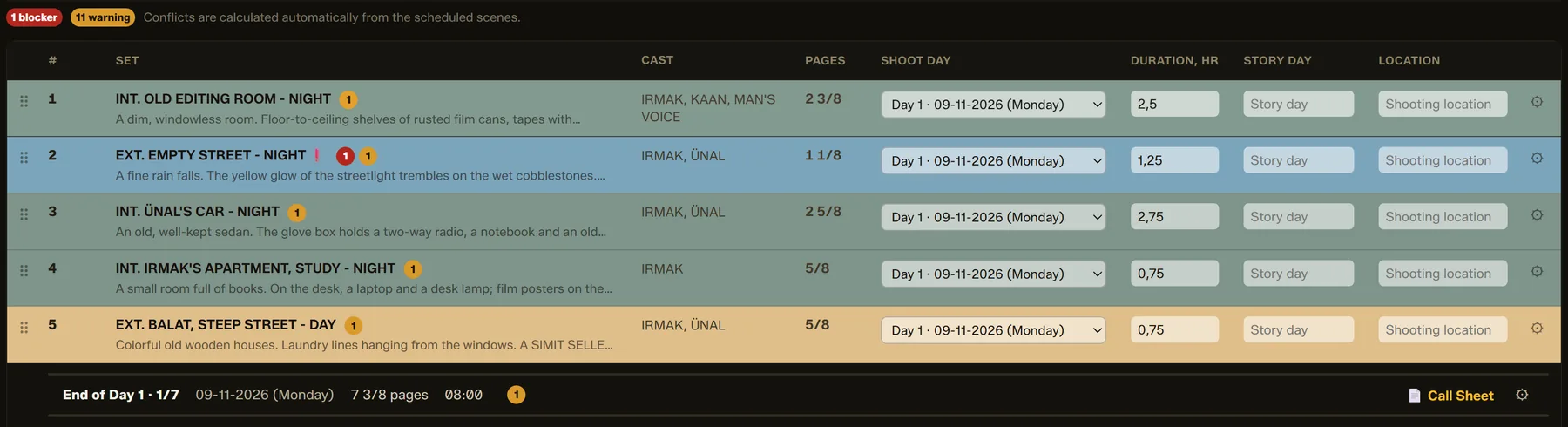
Dekupa checks every day against what’s placed on it. Coloured counts appear on the affected strips and on the end-of-day row, with totals above the board. Hover over a badge to see why.
- blocker: the scene, or an element in it, isn’t available that day. A red ❗ also appears next to the heading; click it to see who isn’t available.
- warning: the day’s page total is over 8 pages, or the day has more than 3 sets or more than 4 INT/EXT switches.
- info: the day has more than 2 day/night switches, or a scene is missing its page length or set.
Enter the dates a scene isn’t available in Unavailable dates in the scene panel, and an actor’s or element’s dates in its tag window: How do I edit or remove a tag?
Warnings don’t block anything; you can still put strips on any day you like.
If it doesn’t work
- A column is missing.
- It may be unticked in the ▤ Columns panel; tick it again. The column choice resets when you reload the page, and every column comes back.
- I typed a story day or location and it changed on another schedule too.
- Duration, Story Day and Location belong to the scene, not the schedule. They show the same on every schedule in the project.
- The schedule name has outdated version next to it.
- A new version of the script was read after the schedule was built. When the version changes, strips move onto the new version’s scenes and new scenes are added to the Boneyard. The label stays even after that move.