
How do I work with the schedule on a calendar?
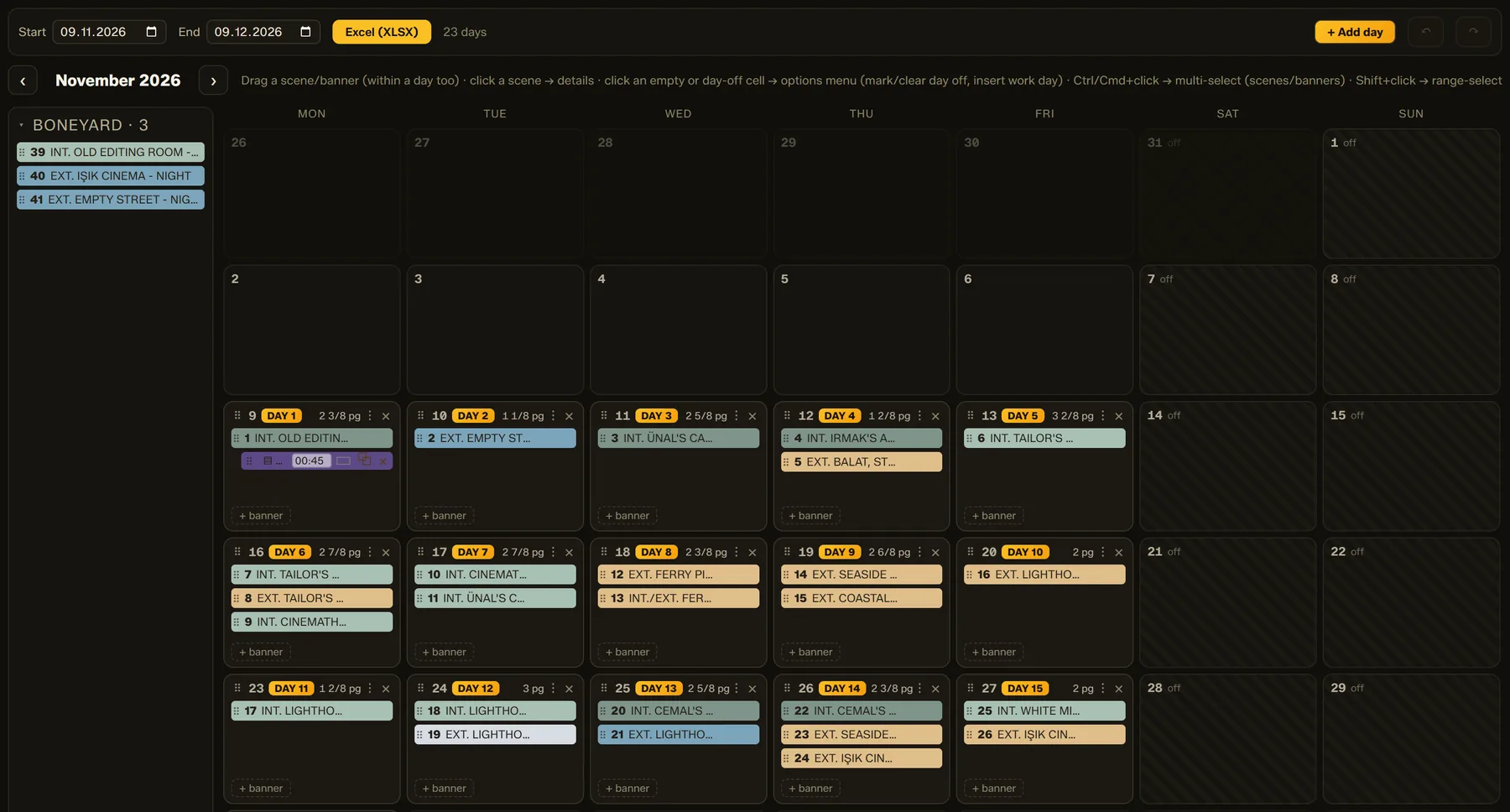
Hover over Scheduling in the top menu and open Calendar; shooting days show on a month grid, you drag scenes and whole days to move them, and click an empty date to add a day off or a work day.
Steps
-
Hover over Scheduling in the top menu and choose Calendar.
-
Use ‹ and › on either side of the month name to move between months. Shooting days show the date, the day number and the page total, with their scenes listed below in their colours. Your weekly non-shooting days read off; holidays read Day Off.
-
Click a scene: the scene panel opens on the right.
-
The Boneyard panel on the left lists the scenes that aren’t on a day. Click its header to collapse it.
Date range
The fields above the calendar:
- Start: pick a new date and every shooting day is laid out again from it, in the same order. Days off and holidays are skipped.
- End: pick the new end date and click Apply next to it. Empty days are added to the end of the schedule, or the last days are removed, until the range fits. The scenes of removed days drop into the Boneyard panel.
- + Add day: adds an empty shooting day to the end of the schedule.
Moving scenes
- Drag a scene to another day, to another spot in the same day, or to the Boneyard panel on the left.
- Drop a scene on an empty date and a new shooting day opens on that date with the scene on it.
- Ctrl-click (Cmd-click on a Mac) to select several scenes; Shift-click selects everything in between. Drag one and they all go.
- ⧉ next to a scene makes a duplicate strip, ▤+ adds a banner below it. + banner at the bottom of a day adds a banner to that day.
Moving days
Press and hold the top of a shooting day, where the date and day number are, and drag:
- Drop it on an empty date and the day moves to that date.
- Drop it on another day and the two days swap scenes; the dates stay where they are.
- While you drag, a thin dashed bar appears under each shooting day, and above the first one. Drop the day on a bar and it goes right after that day; drop it on the bar above the first day and it moves to the front. The dates are laid out again.
- Drop it on a date marked Day Off and the day takes that date, while its old date becomes the Day Off.
↶ at the top or Ctrl+Z (Cmd+Z on a Mac) undoes a swap or a drop between two days. Moving a day to an empty date or a Day Off date can’t be undone; drag the day back instead.
Days off and work days
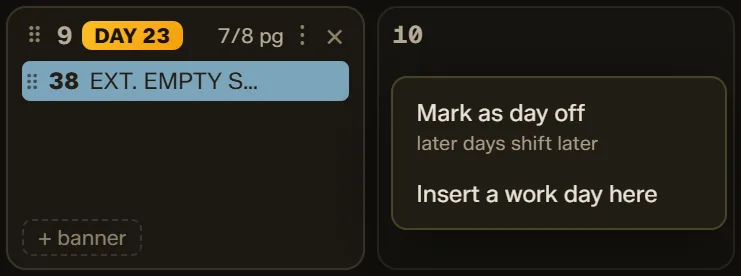
- Click an empty date: Mark as day off turns it into a day off, and later days shift later. Insert a work day here opens an empty shooting day on that date.
- Click a Day Off date: Clear day off removes the day off, and later days move earlier. Add another day off after adds another day off right after it.
- A shooting day’s ⋮ menu: Insert day off turns the first date after that day that isn’t already off into a day off, and later days shift later. Mark this day as a day off deletes the day, sends its scenes to the Boneyard panel and leaves its date as a day off. Insert work day adds an empty shooting day right after it.
- Delete a day: click × in the day’s header and confirm. Its scenes drop into the Boneyard panel and later days move earlier.
To get the calendar as an Excel file: How do I export a shooting schedule?
If it doesn’t work
- A date I set by hand changed later.
- Changing the start date, adding or clearing a day off, adding a day with + Add day or Insert work day, deleting a day, or dropping a day between two others lays every day out again from the start date, and any empty dates you left in between close up. To keep a date empty, click it and choose Mark as day off.
- The calendar has no toolbar and no boneyard panel.
- When the schedule is locked, or the project is shared with you read-only, the calendar is view-only. The Locked button on the Stripboard unlocks it.
- I dropped a day on another day and the scenes swapped.
- Dropping a day onto another day swaps the two days’ scenes. To change a day’s place in the order, drop it on the thin dashed bar that appears under the days while you drag. ↶ at the top undoes the swap.