
How do I create a call sheet?
Open the Call Sheets tab in the top menu and click a day’s card; that day’s scenes and cast come in from the schedule, and you add the times and the crew header, then click Save.
Steps
-
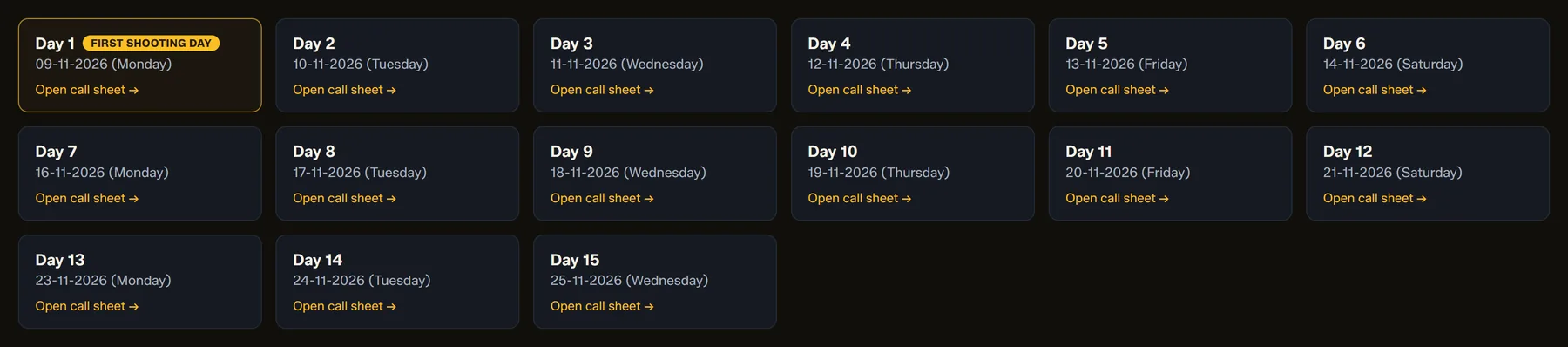
Click the Call Sheets tab in the top menu. The schedule’s days are listed as cards. The card with the earliest date says First shooting day.
-
The page opens on the crew’s active schedule, or the newest schedule if none is active. If you picked another schedule on another screen during this session, that one opens. If the project has more than one, switch from the list at the top; the active one has Active next to its name.
-
Click the card of the day you want. The day’s call sheet is created the first time you open it. The Call Sheet link on the day’s banner in Stripboard opens the same page.
-
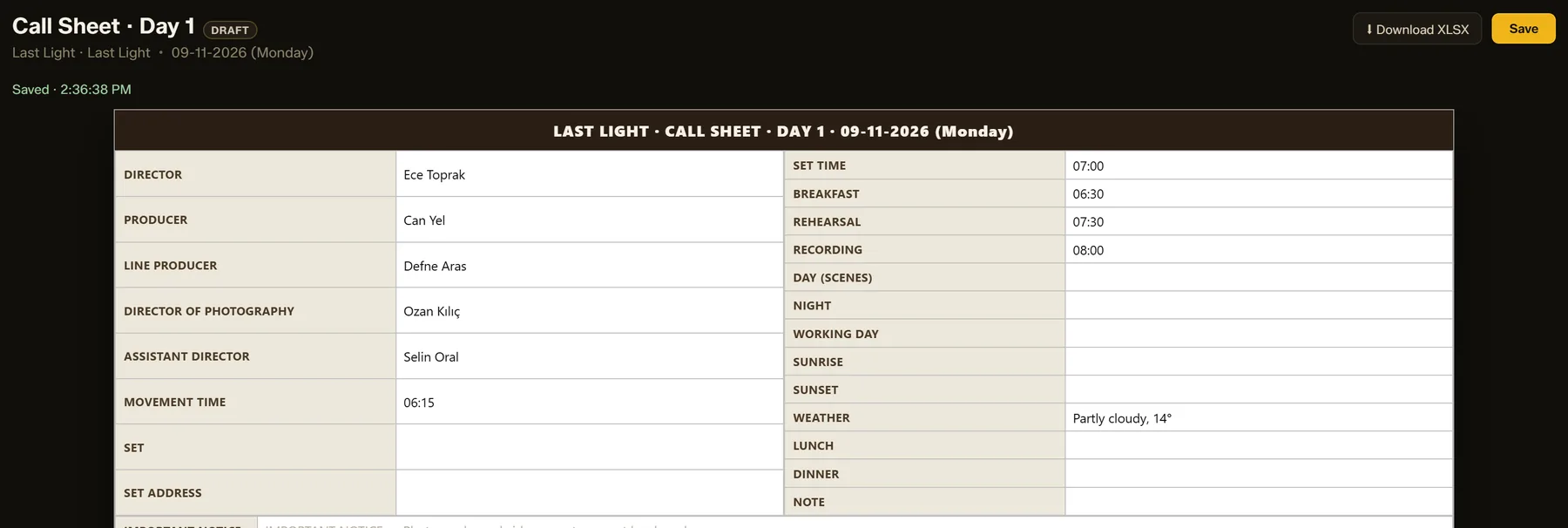
Fill in the two columns at the top. On the left: header lines like Director and Producer, plus Movement Time, Set and Set Address. On the right: the day’s times and details, like Set Time, Breakfast and Weather.
-
In the Important Notice line below, write anything you want the whole set to see.
-
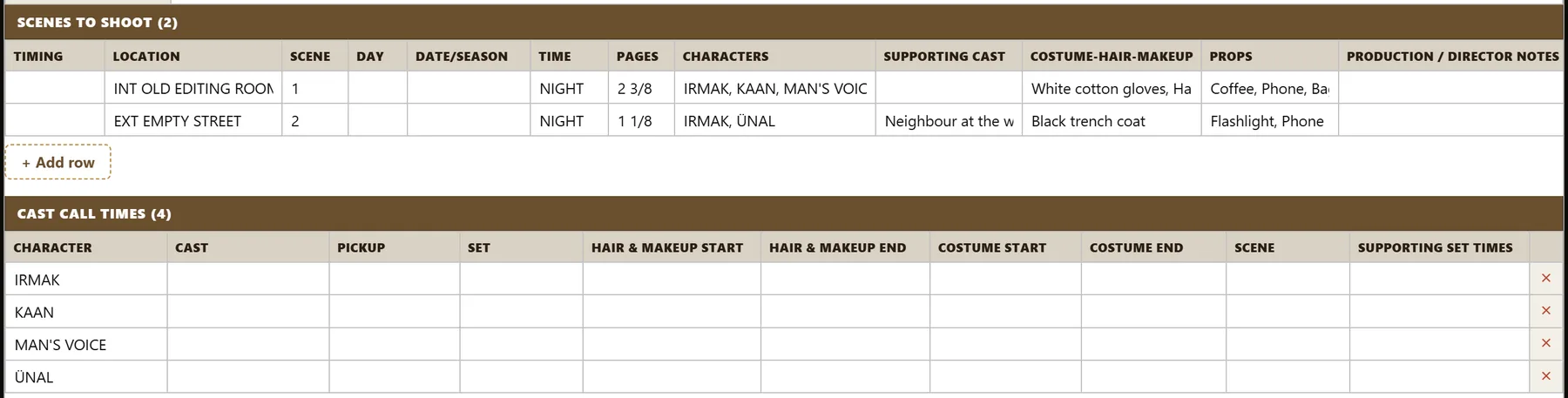
In the cast table, fill in Cast, Pickup, Set and the hair, makeup and costume times for each character. Press Enter in a cell to move down one row in the same column.
-
Click Save at the top right. The time it was saved appears under the title.
The call sheet doesn’t save on its own. If you leave the page without saving, your changes are lost.
What comes from the schedule
When you open the day, the tables fill from the schedule:
- Scenes to shoot: The scenes you placed on that day, in schedule order. Location and Time come from the scene heading, Pages from the scene’s length. Characters gets the Cast tags, Supporting Cast the Extras tags, Costume-Hair-Makeup the Wardrobe and Makeup & Hair tags, and Props the Props tags. Production / Director Notes comes from the scene’s note, Description from its synopsis.
- Cast call times: The characters tagged as Cast in that day’s scenes. The times start empty.
- Departments: The Costume, Hair & Makeup and Art lines get the notes you wrote on that day’s wardrobe, makeup and props tags, each with its scene number.
- Next day schedule: The scenes of the next shooting day in the schedule.
- Crew header: If lines like director and producer are empty, they come in filled from the call sheet most recently saved in the project. You only type them once.
The tables follow the schedule until you first save or download the call sheet. After that, changes in the schedule don’t come in on their own: How do I edit a call sheet?
To write a scene’s note or synopsis: How do I edit a scene's details?
If it doesn’t work
- The screen says No shooting days yet.
- The schedule that opened has no days yet. Click Go to Shooting Schedule and spread your scenes across days. If the project has more than one schedule, pick the right one from the list at the top.
- A character is missing from the cast table.
- The table lists the characters tagged as Cast in that day’s scenes. A character who is only named in the script doesn’t come in. Tag the character in the scene, or add them with + Add cast. If you’ve already saved the call sheet, a new tag won’t show up in the table on its own, so add it by hand.
- The screen says No call sheet has been created for this day yet.
- That day’s call sheet hasn’t been opened yet, and you can only view it. Once the project owner, or a member with Edit on Schedule, opens the day, the call sheet is created and you can read it too.