
How do I generate scene synopses with AI?
Click the pencil on a scene row in the left panel; in the window that opens, pick a length and generate for that scene alone or in bulk; each scene costs 1 credit and the synopsis is saved the moment it’s generated.
For one scene
-
In the left panel, move your mouse over the scene row and click the pencil (✎) that appears on the right. The Update scene window opens, with the synopsis on the right.
-
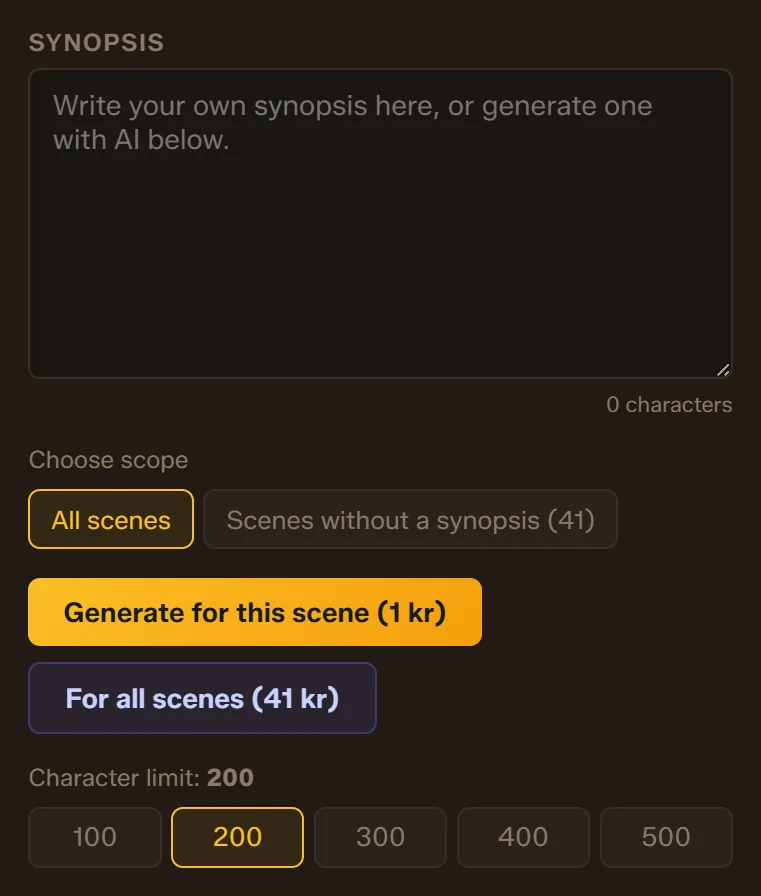
Pick the length in the Character limit: row: 100, 200, 300, 400 or 500 characters. If the scene has no generated synopsis yet, 200 is selected.
-
Click “Generate for this scene”. The cost is shown on the button. If the scene already has a synopsis, the app first says it will be replaced and asks you to confirm.
-
The synopsis fills the box and Generated and saved. appears. You can close the window without clicking Save.
-
To edit the text by hand, change it in the box and click Save.
In bulk
- Open the same window with any scene’s pencil.
- Under Choose scope, choose All scenes or only the scenes without a synopsis. The second option shows how many scenes that is.
- Click the bulk button below and confirm. Depending on your choice it generates for all scenes or for the scenes without a synopsis, and the cost is shown on the button. With All scenes, the confirmation says how many existing synopses will be replaced, hand-written ones included, and points you to the scenes-without-a-synopsis option.
- The run continues on the server, so you can close the page. In the bottom right, the Generating synopses in the background… box shows a scene counter. When it’s done it says Synopses ready.
The synopsis field in the window stays locked while a bulk run is going.
Good to know
- Generating writes over the existing synopsis, and the app asks first. “Generate for this scene” replaces that scene’s synopsis, and All scenes replaces every scene’s, including ones you wrote yourself. To fill in only the empty ones, use the scenes-without-a-synopsis option.
- The synopsis is written in the script’s language.
- The synopsis shows up in reports and in the schedule.
If it doesn’t work
- The generate buttons are greyed out.
- On a project shared with you, you need permission to edit the scene and to spend credits; hover over the button and you’ll see: You do not have permission for this action. A bulk run in progress locks the window until it finishes. If every scene already has a synopsis, the empty-scenes option can’t be clicked.
- The bulk run stopped partway.
- If credits ran out or something failed, the box in the bottom right says how many scenes were done. The synopses generated so far are saved. Once that’s sorted, use the scenes-without-a-synopsis option instead of All scenes to do the rest; finished scenes aren’t charged again.
- The counter in the bottom right isn’t moving.
- If the counter hasn’t moved for 15 minutes, the run has stopped and what was generated is saved. Close the tab, open Dekupa fresh in a new tab, and start again with the scenes-without-a-synopsis option.