
How do I track the shoot in Sides?
In the top menu, open Sides under Scheduling, click a day, then press Not shot, Partial, Shot or Dropped on each strip.
Steps
-
Hover over Scheduling in the top menu and open Sides from the list. On the Stripboard, the Open in Sides link in the band at the top brings you here too.
-
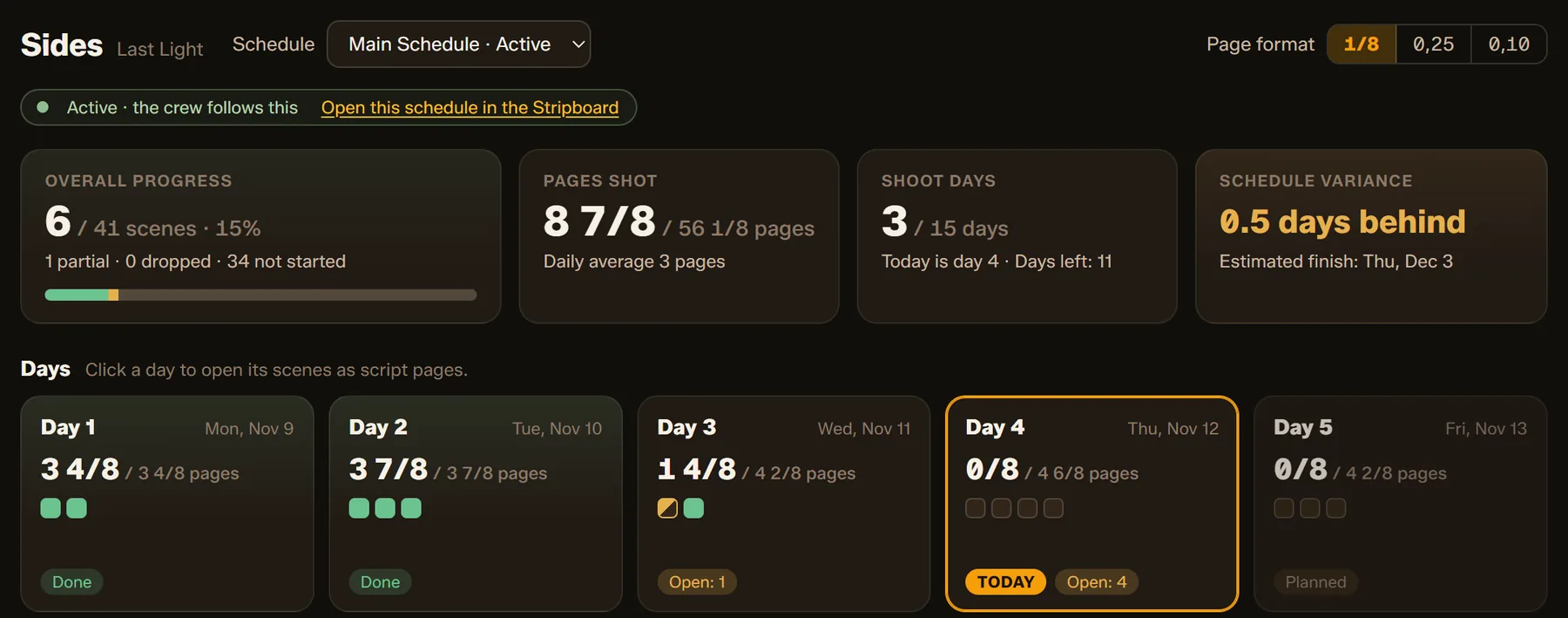
Check which schedule you’re looking at in the Schedule list at the top. The crew’s active schedule opens by default, with Active after its name in the list. Picking another schedule only changes your own view.

-
Read the overall picture in the boxes at the top: Overall progress, Pages shot, Shoot days and Schedule variance. The variance compares the pages planned on past days with the pages shot, and shows how many days behind or ahead you are and the estimated finish.
-
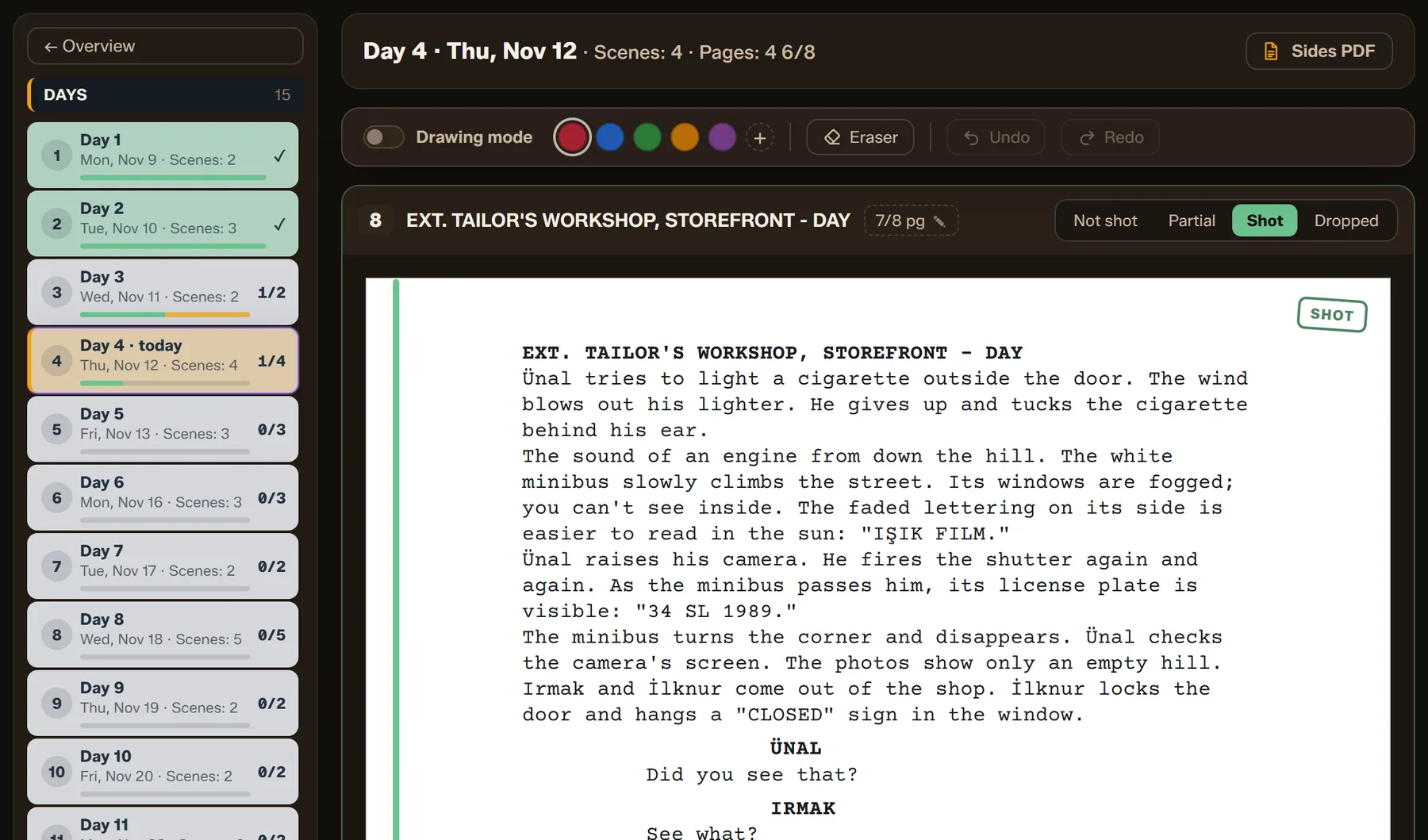
Under Days, click a day’s tile. The day opens: every shoot day is listed on the left, and that day’s strips appear on the right as script pages.
-
Press one of the buttons on the strip’s bar: Not shot, Partial, Shot or Dropped. The status is saved right away and stamped in the corner of the page.
-
To go to another day, pick it in the list on the left. To get back to the overview, click ← Overview above the list.
Good to know
- Shot doesn’t add any strikes to the text; a green vertical line appears down the left of the page. On a Partial strip the line is yellow. To show which lines were shot, strike through the text: How do I strike through the lines that were shot?
- If you mark a strip Partial without striking anything, half of its pages count as shot.
- A Dropped strip is left out of the page totals and its page is dimmed.
- Not shot also removes the strikes made on that strip. It asks first.
- A status you set with the buttons is written to the same scene in the project’s other shooting schedules too.
- When a scene is split over several strips (copy strips), the summary boxes count it once. The scene counts as shot once all of its strips that aren’t dropped are Shot.
- Click a strip’s page count to correct it. On the original strip this is the scene’s page length, and it changes on every screen. On a copy strip only that copy’s pages change.
The active schedule
To change the schedule the crew follows:
- In the Schedule list, pick the schedule you want the crew to follow.
- In the band below it, click Make active, then Yes, make active.
From then on, Stripboard, Calendar, Day Out of Days, Sides and Call Sheets open on this schedule for everyone on the crew. The project owner can do this, and so can members who’ve been given Changing the Active Schedule.
If it doesn’t work
- The status buttons are greyed out.
- On a project shared with you, your Shot Tracking permission may be View: you see everything but can’t mark anything. Ask the owner for Edit.
- The screen says No shooting schedule yet.
- Sides works from the days of a shooting schedule. Create a schedule on the Stripboard first and place the scenes onto days.
- The crew follows another schedule, and there’s no Make active button.
- The active schedule is changed by the project owner and by members whose Changing the Active Schedule permission is Allowed. An archived schedule can’t be made active.