
How do I edit a scene's details?
Change the number, heading and colour with the pencil on the scene row in the left panel, the page length with the page box above the script, and the note in the Scene Notes box on the right; for photos and unavailable dates, click the scene heading in the script.
Number, heading and colour
-
In the left panel, move your mouse over the scene row and click the pencil (✎) that appears on the right. Double-clicking the row opens the same window.
-
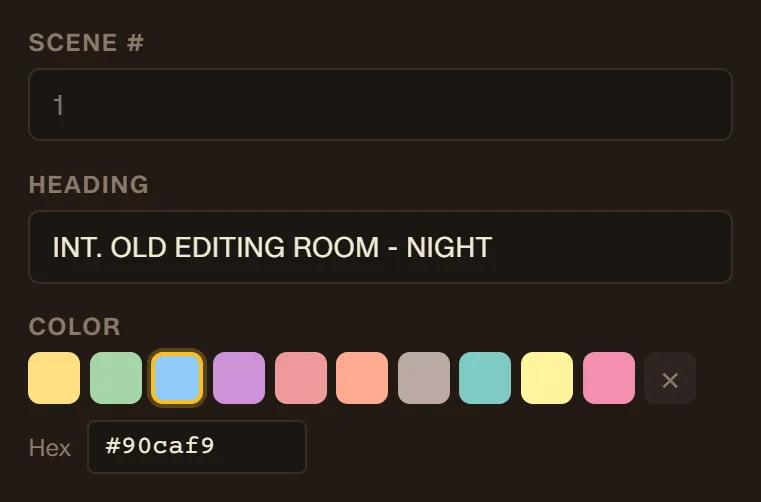
In the Update scene window, type the scene number from your script in Scene #, for example
1A. Leave it empty to use the number read from the script. -
Fix the heading in Heading.
-
Under Color, pick a colour or type a colour code. The × removes the colour.
-
Click Save. The colour shows on the row in the left panel and on the stripboard strip.
The right side of the same window holds the synopsis: How do I generate scene synopses with AI?
Page length
-
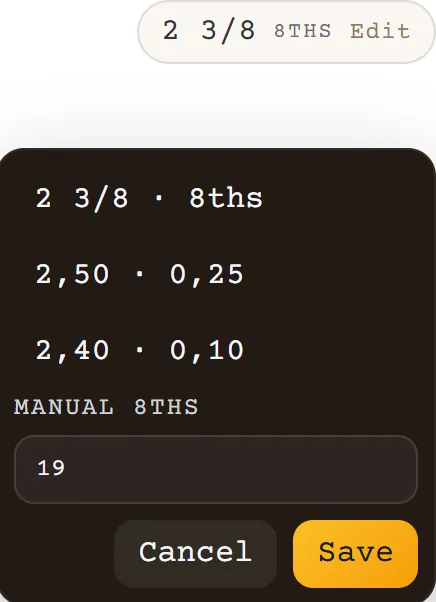
Open the scene. Above the script page, click the box that shows the length and Edit.
-
Type the length in the field at the bottom of the menu. The field’s name follows the project’s unit, for example Manual 8ths.
-
Click Save.
The options at the top of the menu change the page unit (8ths, 0,25 and 0,10). Only the project owner can do this, and the unit applies to every screen.
The length you type is used in reports and in the schedule. AI breakdown credits use the script’s measured length, so changing it by hand doesn’t change the cost: What are credits, and when are they spent?
Notes and story day
When a scene is open, the Scene Notes box sits on the right. Whatever you type in Story day and the note field saves by itself, and saved flashes for a moment.
Photos and unavailable dates
-
In the script in the middle, click the scene heading. Click anywhere on the line except the location name: the location name opens the tagging menu.
-
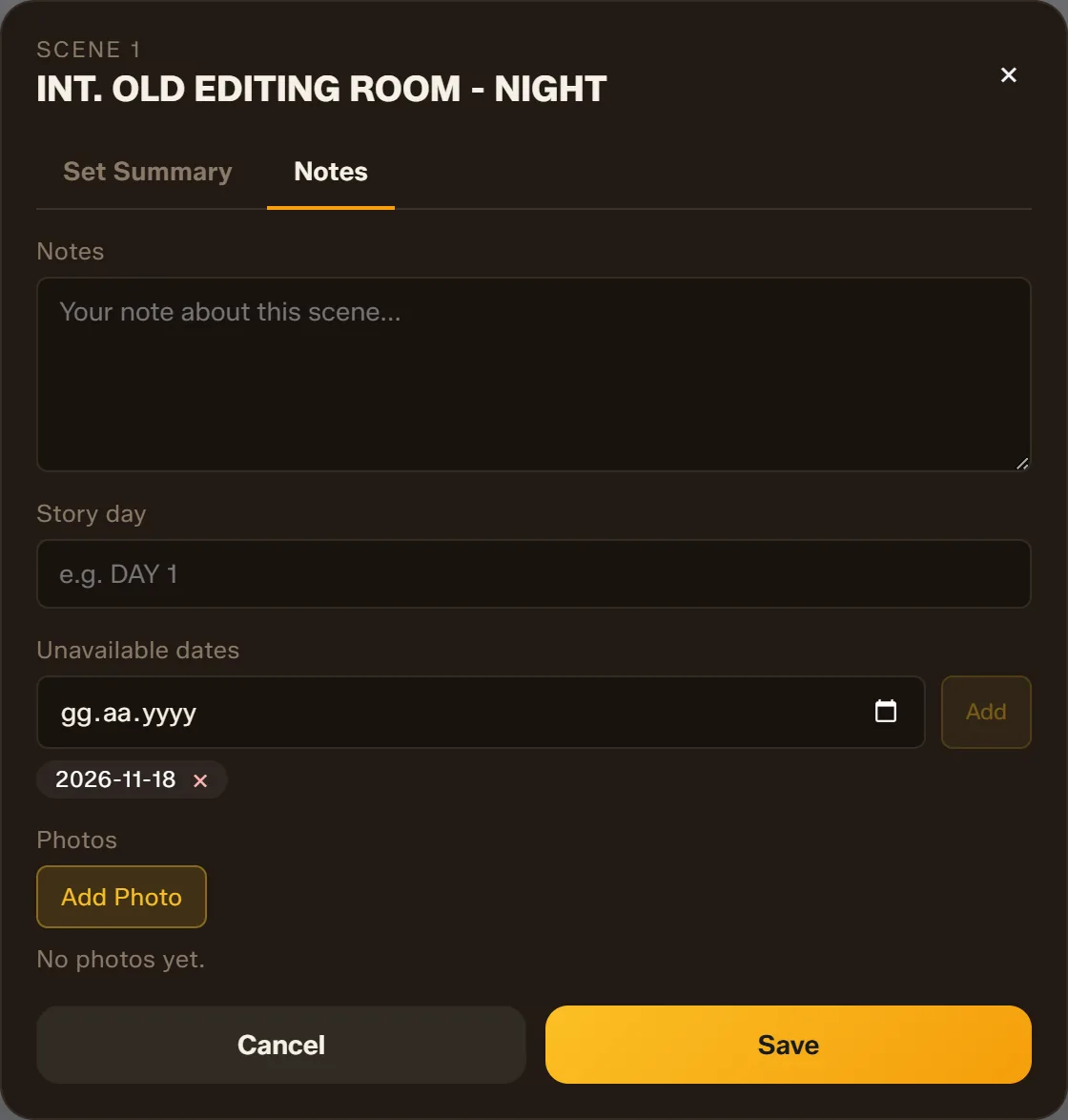
In the window that opens, switch to the Notes tab.
-
Under Unavailable dates, pick a date and click Add.
-
Use Add Photo to choose a PNG, JPG or WEBP file. The photo uploads as soon as you pick it.
-
Click Save. If you remove a date or a photo with its ×, that also takes effect when you save.
The Set Summary tab shows the location tags in this scene and the other scenes that use the same location.
If it doesn’t work
- I can’t see the pencil button.
- The pencil shows up when your mouse is over the scene row. It’s disabled while the AI breakdown runs and comes back when it finishes. On a project shared with you read-only, it doesn’t appear at all.
- Saving the length shows: Could not save the page length.
- In eighths, type a whole number: 12 means 1 4/8 pages. Decimals only work in the 0,25 and 0,10 units. An empty or negative value, or one longer than 50 pages, isn’t saved.
- I changed the heading but the script page still shows the old one.
- The window changes the heading shown in the scene list and in reports. The script text itself stays as it is.