
What does the category report show?
Open Reports under Script in the top menu: every tag in the project is listed by category, and each row shows how many scenes the tag appears in, its total pages and how many shooting days it falls on; click a row to open the tag’s own page.
What’s on the screen
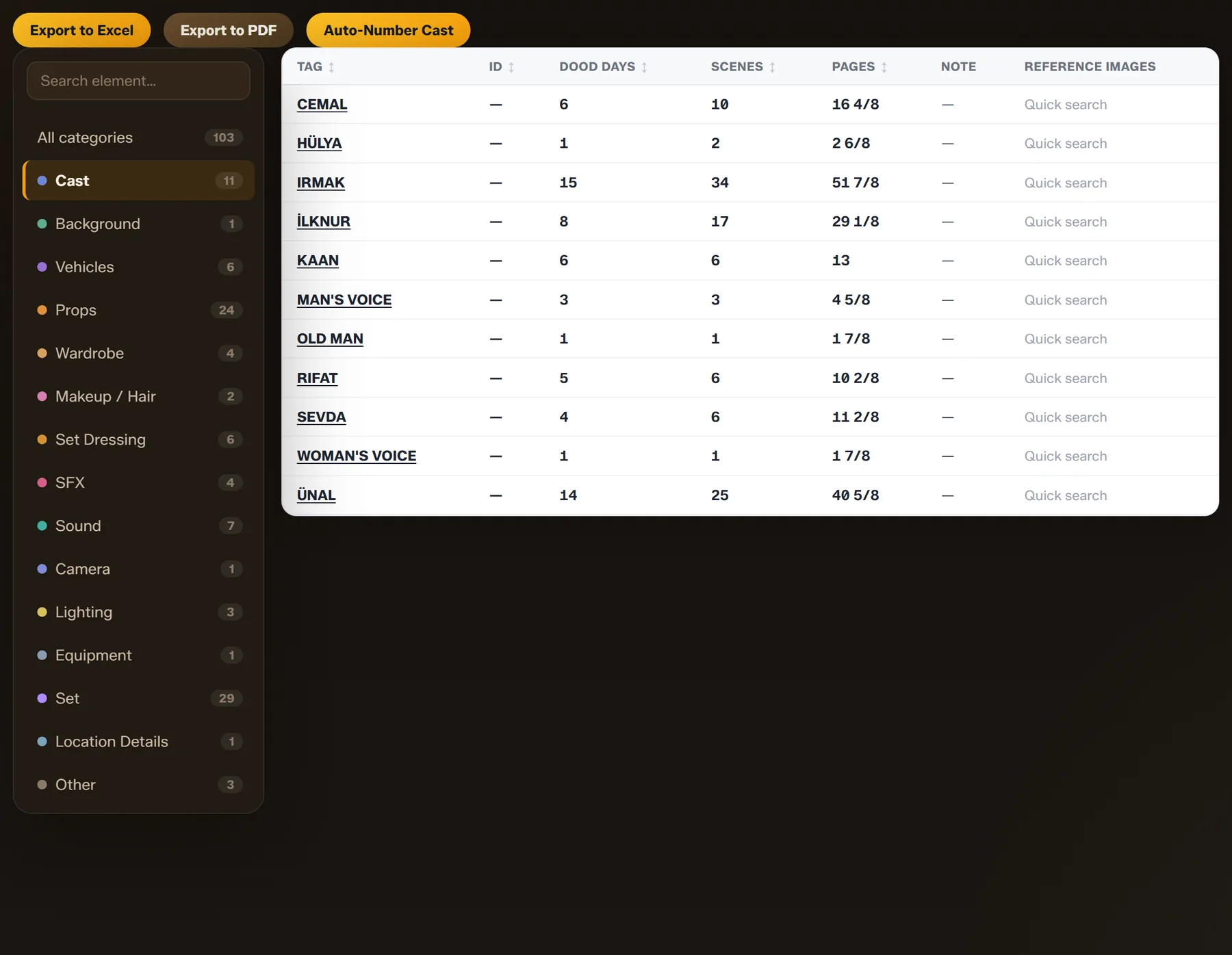
- Top row: In a series, the Episode picker, then Export to Excel and Export to PDF. When you select cast on the left, the Auto-Number Cast button appears too.
- Left: The Search element… box and the category list. All categories shows every tag, and each category shows how many tags it has. The search box looks at tag names.
- Middle: The tag table.
| Column | What it shows |
|---|---|
| Tag | The tag’s name |
| Category | The tag’s category. Only shown while All categories is selected. |
| ID | The cast number. Only shown for cast. |
| DOOD days | How many separate shooting days the tag falls on in the schedule the crew follows. If none is chosen, the newest plan that isn’t archived counts. Stays empty without a plan. |
| Scenes | The number of scenes the tag appears in |
| Pages | The total length of those scenes, in the project’s page unit |
| Note | The tag’s note |
| Reference images | The Quick search button opens the tag’s edit window and searches for images by the tag’s name. If you’ve added images, their count shows on the button. |
To sort, click the Tag, ID, DOOD days, Scenes or Pages header. Click again to reverse the order, and once more to go back to the default: cast in number order, other categories with the most-used tags first. The file you download follows the same order.
Clicking a row
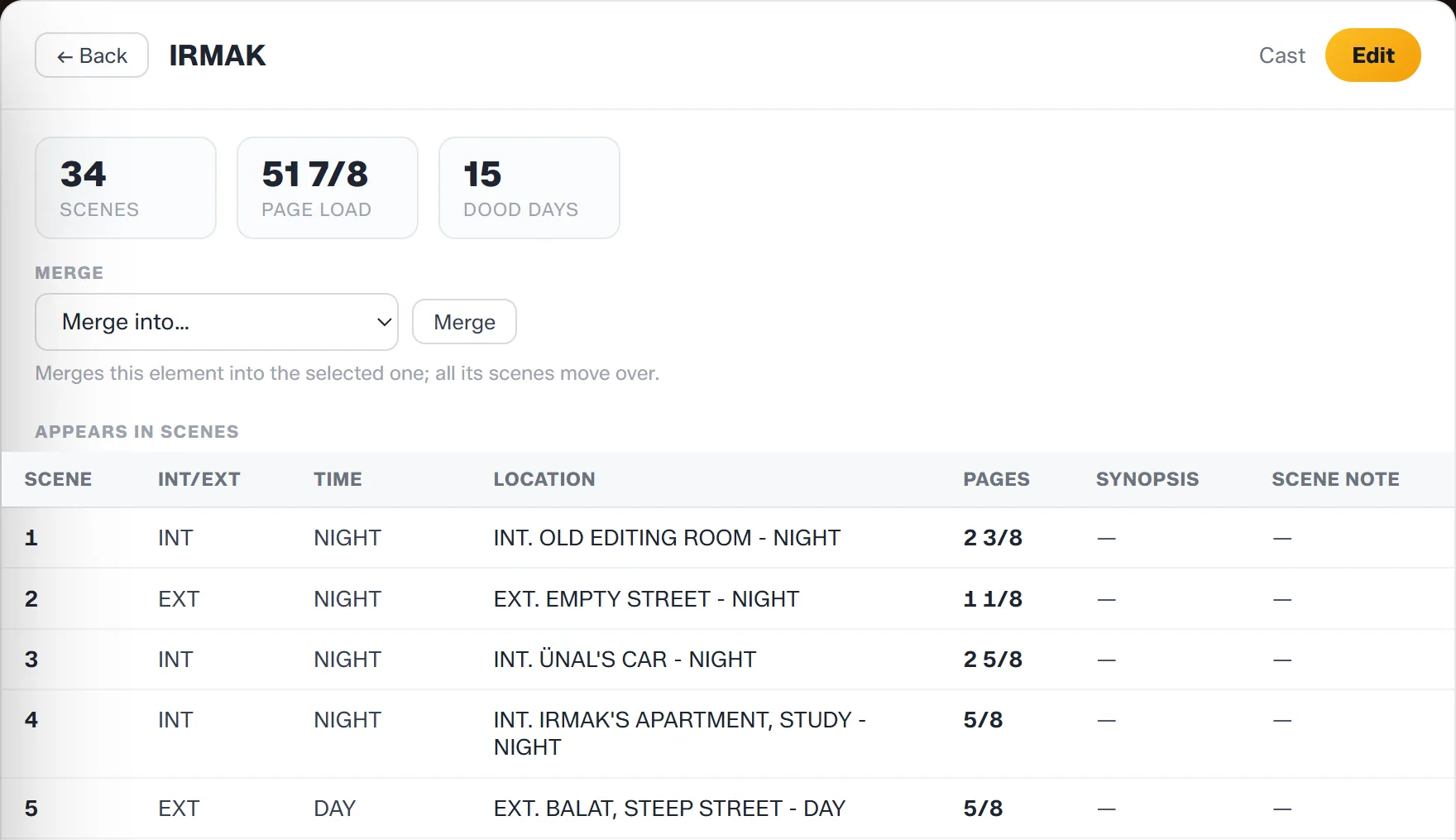
The tag’s own page opens:
- At the top: Back, the tag’s name and category, and the Edit button. Edit opens the window where you change the tag’s name, category, note, unavailable dates and images.
- Cards with the scene count and page load. The cast number and DOOD days only show when they exist.
- Note, Unavailable days and Reference images, if there are any.
- Appears in scenes: every scene the tag appears in, with scene number, INT/EXT, time of day, location, pages, synopsis and scene note.
Click Back to return to the list.
Merging tags
-
Click the row of the tag you want to get rid of.
-
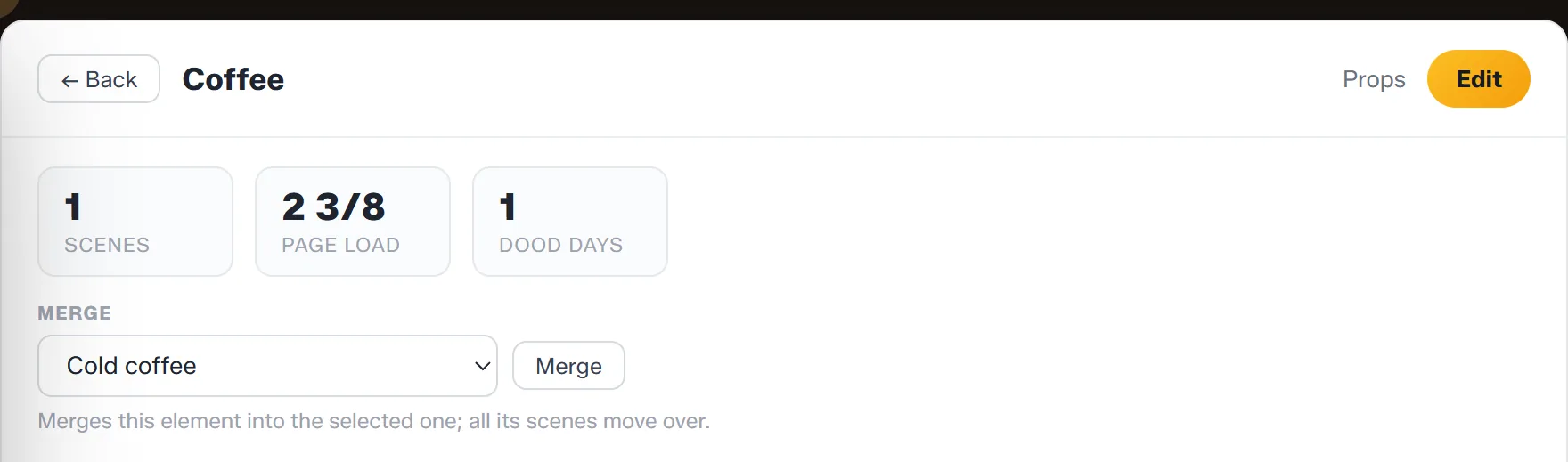
Under Merge, pick the tag to keep from the Merge into… list. The list only holds tags from the same category.
-
Click Merge. You’re asked to confirm, then to confirm once more. The tag you opened folds into the one you picked in every scene and disappears from the list. This can’t be undone.
To merge in a single scene only, use the Breakdown screen: How do I read the Breakdown screen?
Numbering the cast
- Select cast in the list on the left.
- Click Auto-Number Cast. Cast members without a number get one in the order they first appear. Existing numbers stay as they are.
What you download
- With All categories selected: every tag.
- With a category selected on the left: only that category.
- With a tag’s page open: only that tag.
The episode selection and the column order carry into the file. In Excel, each tag is a header row in its category colour, with the scenes it appears in listed below; when you export a single tag, its reference images go into the file too. In the PDF, each tag gets its own page, with its reference images on it. For the export itself: How do I export reports?
If it doesn’t work
- The DOOD days column is empty.
- This column comes from the shooting schedule. It fills once you create a plan in the Scheduling tab and place scenes on days. If you have more than one plan, the schedule the crew follows counts; if none is chosen, the newest one that isn’t archived.
- I can’t see the Auto-Number Cast button.
- It only appears while cast is selected in the list on the left.
- My file only has one tag in it.
- While a tag’s page is open, the export downloads only that tag. Go back to the list with Back, then export. If a category is selected on the left, only that category downloads.