
How do I export only some scenes?
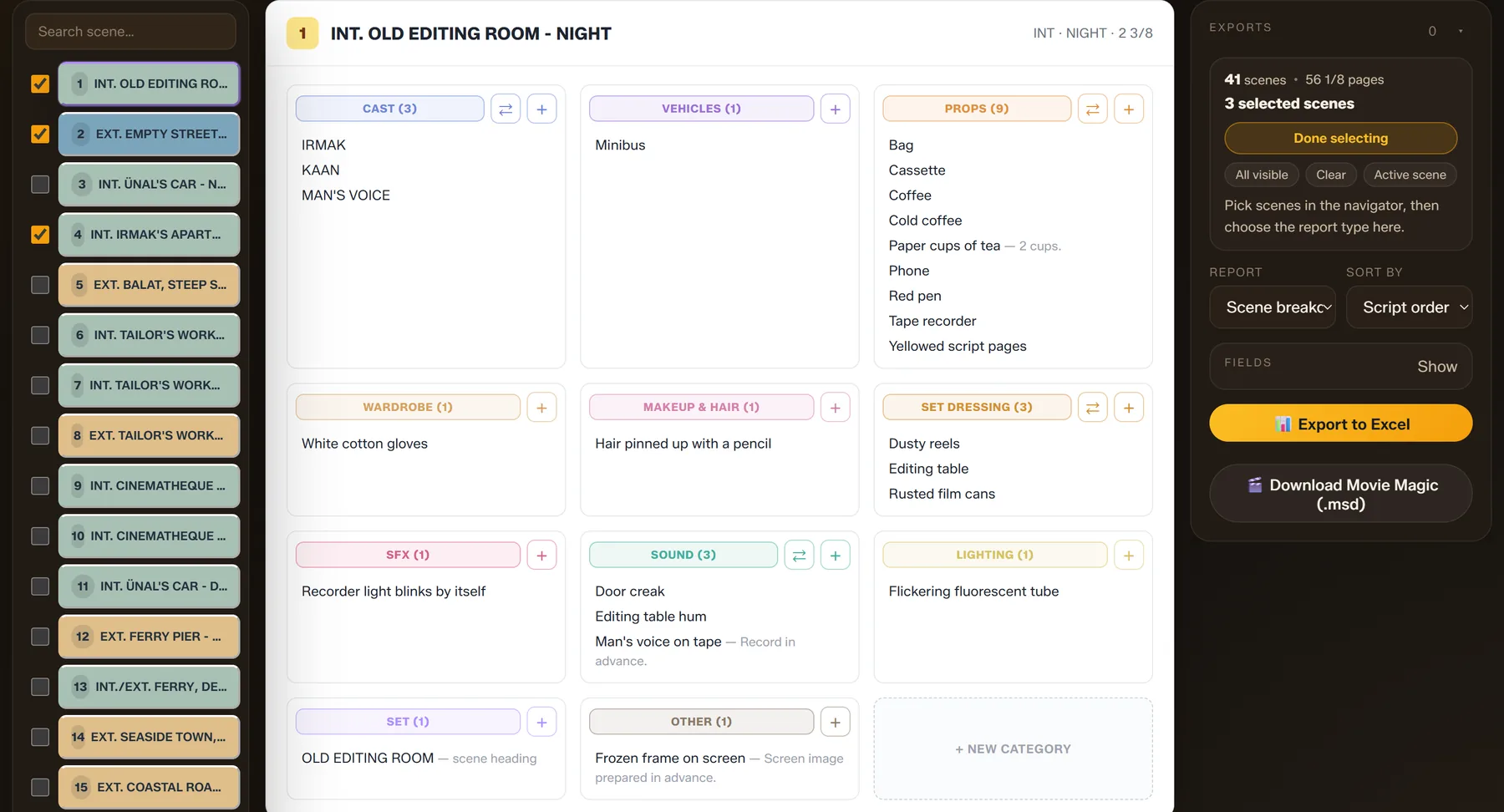
In the Exports box on the right of the Breakdown screen, click Select scenes for export, tick the scenes in the list on the left, click Done selecting and then Export to Excel or Download Movie Magic (.msd); if you select nothing, every scene is exported.
Steps
-
Hover over Script in the top menu and open Breakdown.
-
In the Exports box on the right, click Select scenes for export. Tick boxes appear next to the scenes in the list on the left.
-
Tick the scenes you want. The shortcuts are in the same box: All visible selects every scene in the list (it ignores the search box filter), Clear empties the selection, and Active scene selects only the scene open in the middle.
-
Click Done selecting. The box shows how many scenes you selected.
-
Choose the report from the Report list. The reports that work in this box are Scene breakdown, Cast by scene, Location report and the props, stunts, animals, sound, music, camera and lighting reports.
-
Choose the order under Sort by. By shooting program needs a shooting schedule first.
-
To change the columns, click Show on the Fields row. Remove a column with the × next to it, add one with the + buttons below, and drag to reorder. This browser keeps the order for the project’s later exports.
-
Click Export to Excel. The file downloads and the box shows how many selected scenes were included.
Exporting a single episode of a series
- Pick the episode under Episode in the screen’s top row. The list narrows to that episode’s scenes.
- Click Select scenes for export, then All visible.
- Click Done selecting, then Export to Excel.
The episode selection doesn’t carry into the box on its own: if you click Export to Excel without selecting scenes, every episode is exported. The Export to Excel and Export to PDF buttons at the top, on the other hand, follow the episode selection.
The Movie Magic file uses the same selection: How do I export to Movie Magic?
If it doesn’t work
- The file has every scene in it.
- Once you’re done selecting, the box should show how many scenes are selected; if it says All scenes, the selection is empty. The Export to Excel button at the top of the screen ignores the selection, so use Export to Excel in the box.
- The Export to Excel button is greyed out.
- It switches off when no columns are selected: on the Fields row, click Show and add columns. Pick one of the report types listed in this article. On a project shared with you, you also need export permission.
- My selected scenes are gone.
- When you change the episode selection, scenes that leave the list leave the selection too. The selection resets when you leave the screen.