
How do I read the Breakdown screen?
Open Breakdown under Script in the top menu: the scene list is on the left, the selected scene’s tags sit in category boxes in the middle, and the export box is on the right; click a scene in the list to open its breakdown.
What’s on the screen
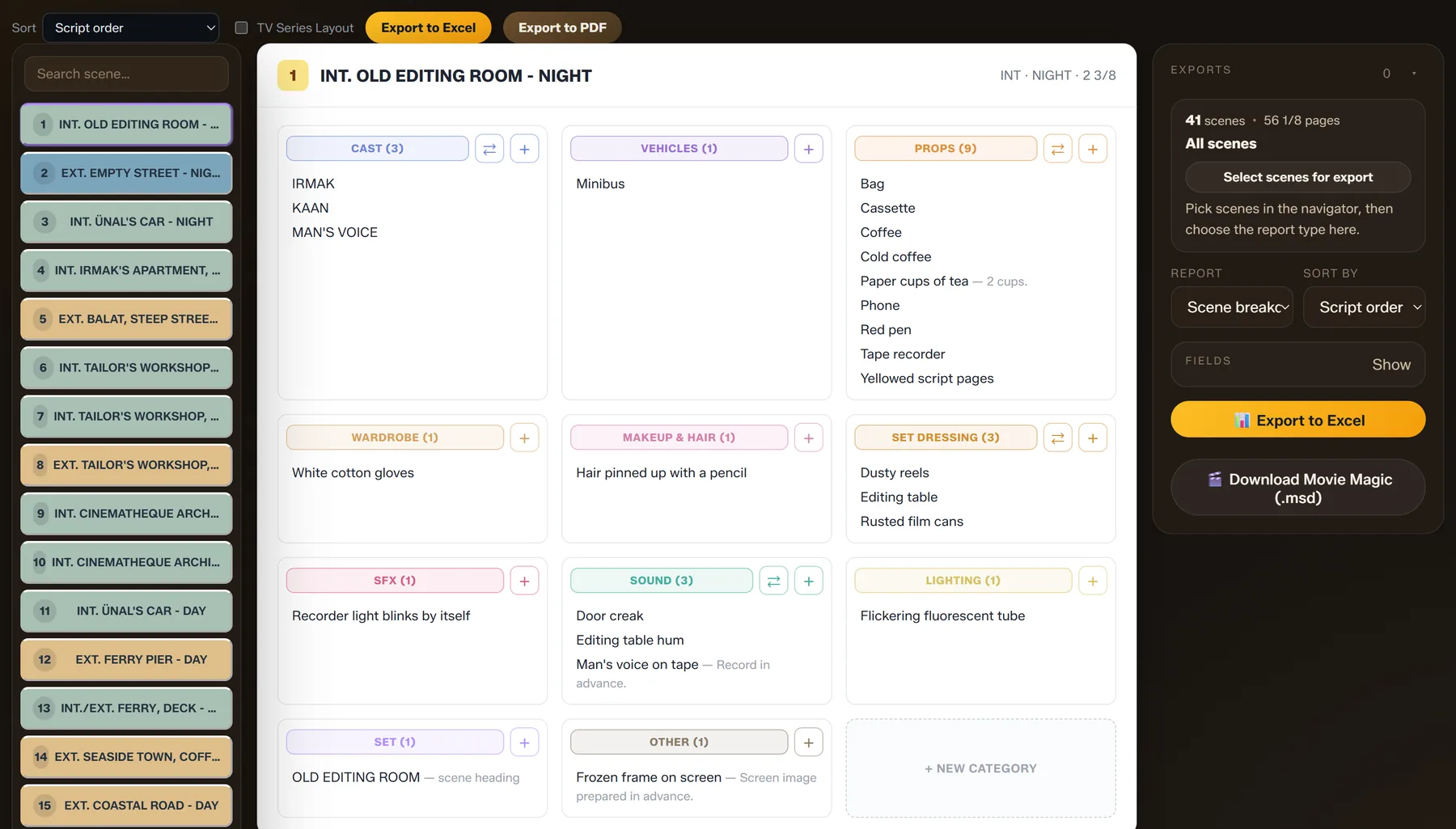
- Top row: In a series, the Episode picker, then Sort, TV Series Layout, Export to Excel and Export to PDF.
- Left: The scene list and the Search scene… box. Search by scene number or heading.
- Middle: The selected scene’s breakdown. At the top: scene number, heading, INT/EXT, time of day and page length, plus the synopsis if there is one. Below that, one box per category, with the number of tags in the box name. A scene note you added to a tag shows next to its name. Categories with no tags don’t get a box.
- Right: The Exports box. Details: How do I export only some scenes?
Steps
-
Hover over Script in the top menu and open Breakdown. The first scene in the list opens by default.
-
Click a scene in the list on the left and its breakdown opens in the middle. The script text doesn’t open on this screen. To get back to the text, click the Script tab.
-
Change the order under Sort: Script order, By location or By schedule (shoot day). If you sort by schedule, also pick the plan under Schedule. The list and the file you download follow the same order.
-
In a series, pick one or more episodes under Episode. All shows every episode.
-
To add a missing tag, click the box’s + button, type the name and click Add element. For a category the scene has no box for yet, use New category.
-
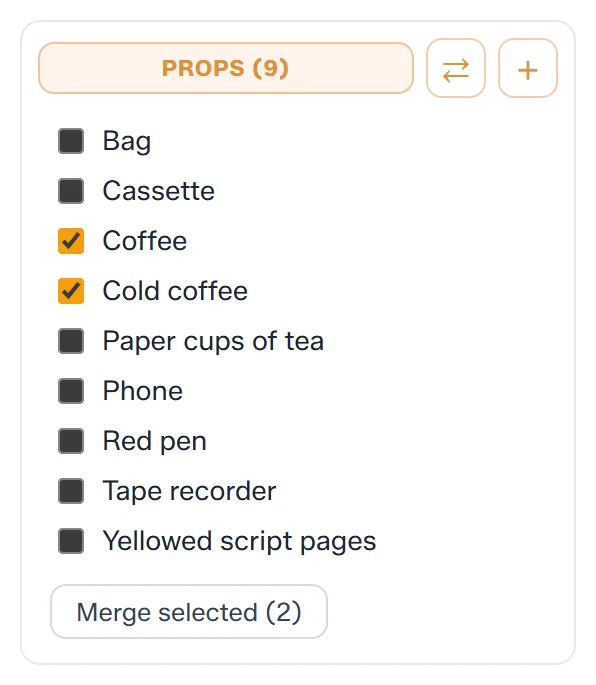
If the same thing was tagged under different names, click the box’s ⇄ button, tick the tags and click Merge selected. The first tag you tick stays and the others fold into it. This merge only happens in this scene; other scenes don’t change.
What’s in the file
Export to Excel and Export to PDF download what you see: the same episode selection, the same order. The file opens with a cover showing the project name and dekupa.com.
- Excel: After the cover, the Breakdown sheet has one row per scene: scene, INT/EXT, set, time, pages, synopsis, then one column for every category except set. Set tags go into the set column. The Tags sheet has one row per tag: the scenes it appears in, total scenes and pages, notes, the number of reference images and the cast ID. With TV Series Layout ticked, the Excel file gets one more sheet: departments become columns, and INT/EXT and day/night merge into a single time column.
- PDF: Each scene is one block and never splits across a page break. The synopsis and the scene’s note are in the block too.
If you sorted by schedule, each shooting day starts with a row showing the day number and date. For the export itself: How do I export reports?
If it doesn’t work
- There are no boxes in the middle.
- This scene has no tags yet. Add them here with New category, or tag the text on the Script screen.
- Some scenes end up at the bottom when I sort by schedule.
- Scenes that aren’t placed on a shooting day in the plan drop to the end of the list. Move them onto a day on the Stripboard screen.
- The + or ⇄ button doesn’t respond.
- ⇄ only appears when a box holds more than one tag. On a project shared with you, adding and merging tags depends on the permissions the owner gives you; without them the button stays greyed out.