
How do I create a shooting schedule?
Click the Scheduling tab in the top menu and press Create Shooting Schedule; every scene in the script lands as a strip in the Boneyard, in script order.
Steps
-
Click the Scheduling tab in the top menu. The Stripboard opens.
-
If the project has no schedule yet, the middle of the screen says
No shooting schedule yet for this project
. Click Create Shooting Schedule below it.
-
The schedule opens. Every scene in the script becomes a strip under the Boneyard heading, in script order. The title page isn’t scheduled. In a series project, all episodes’ scenes go onto the same schedule, one episode after another.
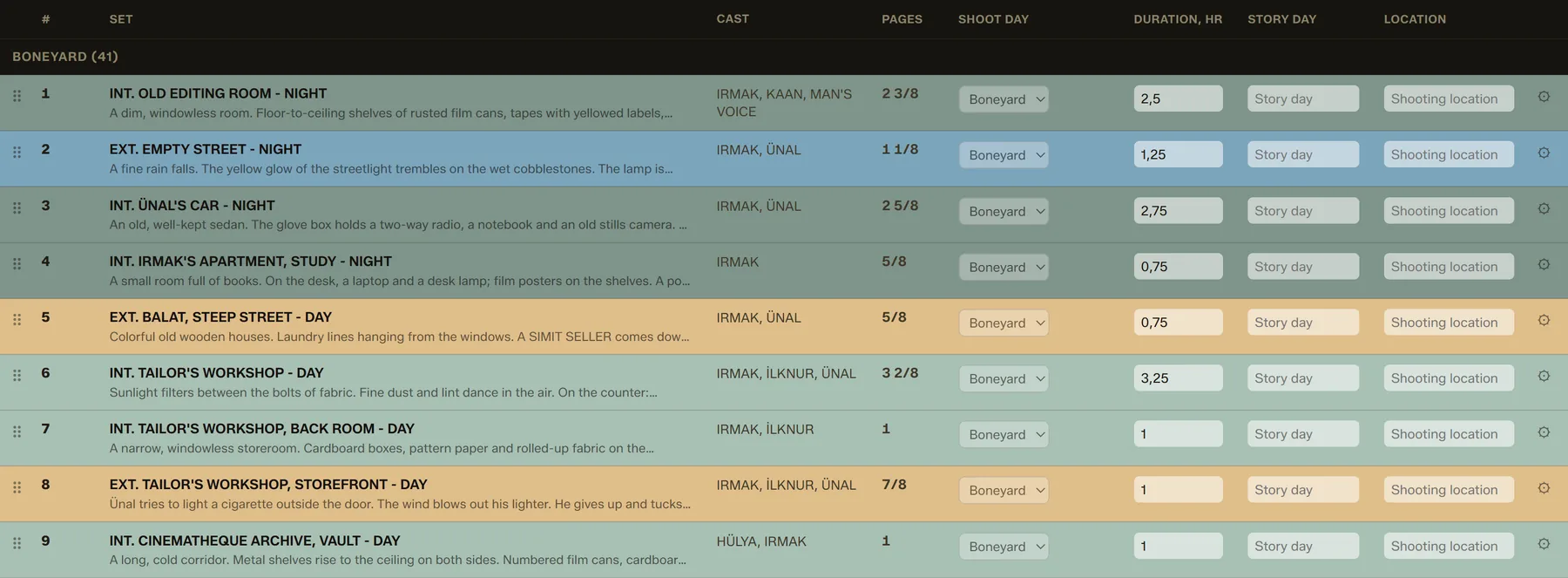
-
To rename the schedule, click its name (✎) under the project name, type the new name and press Enter.
To spread the scenes across shooting days: How do I spread scenes across shooting days?
More than one schedule
You can try different orders for the same project as separate schedules. The buttons are in the toolbar above the board:
- + New Schedule: opens a new schedule. Its scenes again line up in the Boneyard in script order.
- ⧉ Duplicate: copies the open schedule. Days, strip positions and banners carry over; call sheets don’t.
- Delete Schedule: deletes the open schedule after asking you to confirm.
Once a project has more than one schedule, a schedule list appears at the start of the toolbar. Switch between them there. In the list, the schedule the crew follows is marked Active.
The schedule the crew follows
The band just above the board tells you which schedule the crew follows. The Stripboard, Calendar, Day Out of Days, Sides and Call Sheets screens open this schedule first for everyone.
-
Open the schedule you want the crew to follow.
-
If the band says
No active schedule chosen
or names another schedule, click Make active on the right.
-
Confirm with Yes, make active. The band now reads
Active · the crew follows this
.
The project owner sees this button. For a crew member to see it, the owner has to turn on Changing the Active Schedule separately. Permission on Schedule doesn’t include it.
If it doesn’t work
- There’s no Create Shooting Schedule button.
- If the project is shared with you, you may only have permission to view the schedule. Ask the project owner for Edit on the Schedule row.
- The scheduling screens don’t open the schedule I expect.
- Scheduling screens open the crew’s active schedule first, or the newest one if none is active. Picking another schedule from the list only holds in that browser tab. To change it for everyone, open the schedule and click Make active.
- Can I get a deleted schedule back?
- No. Delete Schedule is permanent, and the schedule’s days and their call sheets go with it. Before a big change, make a copy with ⧉ Duplicate.