
How do I run my first breakdown?
Once your script is uploaded, start the AI breakdown with Start AI Breakdown in the left panel, or select a phrase in the text and tag it by hand; you can use both in the same project.
With AI
-
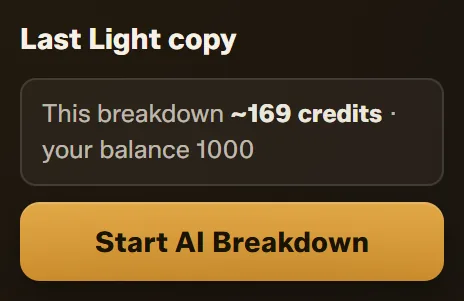
Look at the card in the left panel. It shows the cost of this breakdown and your balance.
-
Click Start AI Breakdown.
-
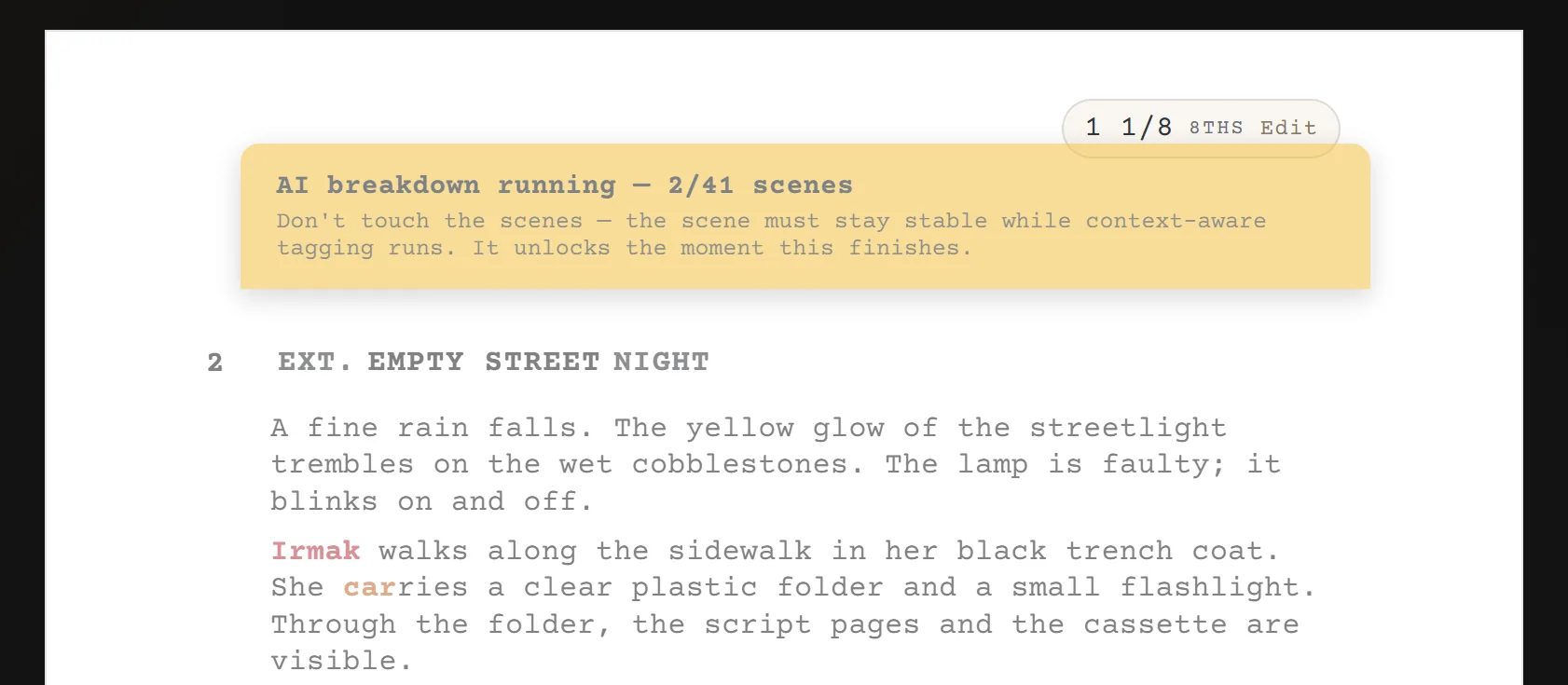
The script locks while the breakdown runs, and you see AI breakdown running with a scene counter. The breakdown keeps running on the server even if you close the page.
-
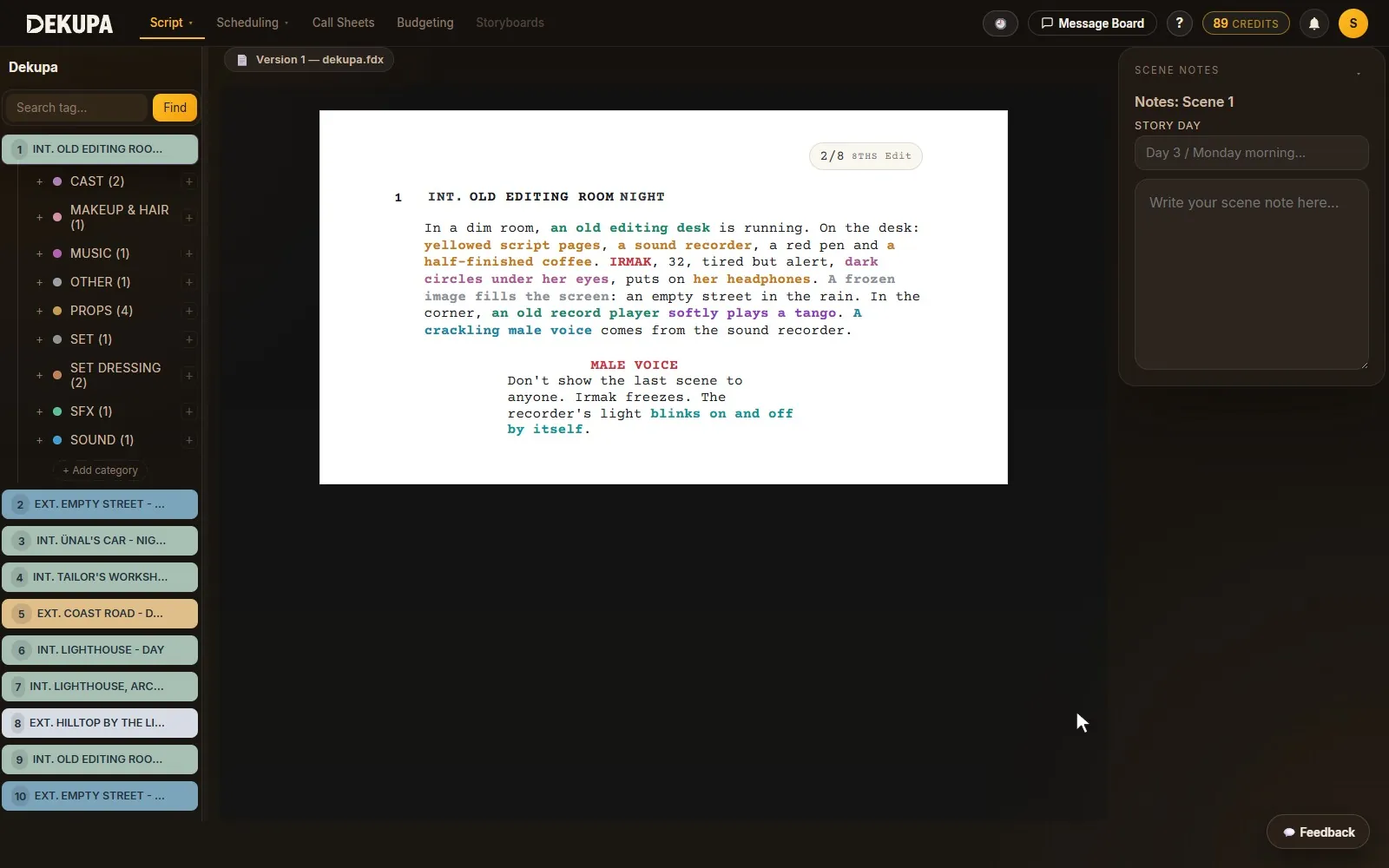
When it finishes the lock lifts. Click a scene in the left panel: its tags open below it by category, and they show in colour in the text.
If you created the project with AI Breakdown, you won’t see the first two steps: the breakdown starts by itself once the scenes are ready.
By hand
-
Click a scene in the left panel to open its text in the middle.
-
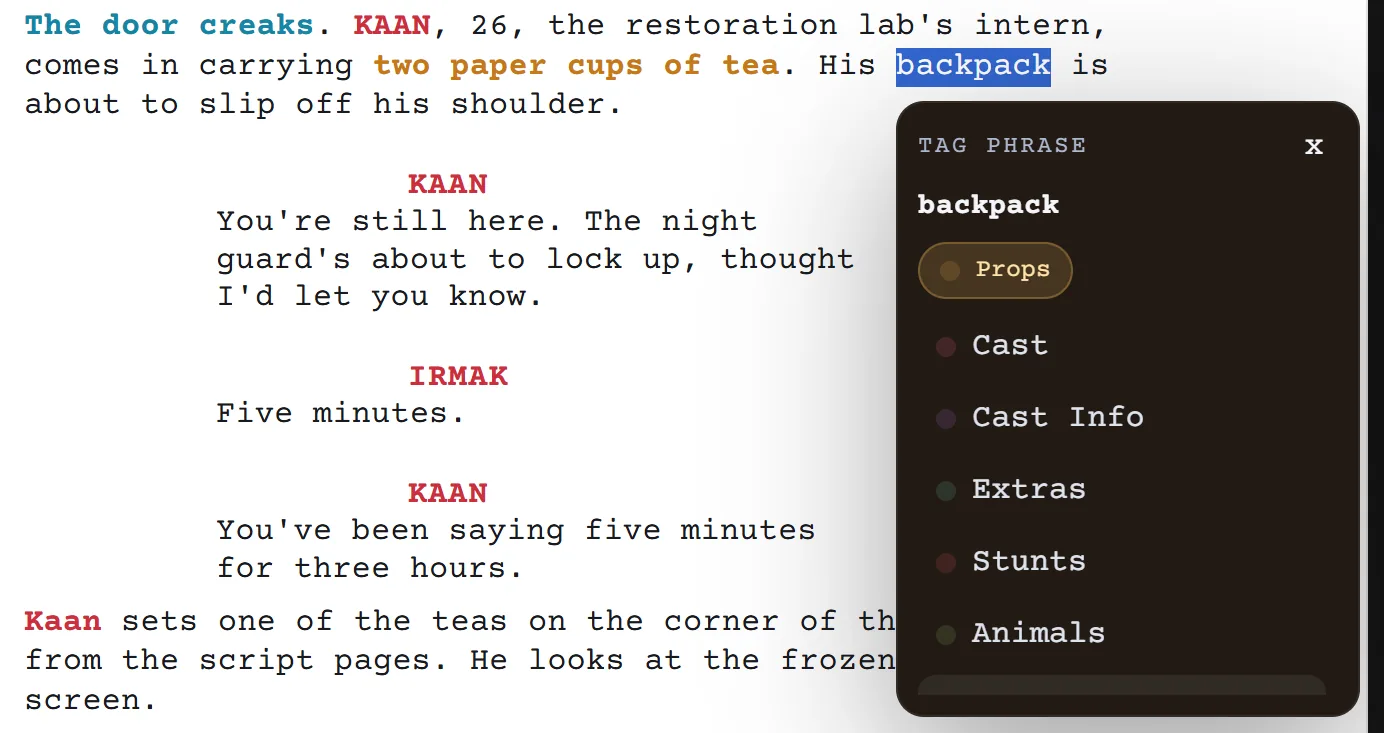
Select the word or phrase you want to tag with your mouse. The Tag phrase menu opens.
-
Pick one of the 21 categories. The tag attaches to exactly the text you selected. If a word appears twice in a scene, you can tag each one separately.
-
To fix a tag, click it in the text. In the Edit tag menu you can change its category or delete it. The same goes for tags the AI added.
To see the result, open Breakdown under Script in the top menu. To get a file out: How do I export reports?
If it doesn’t work
- I can’t see the Start AI Breakdown button.
- The button disappears once a breakdown has finished or while one is running. On a project shared with you, only members allowed to spend credits see it.
- It says AI breakdown partially completed.
- The tags generated up to that point were saved. The reason for the stop is on the same card. Once that’s sorted, use Retry for the remaining scenes to process the rest.
- The breakdown didn’t start and I got an error.
- The AI service may be busy. Wait a few minutes and click the button again. If it keeps happening, write to hello@dekupa.com.