
How do I upload a script?
On the My projects screen, click + New project, drop in your .fdx or .pdf file and finish with Create; each file can be up to 30 MB.
Steps
-
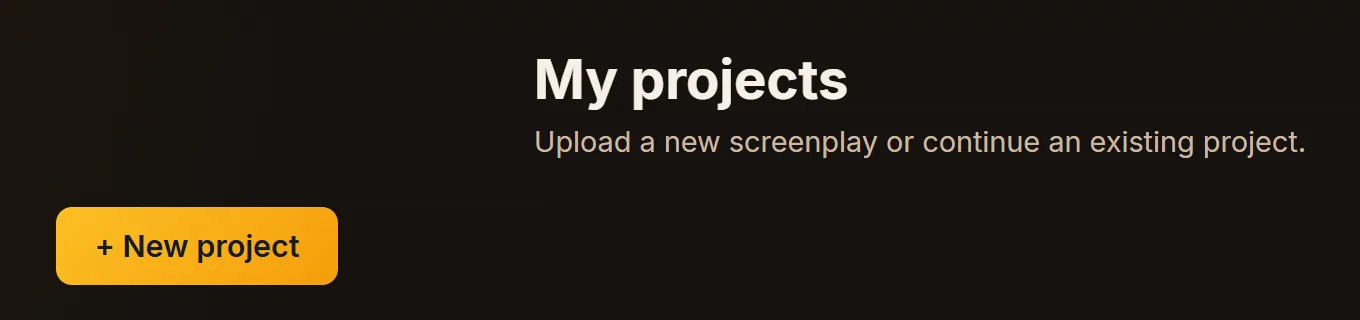
On the My projects screen, click + New project.
-
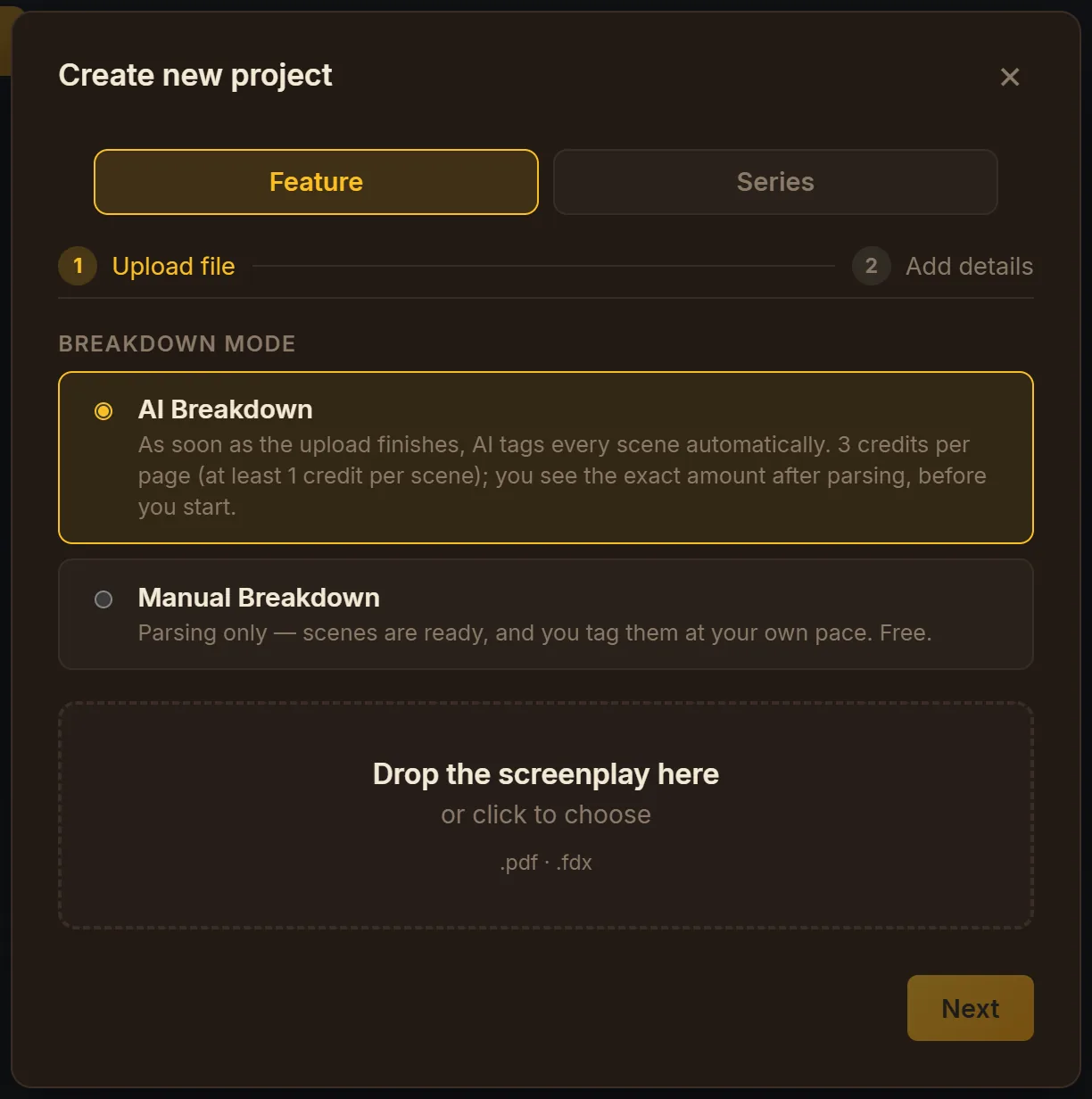
Pick one option under Breakdown mode. AI Breakdown is selected by default: the breakdown starts by itself once the scenes are ready, and it spends credits. Manual Breakdown spends no credits and leaves the breakdown to you.
-
Drag your file onto Drop the screenplay here, or click the area and choose it.
-
Click Next.
-
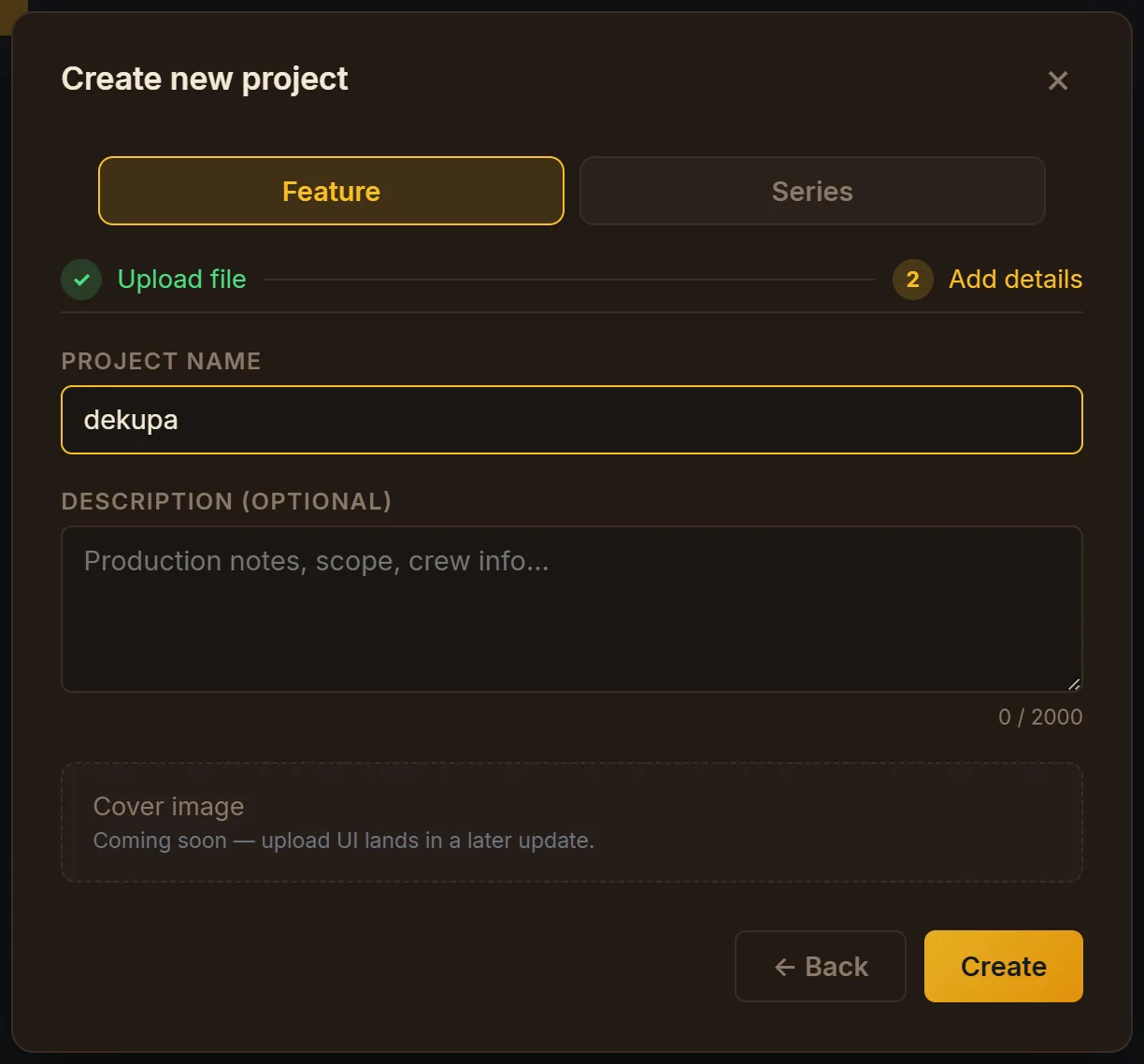
Project name comes from the file name, change it if you like. You don’t pick the script language; Dekupa works it out while reading: How is the script language decided?.
-
Click Create.
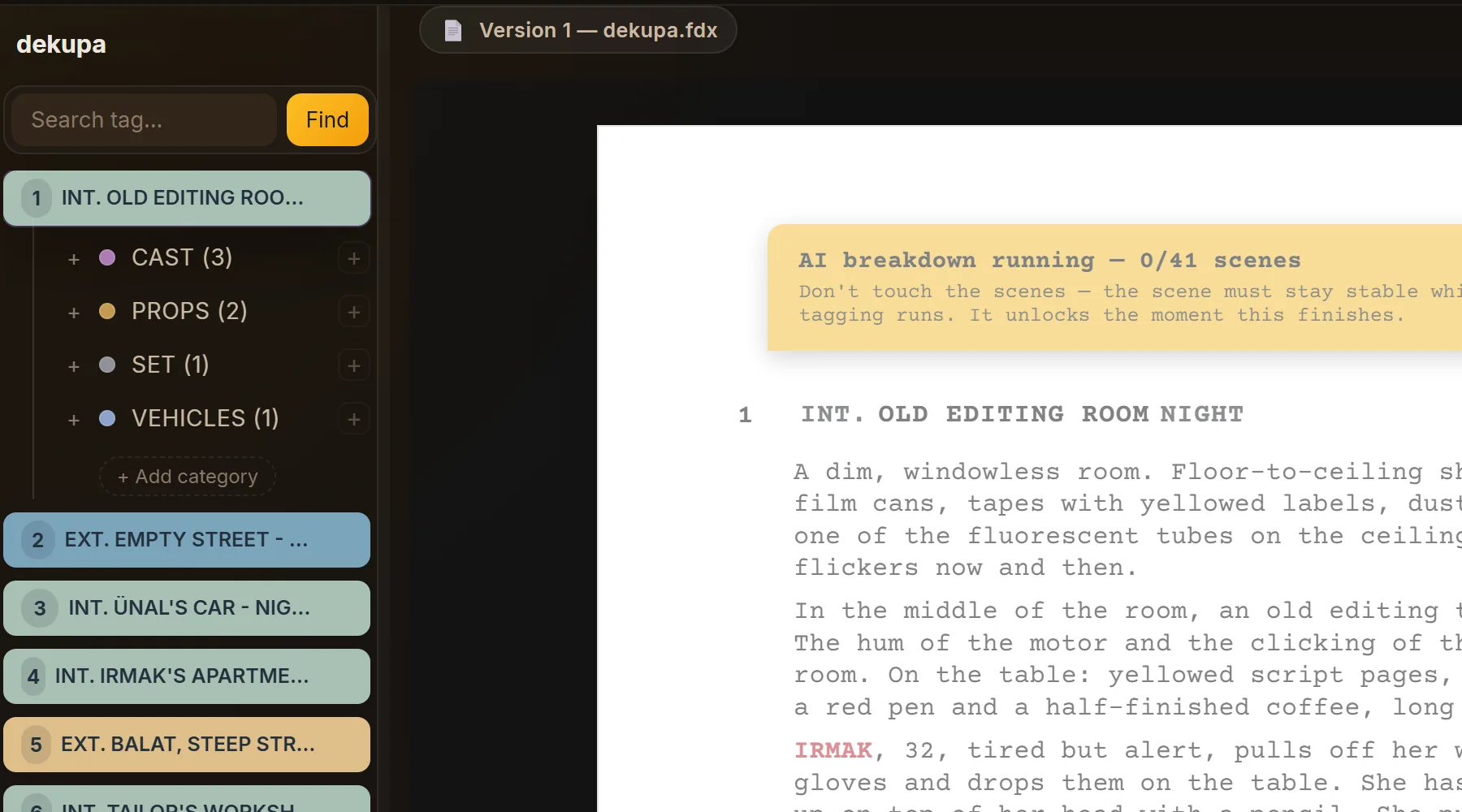
The project opens and the script starts being read. You see a percentage and the elapsed time, and scenes appear in the left panel. Reading continues even if you close the page.
If it doesn’t work
- The file won’t upload and I get an error.
- Check its size first: the limit is 30 MB. Embedded fonts and images make a PDF bigger. Export the script again from your writing software, or upload an FDX.
- I can’t choose my Word file.
- .doc and .docx aren’t accepted for new uploads. Export the script from your writing software as PDF or FDX and upload that.
- It says "Could not upload the file (415)."
- Renaming a file to .pdf isn’t enough, the file itself has to be a PDF or FDX. Export the script again from your writing software.