
How do I set a crew member's permissions?
In Crew Access, click Edit on the member’s row, choose None, View, Edit or Full for each area, and click Save.
Steps
-
With the project open, open Crew Access from the round account button at the top right.
-
Click Edit on the member’s row. The permission table opens below the row.
-
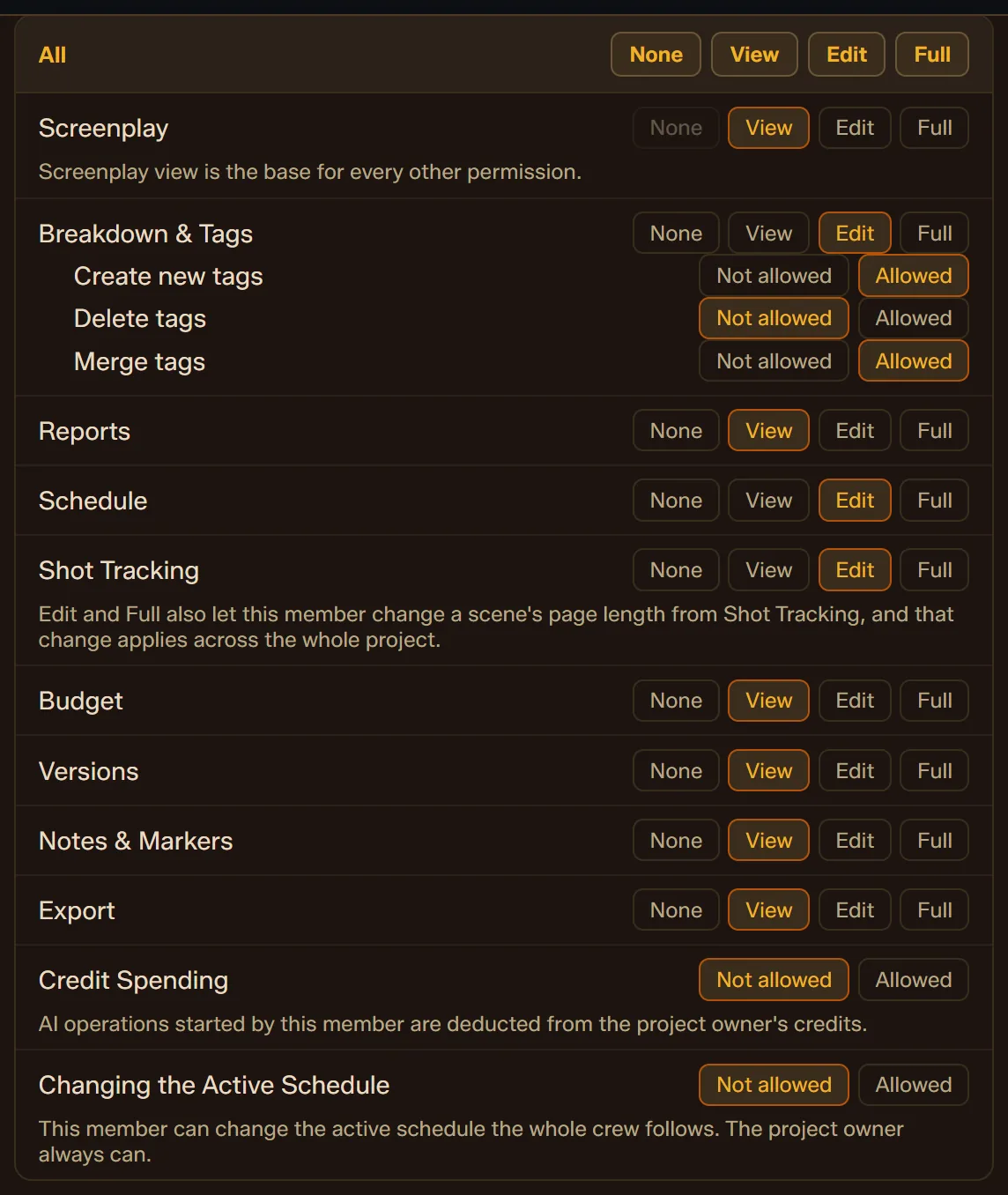
Choose a level for each area. To set them all to the same level, use the All row at the top of the table.
-
Click Save. The labels on the member’s row show the new permissions.
Levels
- None: The area is closed to the member; its tab or menu item doesn’t show.
- View: The member can read but not change anything.
- Edit: The member can make changes.
- Full: For now this gives the same access as Edit.
Areas
| Area | What it opens |
|---|---|
| Screenplay | The script text and scene list. With Edit, the member can correct scene details and the script text. Every member has at least View: while any other area is on, None can’t be chosen. |
| Breakdown & Tags | Seeing tags, and the Breakdown item under Script. With Edit, the Create new tags, Delete tags and Merge tags rows open below it, and you can turn each one off separately. |
| Reports | The data on the Breakdown and Reports screens. A member who will use the Breakdown screen needs at least View here too. With Edit, they can export from these screens. |
| Schedule | The Scheduling tab (Stripboard, Calendar and Day Out of Days) and the Call Sheets tab. With Edit, the member can edit the schedule and the call sheets. |
| Shot Tracking | The Sides screen and the day’s script. Edit and Full also let this member change a scene's page length from Shot Tracking, and that change applies across the whole project. |
| Budget | The Budgeting tab. With View, the member reads the budget and doesn’t see the editing buttons. |
| Versions | The Versions screen and version changes. With Edit, the member can apply or dismiss changes. |
| Notes & Markers | Doesn’t open or close any screen at the moment. |
| Export | The Exports box on the Breakdown screen (Edit), and downloading the files created in the project (View). A member only sees files from areas they can see; a budget file, for example, also needs Budget. |
| Credit Spending | Allowed or Not allowed. Starting AI breakdowns and synopses: Can crew members spend credits? |
| Changing the Active Schedule | Allowed or Not allowed. This member can change the active schedule the whole crew follows. The project owner always can. |
When you give access to any other area, Screenplay moves up to View by itself. The All row doesn’t touch Credit Spending or Changing the Active Schedule; you turn those on one by one.
What stays with the owner
Whatever permissions you give, only you can manage the crew, upload a new version of the script and have it read again, and rename, archive or delete the project. The message board needs no permission; it’s open to every active member.
If it doesn’t work
- A member can’t see a tab.
- That area is set to None for them. Give access and save; the member should reload the page for the tab to appear.
- A member sees "Could not load the report." on the Breakdown screen.
- The Breakdown screen’s data comes through the Reports permission. Give the member at least View on Reports.
- A member can’t download a file, and an error opens in a new tab.
- Downloading a file needs at least View on Export. A member only sees a file if they also have at least View on the area it comes from: Budget for budget files, Schedule for schedule and call sheet files, Reports for report files. Creating the file also needs Edit on that area.