
How do I add crew members?
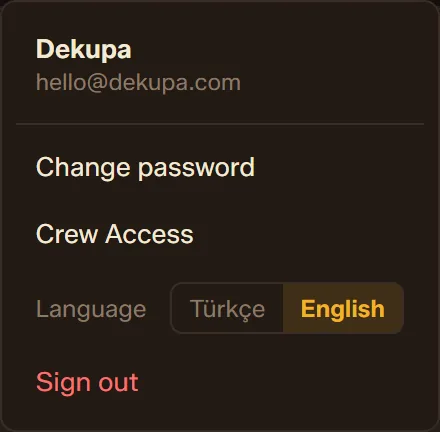
With the project open, open Crew Access from the round account button at the top right, click + Invite, type the email address, choose the permissions and click Send Invite.
Steps
-
Open the project. Click the round account button at the top right (it shows the first letter of your email) and open Crew Access from the menu.
-
Click + Invite.
-
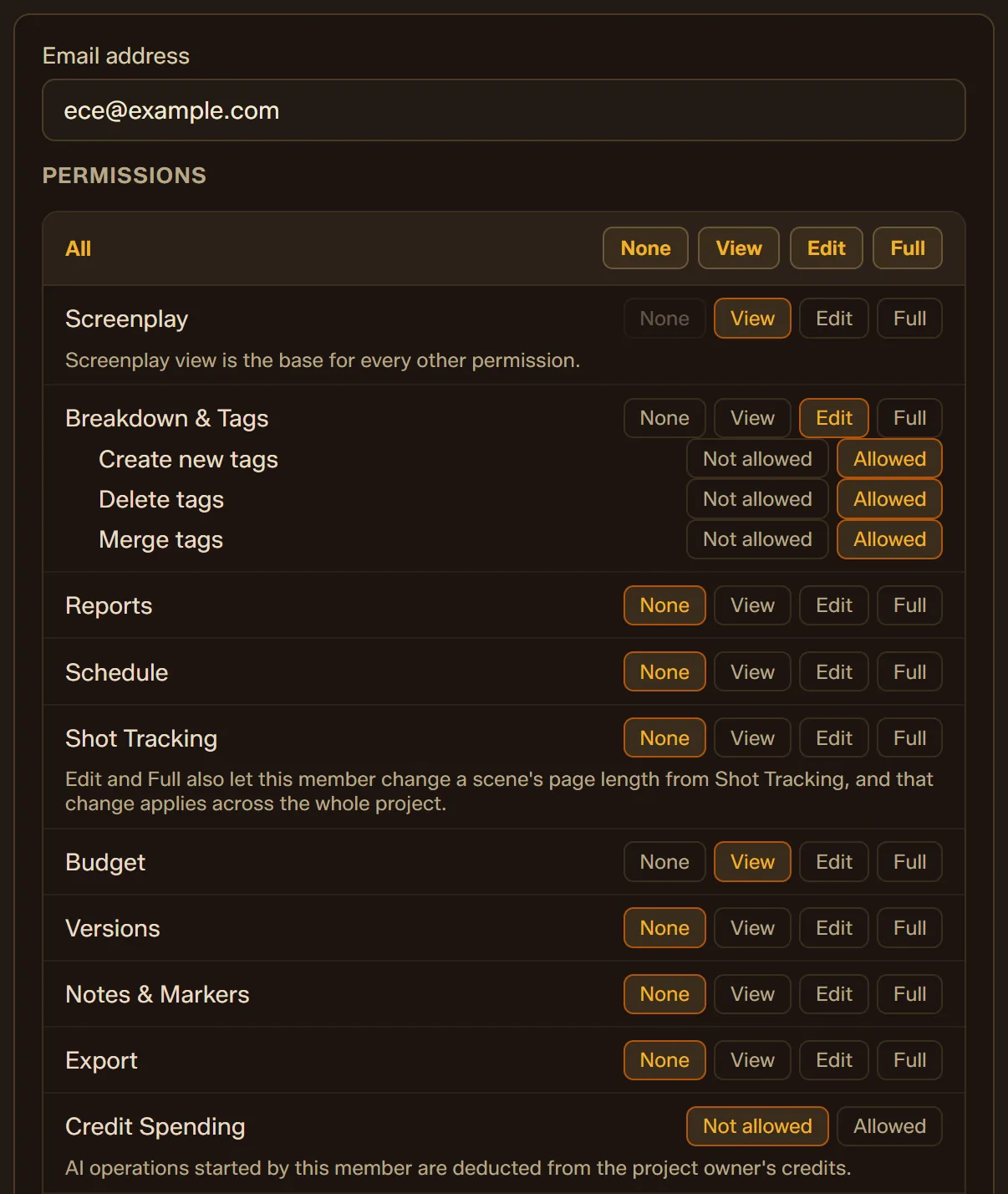
Type the member’s address in Email address.
-
In the Permissions table, choose a level for each area. By default only Screenplay is set, to View. What each level opens: How do I set a crew member's permissions?
-
Click Send Invite. The window says
Invite sent.
, and the member appears in the list marked Invite pending.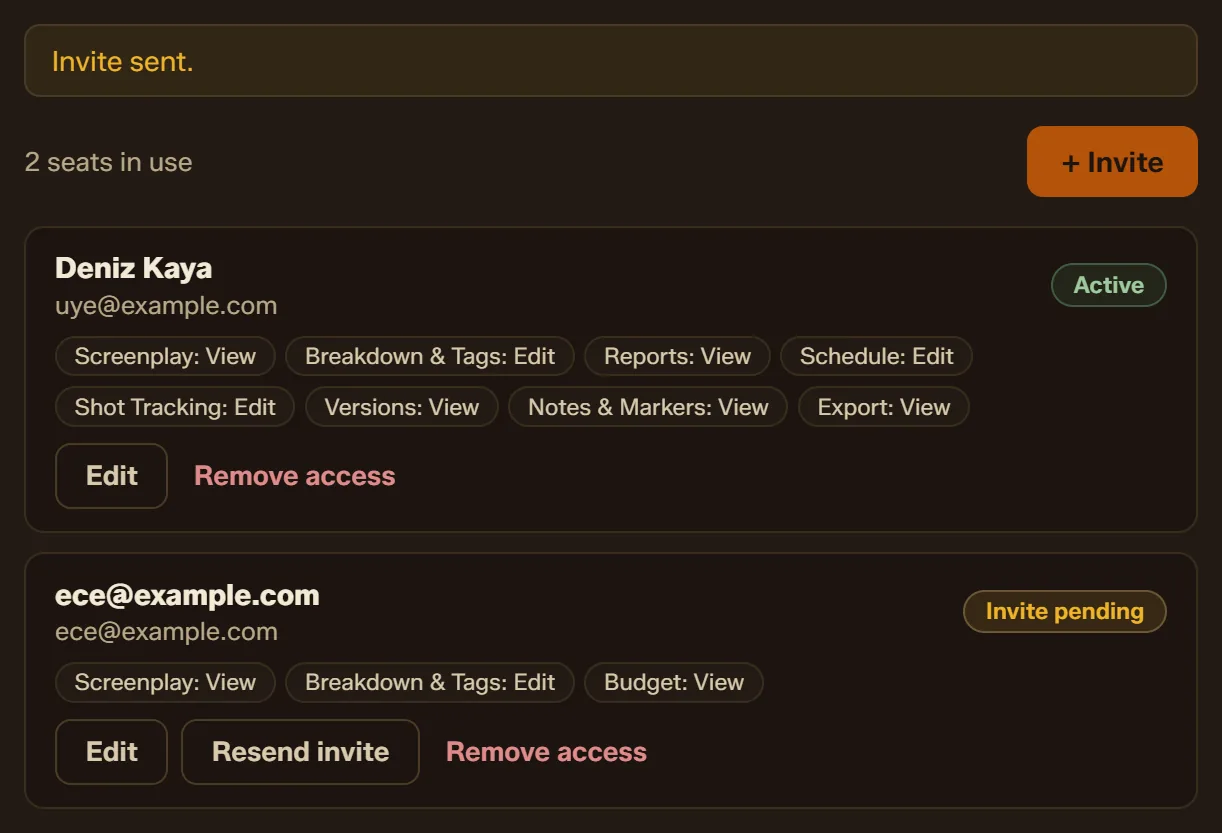
What the invitee does
- They open the link in the email. The Project Invite page shows who invited them to which project.
- If they’re not signed in, they click Sign in or Create account. The account has to use the address the invite went to. If they’ve just created an account, they verify their email first.
- They click Accept Invite. The project opens.
If the invitee already has an account, a You have a pending crew invite strip also appears at the top of the My projects screen. They can reply from there with Accept Invite or Decline.
Once accepted, the project shows in the shared-with-me section of the member’s My projects screen. The card says read-only, but what the member can do is set by the permissions you gave them. In your list, the member is now marked Active.
Managing invites and members
- Resending. Resend invite on a pending invite’s row sends a new link. The old link stops working straight away, and the validity period starts again.
- Removing. Click Remove access on the row and confirm. The member can no longer open the project, and a pending invite’s link stops working. The seat is freed.
- If the member leaves. A member can remove their own access with Remove on the project card on their My projects screen. The project isn’t deleted.
If it doesn’t work
- Sending the invite says "There is already an active invite or membership for this email."
- An invite has already gone to this address, or the person is already a member. The record stays even after an invite expires. Click Resend invite on that person’s row and a new link goes out.
- The invitee sees "This invite link is invalid or has expired."
- The link may have expired, or a newer invite may have been sent. An invite link is valid for 14 days, and resending it stops the old link working. Click Resend invite and have the invitee open the link in the most recent email.
- A plan or seat notice comes up when I send an invite.
- Pending invites count as seats too. Removing an invite that wasn’t accepted, or a membership you no longer need, with Remove access frees up the seat. If your plan doesn’t include crew members, invites can’t be sent: [pricing page](/en/pricing/).