
Can crew members spend credits?
Only if you set Credit Spending to Allowed; AI breakdowns and synopses a member starts come out of your credits by default, and the member can choose My balance to pay from their own.
Steps
-
With the project open, open Crew Access from the round account button at the top right.
-
Click Edit on the member’s row. You fill in the same table when you send an invite.
-
On the Credit Spending row at the bottom of the table, choose Allowed. The All row at the top of the table doesn’t turn this on.

-
Click Save. The label for this permission appears on the member’s row.
To turn it off, choose Not allowed on the same row and save.
The member chooses who pays
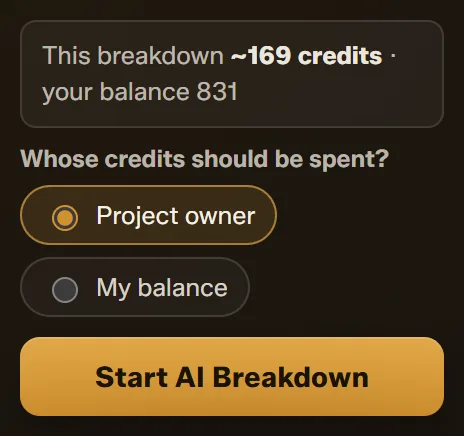
A member with this permission sees Whose credits should be spent? on the AI breakdown card in the left panel, above the Start AI Breakdown button:
- Project owner: Credits come out of the project owner’s balance. This is the default.
- My balance: Credits come out of the member’s own account.
The card shows the balance of whoever pays.
The same question comes up when generating synopses in the scene edit window. The member’s choice is remembered for this project in the browser they use. It also applies when generating a synopsis from the scene panel on the Stripboard screen. The cost is the same whoever pays.
Good to know
- For a member, the AI breakdown never starts by itself. Even in a project created with AI Breakdown, the member clicks the button on the card.
- A member with Credit Spending can start an AI breakdown even without access to Breakdown & Tags. The tags the AI adds go into the project.
- To generate synopses, the member also needs Edit on Screenplay, because the scene edit window depends on it: How do I generate scene synopses with AI?
- A member without the permission never sees the AI breakdown card. The synopsis buttons stay greyed out, and hovering over them shows
You do not have permission for this action.
If it doesn’t work
- My member can’t see the AI breakdown card, and the synopsis buttons are greyed out.
- Credit Spending is turned off. In Crew Access, click Edit on the member’s row, choose Allowed and click Save. The member should reload the page.
- Where do I see the credits my members spent?
- Click the credit badge in the top bar and then Transactions. Every task charged to you is listed with the project name. The row doesn’t say which member started it.