
How do I start writing in Write?
Sign in at write.dekupa.com with your Dekupa account, click “+ New Project” on the “My Projects” screen, pick Film or Series and click “Create”; your writing is saved to your account as you go.
Steps
-
Open write.dekupa.com in your browser. In Dekupa, the Write a Script link in the top bar takes you there too.
-
If the sign-in screen appears, enter your Dekupa email and password and click “Sign in”.
-
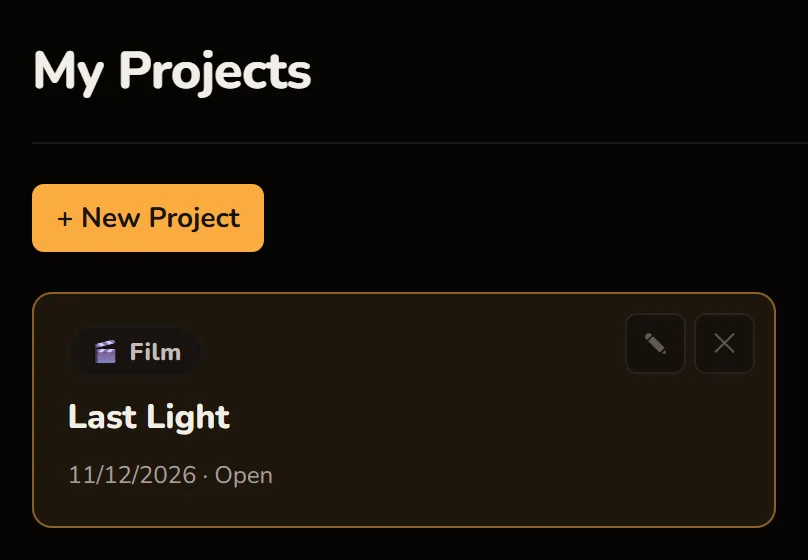
On the “My Projects” screen, click “+ New Project”. If the draft you last had open comes up instead, click “My Projects” on the top bar first.
-
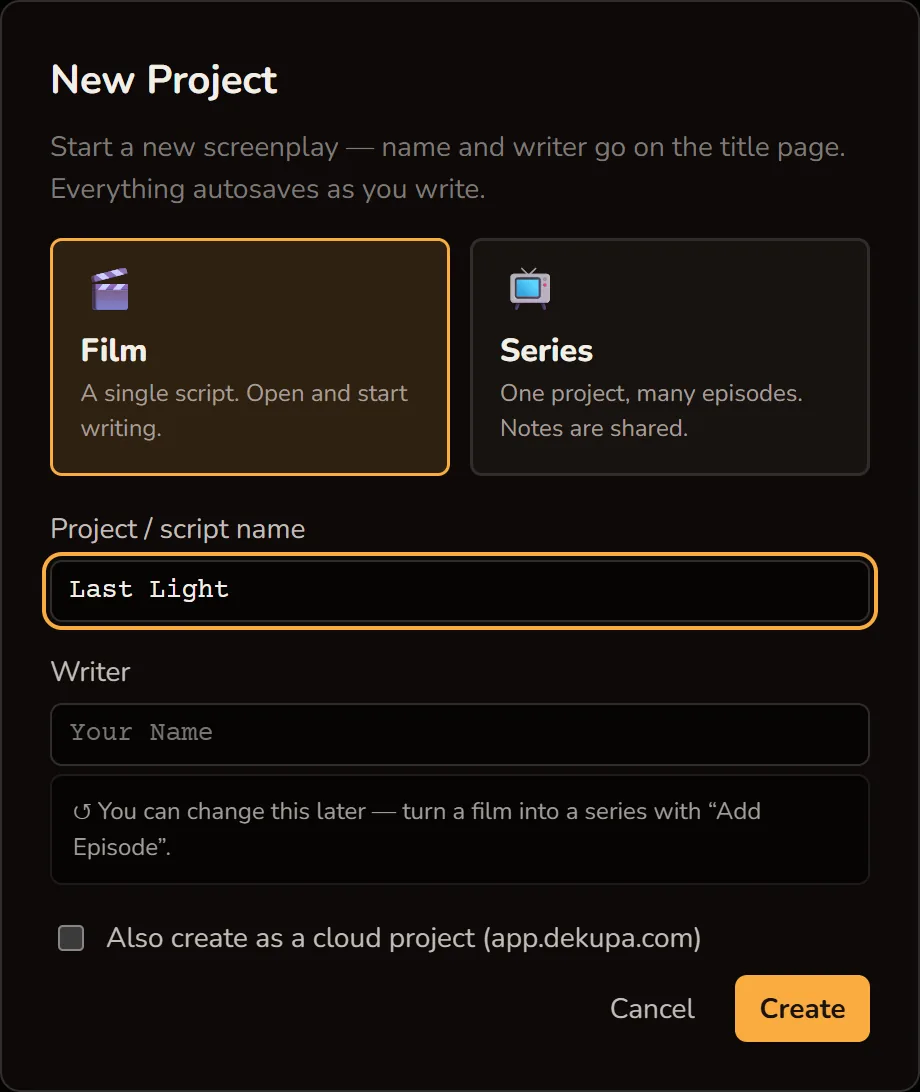
In the window that opens, pick “Film” or “Series”. Type the name and the writer; both go on the title page. For a series you can also name the first episode.
-
Click “Create”. A film opens straight on the writing page. A series opens its episode list; click “Open” or “Continue” on an episode’s row to start writing.
The “Also create as a cloud project (app.dekupa.com)” box at the bottom of the New Project window also creates a breakdown project for this script in Dekupa. Leave it unticked if you’re only writing. When the script is ready, you send it to Dekupa: How do I send a script from Write to a Dekupa project?
While you write
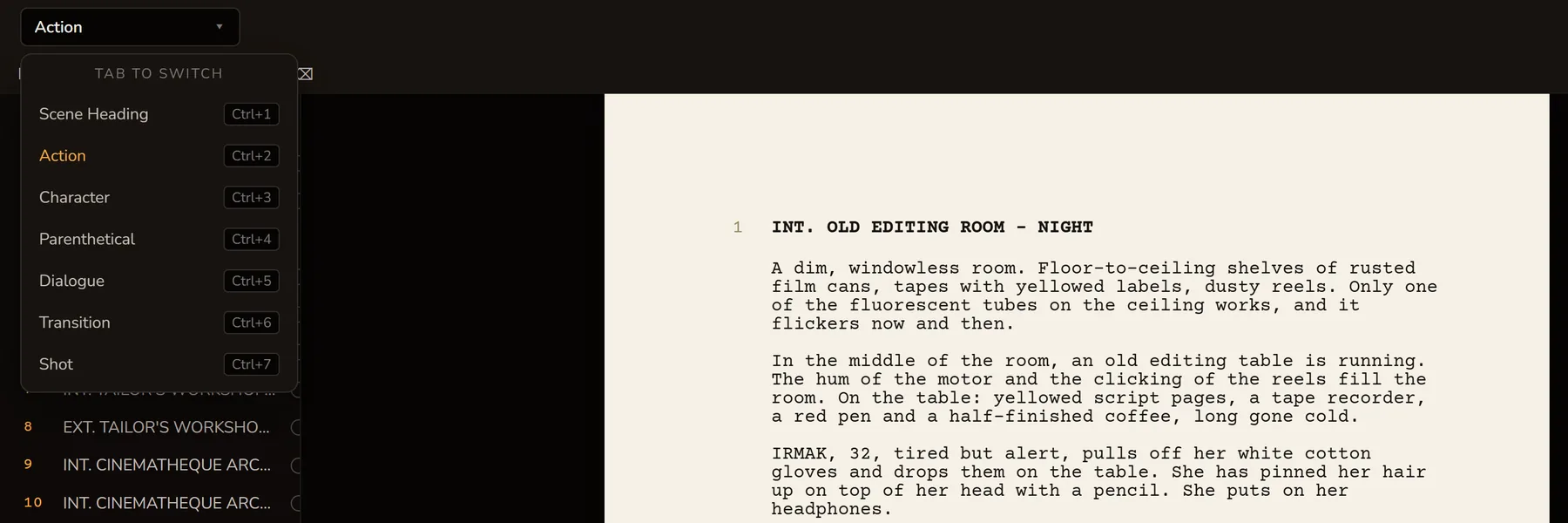
- Every line has an element type: scene heading, action, character, parenthetical, dialogue, transition or shot. The type of the line you’re on shows at the left of the thin bar above the page. Click it to pick a type; each type’s keyboard shortcut is listed in that menu.
- Enter starts the next line with the type that usually follows: action after a scene heading, dialogue after a character, action again after dialogue.
- Tab changes the line’s type: action to character, dialogue to parenthetical, parenthetical to dialogue, transition to scene heading.
- As you type, character names and locations you’ve used before come up as suggestions, and so do times of day in scene headings. Take a suggestion with Enter or Tab.
- Scenes are listed under “Scenes” on the left. Click one to jump to it.
Saving
- There’s no save button; Write saves as you type. When the bottom bar shows “Saved locally ✓” and “Saved to cloud”, the draft is on this computer and on your account.
- Sign in with the same account on another computer and you’ll see the same drafts on “My Projects”.
- If the internet drops, keep writing. The bottom bar shows “Offline”, and the draft goes up to your account once you’re back online.
- A script in Write is separate from your breakdown projects in Dekupa. To break it down, you send it to Dekupa.
To start from a script you already have: How do I bring an existing script into Write?
If it doesn’t work
- When I add a project or an episode it says “This feature needs a plan”.
- You’re out of drafts. On the free plan you can keep up to 3 drafts, and every episode of a series counts, as do archived drafts. To free a slot, move a draft to the archive with the ✕ on its card, open the “Archive” section, click “Delete forever” on its row, type the draft’s name and confirm with “Delete permanently”. You can bring a deleted draft back from “Recently deleted” within 30 days.
- The bottom bar says “Local save FAILED”.
- Your browser can’t save on this computer. Its storage may be full, or you may be in a private window. Before you close the tab, use “Export” to download your script, then open Write in a normal window.
- On my phone it says “Dekupa Write is designed for desktop”.
- Write is built for a wide screen. Use “Copy link” and open it on your computer. To look at it on the phone anyway, tap “Continue anyway”.