
How do I send a script from Write to a Dekupa project?
In Write, click “Publish” on the top bar, create a new Dekupa project or pick one of your own, and click “Send”; Dekupa reads the script and you start the breakdown there.
Film
-
Open the script in Write. On the top bar, click the “Publish” button with the cloud icon, next to “Export”. The “Send to Breakdown” window opens.
-
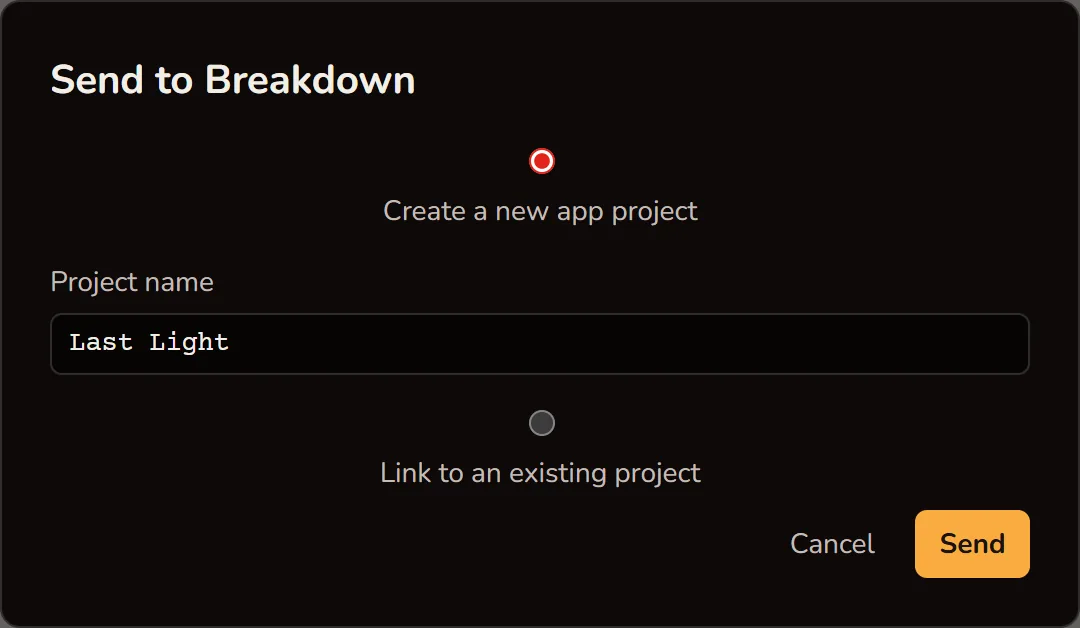
If the script isn’t linked to a project yet, choose where it goes:
- “Create a new app project”: a new project is created in Dekupa. “Project name” starts with the draft’s name; change it if you like.
- “Link to an existing project”: pick one of your film projects from the list. The script becomes a new version of that project.
-
Click “Send”.
-
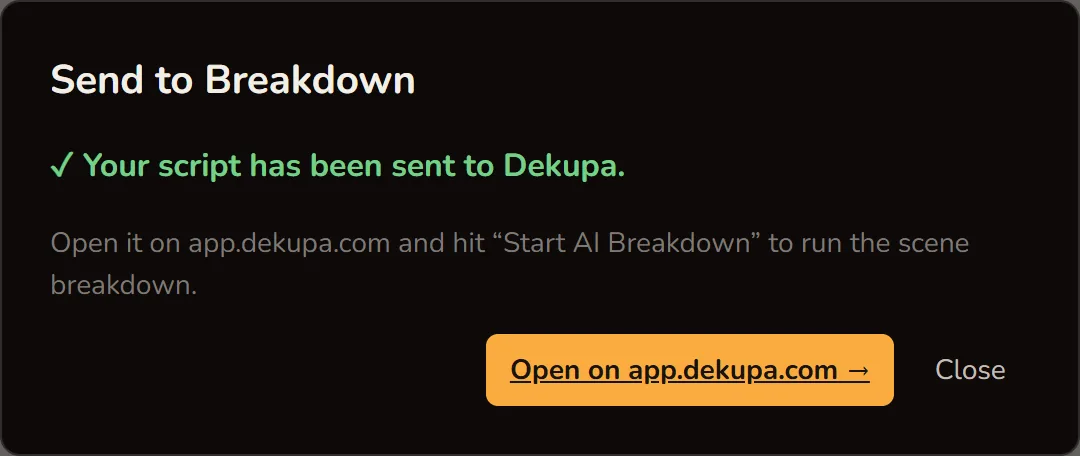
When the window says “Your script has been sent to Dekupa.”, click “Open on app.dekupa.com”. The project opens in a new tab. Dekupa starts reading the script as soon as you send it, and you can follow the progress there.
-
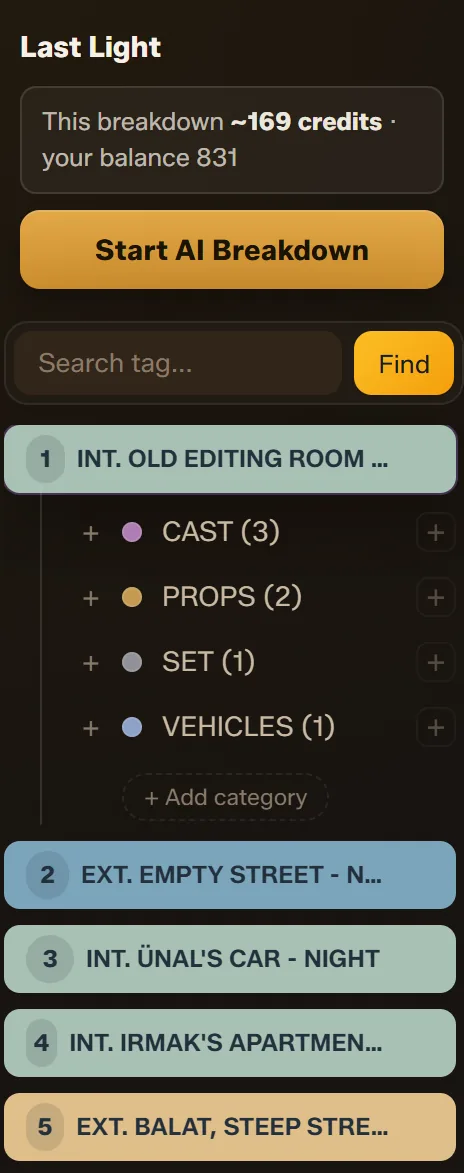
Once the scenes appear in the left panel, start the AI breakdown with Start AI Breakdown or select text and tag it by hand: How do I run my first breakdown?
Series
- Open any episode of the series in Write and click “Publish”. The button sits on the writing page’s top bar, not on the episode list.
- If the series isn’t linked to a project yet, create a new project or pick one of your series projects. Then click “Continue”.
- On each episode’s row, choose where that episode goes in Dekupa: “Create a new episode in the app” or one of the project’s episodes. Write suggests the episode in the same position. Episodes you’ve sent before show “Linked ✓”.
- Send the episodes one at a time with “Send” on their rows, or all together with “Send all”. The result shows next to each row.
- Open the project with “Open on app.dekupa.com”.
Sending again
- A linked draft always goes to the same project, and the window shows that project’s name. You can’t point the draft at a different project from Write.
- The script becomes a new version of the project, and the scenes come from the new version. Your tags aren’t renewed or deleted: they move to the matching scenes, and any whose place is uncertain wait for your review in Dekupa. For a film, the window shows a note saying so. More: How do I upload a new version of the script?
- If you send without changing anything, the window says “No changes; the last publish still stands”, and no new version is created.
- If you rename the draft in Write, the linked Dekupa project is renamed too.
If it doesn’t work
- The window says “This feature needs a plan”.
- Creating a new Dekupa project from Write, and sending a series, depend on your plan; if your plan doesn’t allow it, you see this message. If you already have a film project, use “Link to an existing project” to send the script there; it becomes a new version of that project.
- My project isn’t in the “Link to an existing project” list.
- The list only shows projects you own that aren’t archived and match the draft’s type: a film draft goes to a film project, a series draft to a series project. You can’t send from Write to a project someone shared with you. If none of your projects fit, the option doesn’t appear.
- It says an upload is still in progress for the episode.
- An earlier send, or an upload made in Dekupa, is still being read for that episode. Once the scenes show up in Dekupa, send it again.