
How do I bring an existing script into Write?
Open an empty draft in Write, click “Open” in the “File” menu on the top bar and choose your FDX, Fountain or PDF file; PDFs are read by Dekupa’s server and can be up to 25 MB.
Steps
-
On “My Projects”, start an empty draft with “+ New Project”: How do I start writing in Write?
-
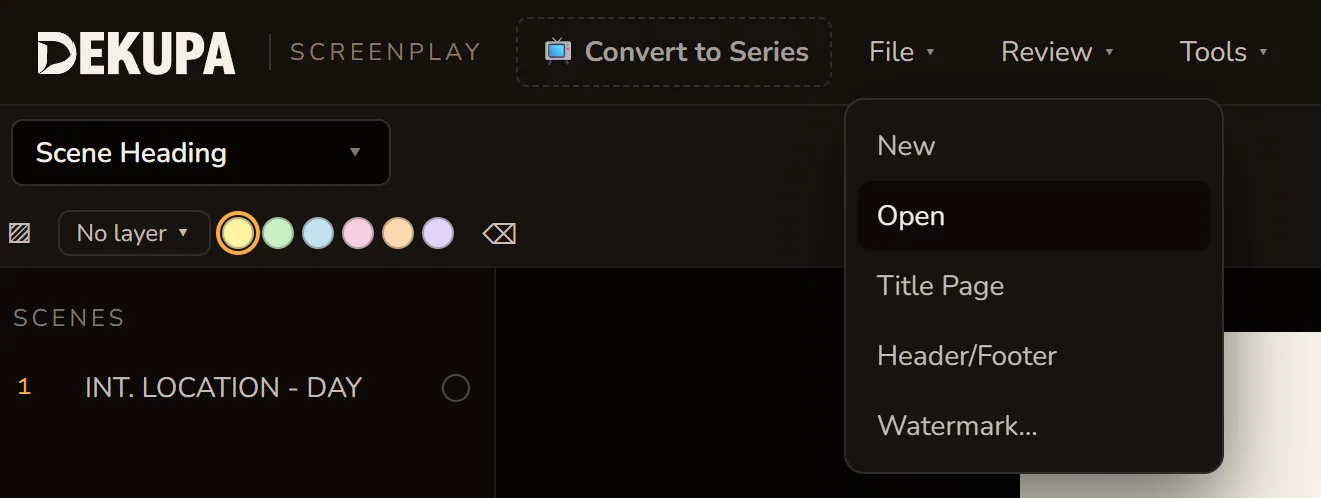
With the writing page open, go to the “File” menu on the top bar and click “Open”.
-
Choose your file. If it’s a PDF, the screen shows “Analyzing…”; wait until reading finishes.
-
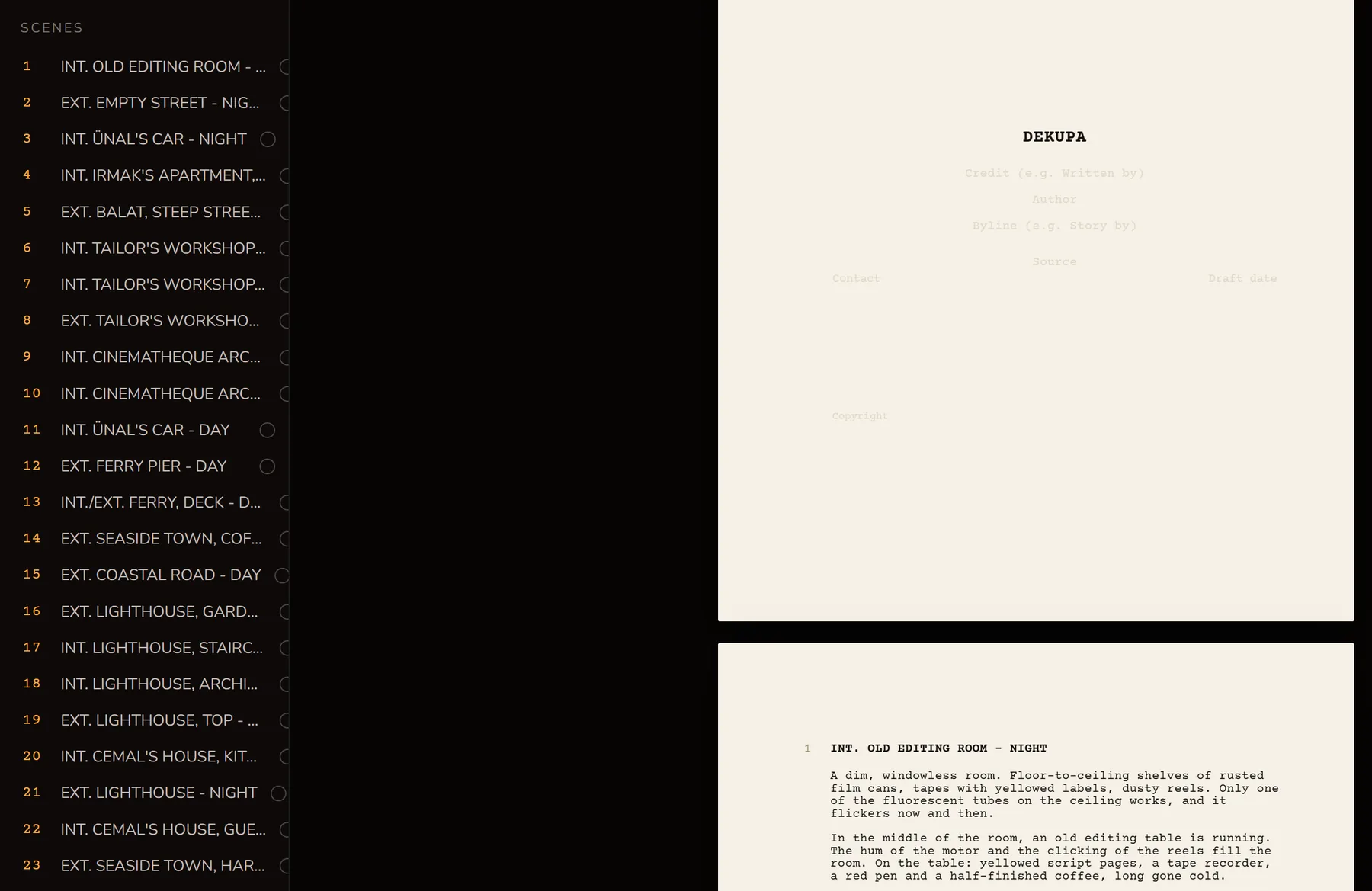
The script fills the page and the scenes appear in the “Scenes” list on the left. The title page comes from the file’s cover page.
-
If any lines have structural errors, the “Format Assistant” window opens by itself. Click a problem in the list: the window closes and you land on that line in the script. Fix the line’s type. To open the list again, click “Check” in the “Review” menu on the top bar.
Good to know
- If you open an FDX, its character and location lists are added to autocomplete too.
- In a series, the file goes into the episode that’s open. Open each episode from the episode list and import it separately.
- The PDF is deleted from the server once it’s been read. Importing doesn’t create a project in Dekupa; to break the script down, you send it separately: How do I send a script from Write to a Dekupa project?
If it doesn’t work
- It says “This PDF looks scanned”.
- Write can’t read a scanned PDF; the text on the page has to be selectable. Export the script again from your writing software as a PDF or FDX. If you only need the script for a breakdown, you can upload the scanned PDF straight to a new project in Dekupa, which can read it.
- Some lines came in as the wrong element.
- In a PDF, each line’s element is worked out from where it sits on the page and how it’s written. If you have an FDX or Fountain file, open that instead: the elements come straight from the file. To fix a single line, click it and press Tab, or pick the type at the left of the thin bar above the page. If you saw a “Could not reach the server” message, the PDF was read in your browser and the result is rougher; open the file again once your connection is back.
- It says “The file could not be imported”.
- The line underneath gives the reason. If the PDF is over 400 pages, split the script into parts and import them one by one. If it tells you to try again in an hour, you’ve hit the limit of 10 PDF imports per hour, so wait. If it says the text couldn’t be read or processing took too long, export the script again from your writing software, or open the FDX file.