
My file won't upload. What now?
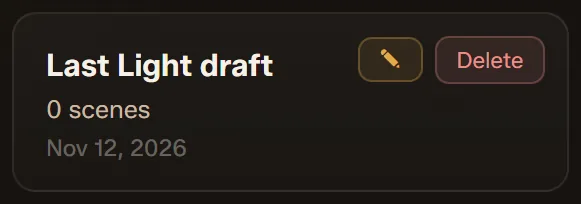
The file has to be .fdx or .pdf, no bigger than 30 MB, and really be the type its extension says; once it’s fixed, don’t create another project: add the file to the project the first attempt created, using the pencil (✎) button on its card.
What the message means
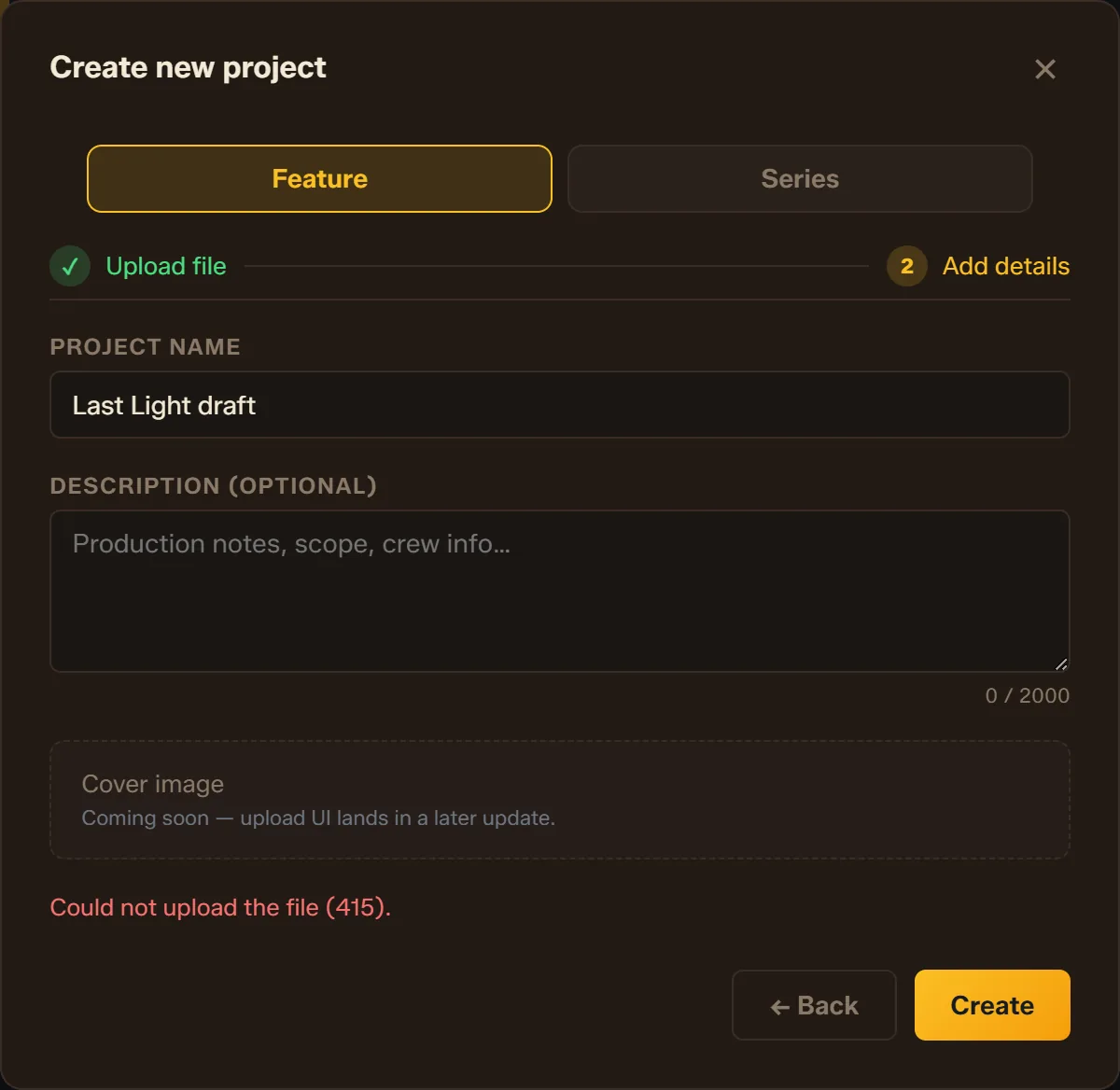
Only PDF and FDX are accepted.
The file you picked isn’t a PDF or FDX..doc and .docx files are no longer supported for new uploads. Export the screenplay as PDF or FDX and try again.
If you wrote it in Word, save it as a PDF and upload that.- “Could not upload the file (413).” The file is over 30 MB. Embedded images, a cover picture and embedded fonts make a PDF bigger. Export the script again from your writing software without images, or upload an FDX: it only carries the text, so it’s small. If a scanned PDF is too big, save it again at a lower resolution in your scanning software.
- “Could not upload the file (415).” The file’s content doesn’t match its extension. Renaming a file to .pdf or .fdx isn’t enough. Export the script again from your writing software.
- “Could not upload the file (503).” together with
The app is updating. You can continue in a few seconds.
at the bottom of the screen. The app was being updated at that moment and your file is fine. Wait a few seconds, then add the file with the steps below. - A connection error in English from your browser, such as
Failed to fetch. The connection dropped during the upload. Check your internet connection, then follow the steps below.
Once the file is fixed
-
Close the window with the × at the top right and refresh the page.
-
Look for the project on the My projects screen. If the upload failed, it’s in the list with no scenes. If it isn’t in the list, start again with + New project: How do I upload a script?
-
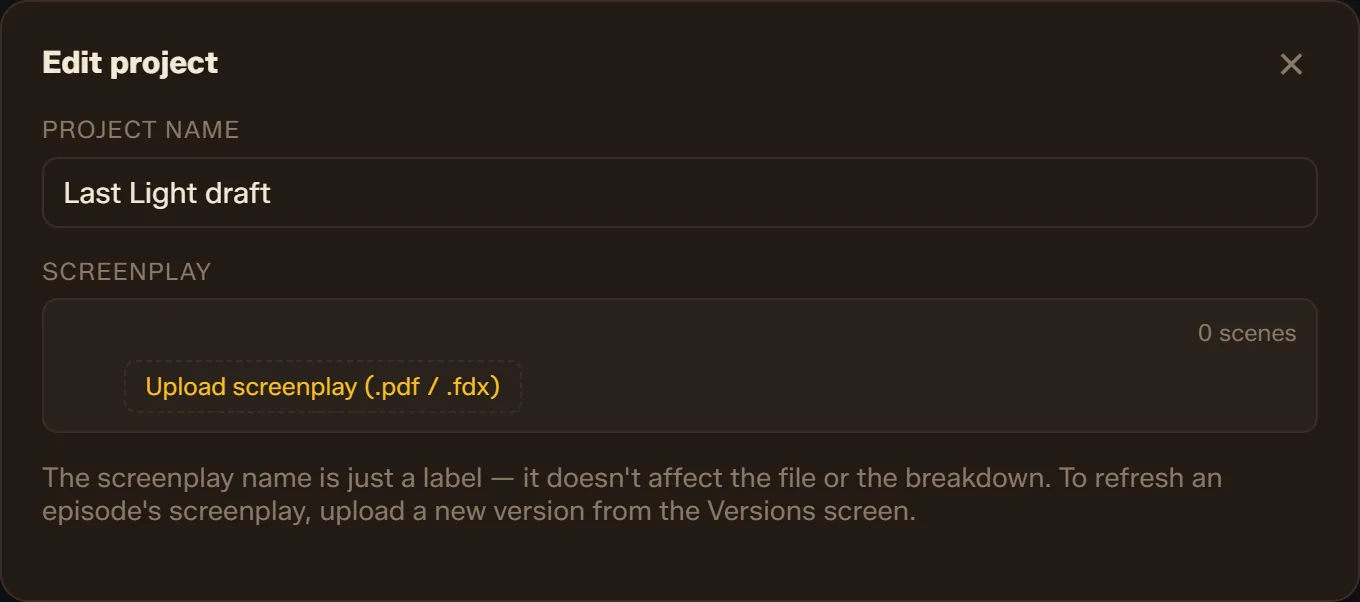
Click the pencil (✎) button at the top right of the project card. The Edit project window opens.
-
In the Screenplay row, click Upload screenplay (.pdf / .fdx) and choose the fixed file. The window tells you the script was uploaded. If it fails, the message shows the same numbers as above.
-
Close the window and open the project. While the script is being read, you see a percentage and the elapsed time. If you created the project with AI Breakdown, the breakdown starts by itself once the scenes are ready.
When uploading a new version
On the Versions screen, the message appears above the list. Upload failed.
usually means the file is over 30 MB. If the file’s content doesn’t match its extension, the screen says so in plain words. A message saying the episode is busy means the previous upload is still being read: wait for it to finish, then try again with Upload New Version.
In a series
The row of an episode that didn’t upload says Error and shows a Retry button. The project and the episodes that did upload are kept. If the problem is the file itself, go on to the project with Continue, fix the file, and upload it to that episode from Manage episodes above the script panel.
If it doesn’t work
- The window closed by itself, or it says One project allowance when I start a new project.
- If your plan has a project limit, the empty project from your first attempt has used it up. Don’t create a new one. Refresh the page and add the file to that project with the pencil (✎) button.
- There are two projects with the same name on My projects.
- If you clicked Create again after the upload failed, a second project was created. Keep the one with scenes and remove the empty one with Delete on its card.
- Uploading a new version says "Only the project owner can do this."
- Only the project owner uploads the script. Send the file to the owner and have them upload the new version.