
How do I upload a new version of the script?
In the top menu, open Versions under Script, click Upload New Version and choose your .fdx or .pdf file; once it’s read, the new version becomes current and your tags move to the matching scenes.
Steps
-
Hover over Script in the top menu and open Versions.
-
In a series project, pick the episode from the Episode list next to the title. The screen opens on the first episode.
-
Click Upload New Version at the top right and choose your file.

-
The screen shows
Processing new version…
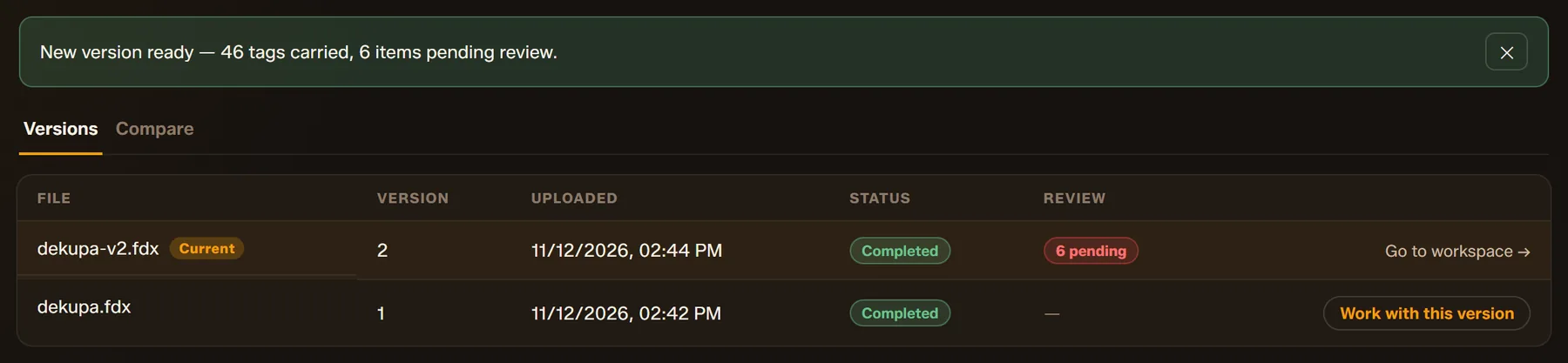
When reading finishes, a notice tells you how many tags were carried over and how many are waiting for review. If reading takes a while, refresh the page later; it keeps going on the server. -
The new version sits at the top of the table with the Current label. The script, breakdown, reports, budget and schedule now all show this version. In the workspace, the version number and file name of the open version appear above the script.
If reading fails, the previous version stays current.
What carries over
Dekupa matches the new version’s scenes to the old ones by heading, text and order. A matched scene automatically gets:
- The tags you added by hand, the tags the AI breakdown added, and tags you corrected. Each tag is attached to the same phrase in its new place in the text. If the paragraph a tag sits in was changed, the tag can land in the review queue even when its phrase is still there word for word.
- The scene’s color, notes, shooting location, unavailable dates and photos.
- Story day, synopsis, a page length you entered by hand and estimated duration, if the scene’s text didn’t change. If the text changed, the review queue asks about these, showing the old values.
- A scene number you set by hand, if the scene’s number didn’t change in the new version.
Tags the reading found on its own and you never touched, such as speaking characters, are extracted again from the new file.
When Dekupa isn’t sure where a tag belongs, it doesn’t guess; it leaves it in the review queue. That covers tags on scenes that were split, merged or deleted, tags on scenes whose match is uncertain, tags whose paragraph changed, and tags whose phrase can’t be found in the new text. The color, notes and other details of split, merged and uncertain scenes don’t carry over to the new scenes, so enter them again if you need them.
Once the AI breakdown has finished, it doesn’t start again by itself on a new version. To place pending tags and re-run the breakdown on scenes whose text changed: How do I see what changed between versions and place pending tags?
Go back to an earlier version
-
In the Versions table, click Work with this version on the row of the version you want. The button only appears on versions that finished reading.

-
Accept the confirmation. If some scheduled scenes have no match in that version, the confirmation also says at most how many strips will leave the schedule. That version becomes current and the workspace opens.
Only the project owner can do this. No version is deleted. Tags you added in the newer version don’t show in the older one; they’re back when you switch to the newer version again. A version’s pending reviews can’t be applied until that version is current.
Switching versions also updates your schedules: How does a new version affect the schedule?
If it doesn’t work
- Some of my tags are missing in the new version.
- When Dekupa can’t place a tag with certainty, it doesn’t guess; it leaves the tag in the review queue. In the Versions table, click the pending count in the Review column and place the tags on their new scenes. If the row says Carry Issue, click it and press Retry in the panel that opens; the project owner does this.
- The version’s status is Failed.
- The file couldn’t be read. The previous version stays current and nothing is lost. Export the script again from your writing software and upload it; the file type and size rules are the same as for the first upload.
- I uploaded the wrong file.
- In the table, click Work with this version on the previous version’s row and confirm. That version becomes current again. The wrong upload stays in the list but isn’t used.