
How does a new version affect the schedule?
When a new version becomes current, your schedules update on their own: strips for matching scenes stay on their days, strips with no counterpart in the new version leave the schedule, and new scenes are added to the Boneyard.
You don’t start this yourself. When a new version is read and becomes current, or when you switch versions with Work with this version, every schedule that holds this script’s scenes is updated at once.
What changes
- Matching scenes: Even if the text changed, the strip stays on the same day in the same position, and its shooting status is kept. The scene number, heading and page length come from the new version. A name and page length you gave a copy strip are kept.
- Strips with no counterpart: Strips for scenes that were deleted, split or merged in the new version, and for scenes whose match is uncertain, leave the schedule. This includes strips you marked Shot.
- New scenes: Added scenes, and the scenes that come out of a split or merge, are added to every schedule’s Boneyard in script order.
- Locked schedules: Schedules showing Locked in the toolbar are updated too. The lock stops manual changes, not version matching.
- Call sheets: A day’s call sheet reads that day’s strips, so it opens with the updated schedule’s scenes.
- Strikes: The lines you struck on the script in Sides are copied to the matching scene, and the strikes on the old version stay where they are. A strike whose text can’t be found in the new version isn’t drawn on the new scene. On the day screen, that scene’s card says how many strikes weren’t found in the new version.
In a series project, only the strips of the episode whose version changed are updated; other episodes’ strips are left alone. When an episode’s first script is uploaded, its scenes are added to the Boneyard of every schedule.
Check the schedule after a new version
-
Open the Scheduling tab in the top menu.
-
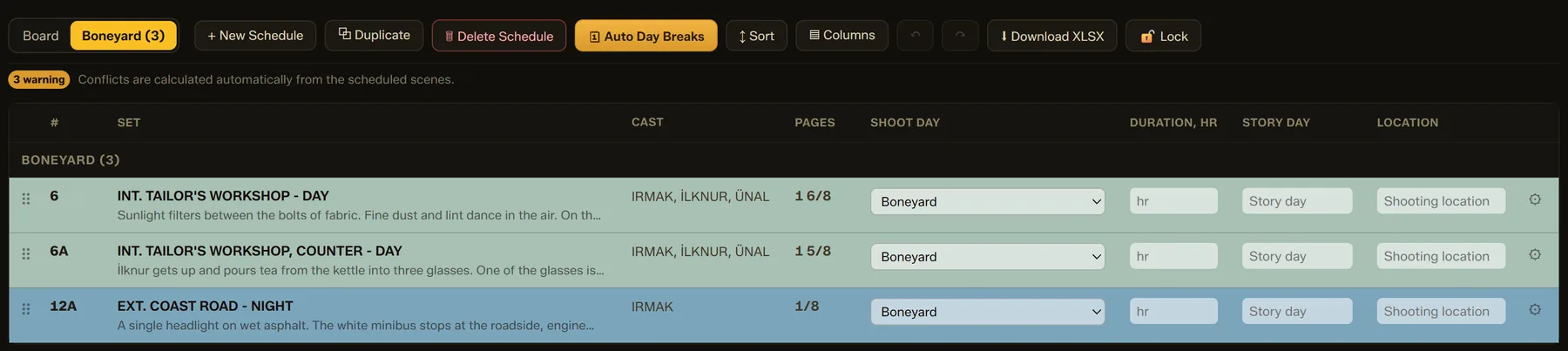
In the toolbar above the board, switch to the tab that says Boneyard. The new scenes are there. Drag them onto days.
-
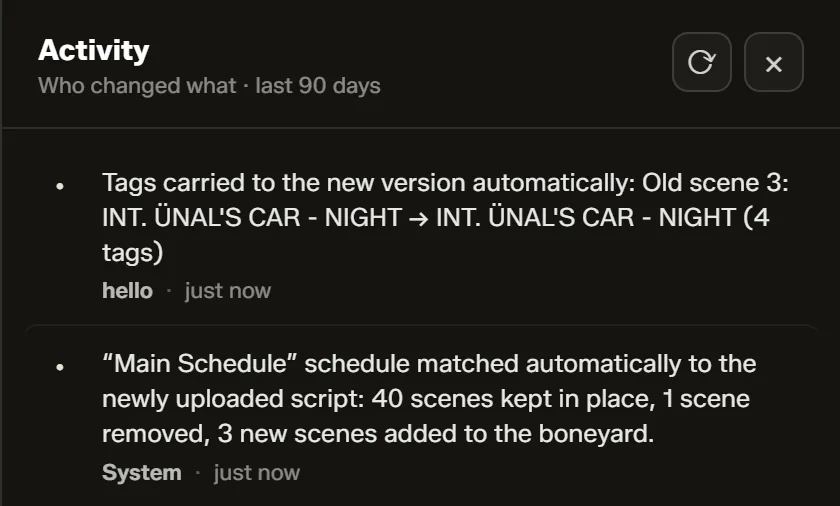
To see what changed, click the clock button at the top right; the Activity panel opens. For each schedule it says how many scenes stayed in place, how many were removed and how many were added to the Boneyard.
-
To see what became of a scene that left the schedule: How do I see what changed between versions and place pending tags?
If an error stops the matching, the Activity panel shows an entry saying so, and the schedule keeps showing the old scenes. In that case, write to hello@dekupa.com.
Going back to an older version
When you go back to an older version, your schedules update to match it. Strips for scenes that only exist in the newer version leave the schedule, along with their shooting status. When you switch to the newer version again, those scenes return to the Boneyard. Before switching, the app asks and says at most how many strips will leave the schedule. Keep this in mind while scenes have days or are already shot.
If it doesn’t work
- A scene disappeared from the schedule.
- The scene may have been deleted, split or merged in the new version, or Dekupa wasn’t sure about the match. Its new form is in the Boneyard, so put it back on a day. You can see what happened to the scene on the Compare tab of the Versions screen.
- A strip’s scene number changed.
- The number comes from the script. If the scene’s number changed in the new version, the strip takes the new number. Its day and position stay the same.
- I went back to an older version and returned, and some scenes left their days.
- Strips for scenes that don’t exist in the older version leave the schedule when you go back. When you switch to the newer version again, those scenes are added to the Boneyard and you need to give them their days again.