
How do I review the tags the AI added?
AI tags go straight into your breakdown without waiting for approval, and nothing on screen sets them apart from other tags; open each scene, check the tag list under it and the coloured marks in the text, and fix or delete what’s wrong.
Steps
-
Click the first scene in the left panel. Its tags open below it by category, and they’re marked in the category’s colour in the text. Click a category’s name to see its tags.
-
Click a tag’s name in the list: the script scrolls to it and the mark lights up for a moment.
-
Click the trash icon to the right of a wrong tag and confirm. The tag is removed from this scene. You can also click the tag in the text and delete it or change its category from the Edit tag menu.
-
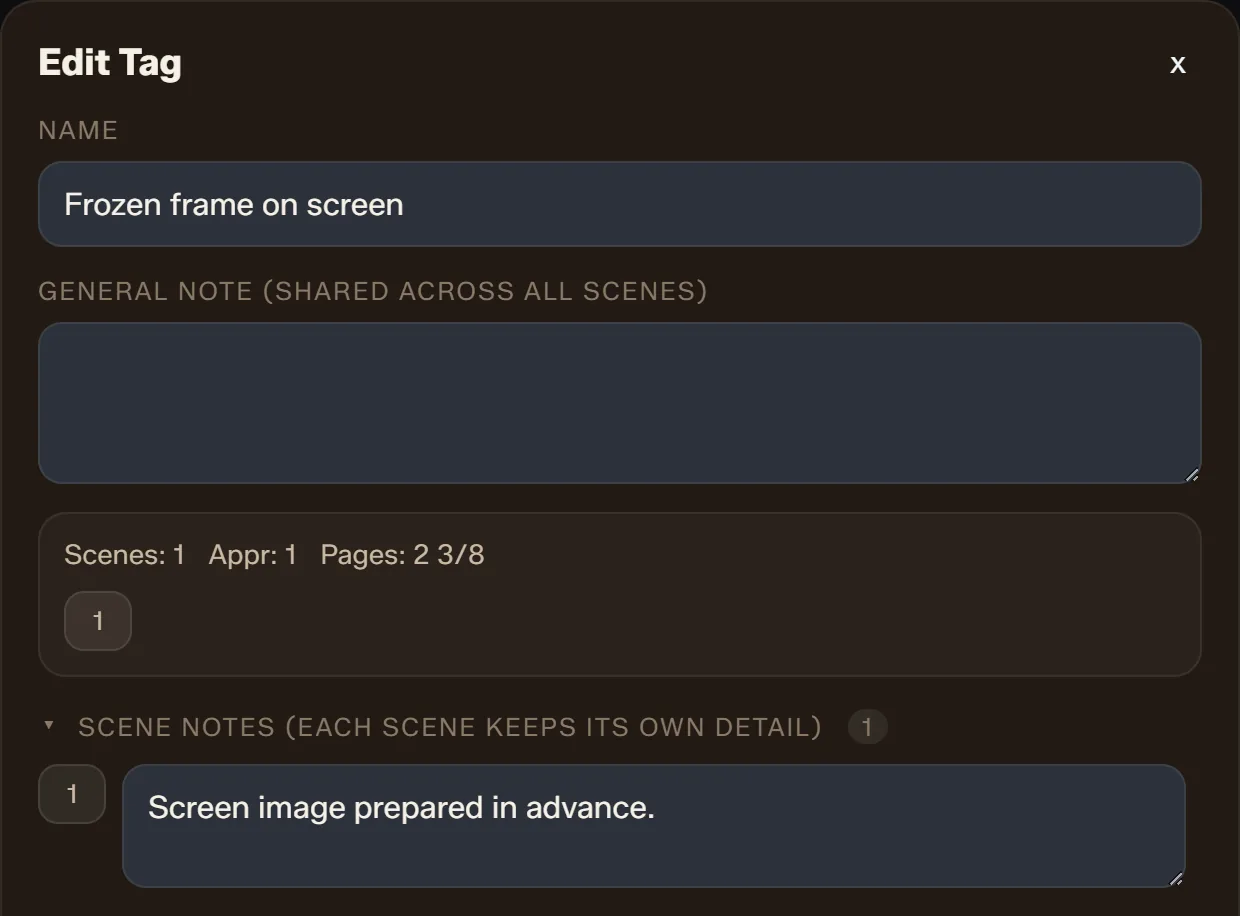
If the name or category is wrong, click the pencil to the right of the tag. In the Edit Tag window, fix Name and Category, then click Save. The same window often says why the AI added the tag, under Scene notes (each scene keeps its own detail).
-
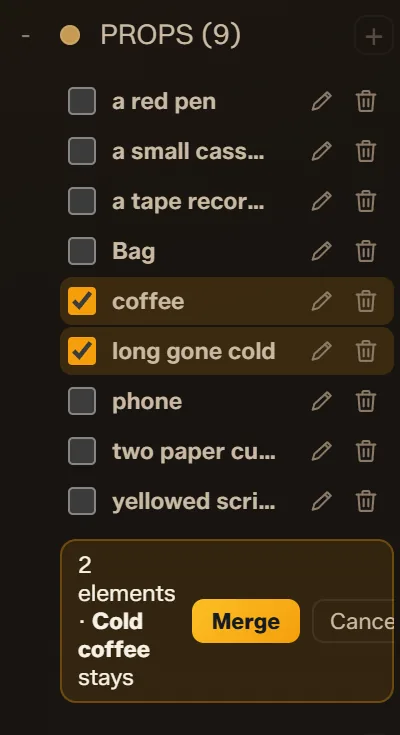
If the same item shows up under two names in the scene, tick the box to the left of both (it appears when your mouse is over the row) and click Merge. Only this scene changes.
-
If the AI missed something, select it in the text and tag it by hand. How: How do I run my first breakdown?
-
Move on to the next scene.
For a view of the whole project, open Reports under Script in the top menu. Every item is listed by category with the number of scenes it appears in, so a wrong or doubled name stands out quickly.
What the AI adds and what it doesn’t
- When the script is read, every character who speaks is added as cast. The AI adds characters who are in the scene and doing something without speaking. It doesn’t add a character who is only mentioned in dialogue.
- The AI can remove a tag from the script reading that it judges isn’t in the scene or is in the wrong category. It doesn’t touch cast or the tags you added by hand.
- For problems with characters: Characters came out wrong or missing. What should I do?
If it doesn’t work
- The pencil and trash buttons next to the tags are greyed out or missing.
- On a project shared with you, editing, deleting and merging tags each need their own permission. Without it the buttons are greyed out or don’t show at all. Ask the project owner for access.
- A tag is in the list but isn’t marked in the text.
- The AI adds some tags without tying them to a spot in the text, for example a character it added because they’re present in the scene. The tag is valid and counts in reports. If you don’t need it, delete it from the list.
- Some scenes have no AI tags at all.
- The breakdown may have stopped partway. If the card in the left panel says AI breakdown partially completed, the remaining scenes weren’t processed; continue with Retry for the remaining scenes.