
How do I export to Movie Magic?
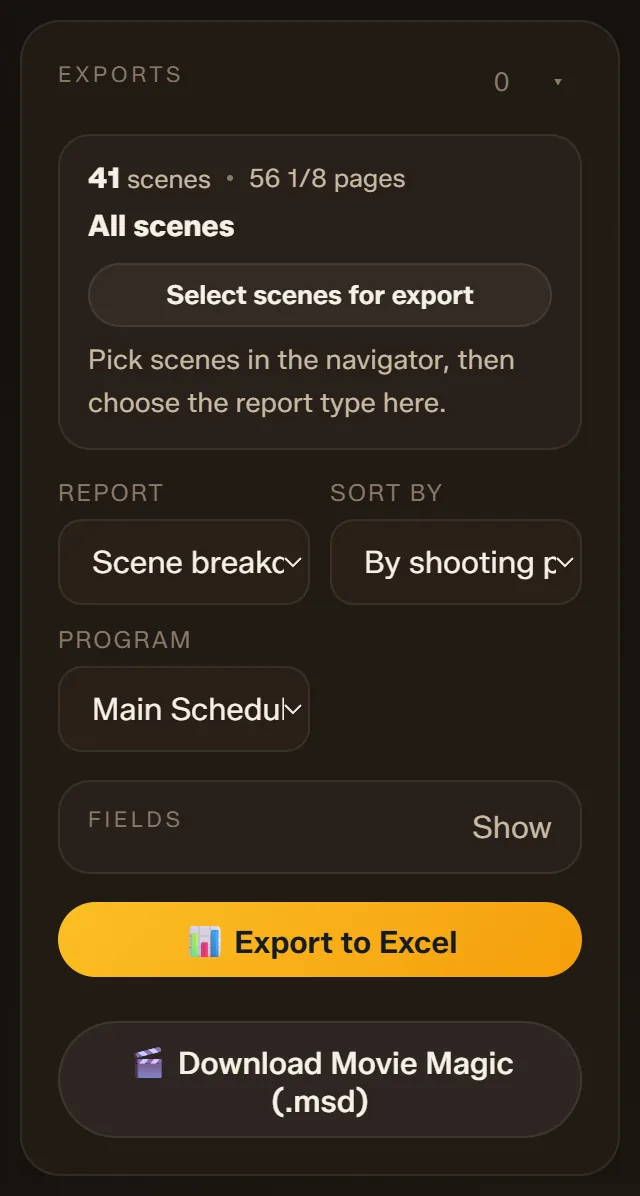
Click Download Movie Magic (.msd) in the Exports box on the right of the Breakdown screen; Movie Magic Scheduling 6 opens the downloaded .msd file directly, with your scenes, tags, cast numbers and shooting schedules, calendars included.
Steps
-
Hover over Script in the top menu and open Breakdown.
-
To export only some scenes, select them first: How do I export only some scenes? Without a selection, every scene goes in.
-
If you want Movie Magic to open the file on a specific shooting schedule, choose By shooting program under Sort by and pick the plan under Program. Otherwise the file opens on a stripboard in script order.
-
Click Download Movie Magic (.msd). The file downloads. The Report list and the column picker don’t affect this file: the full breakdown always goes out.
-
Open the file in Movie Magic Scheduling 6.
The file name carries the project name, dekupa and the date, with the .msd extension.
What’s in the file
- Scenes: Each scene becomes a breakdown sheet: scene number, synopsis (or the scene’s first action line if there’s no synopsis), INT/EXT, day/night, set, shooting location, story day, page length, estimated time and the scene’s note.
- Tags: Every category and its tags, your own categories included. Set tags don’t become a category of their own; they go into the sheet’s set field.
- Cast numbers: The number you gave a cast member is their number in Movie Magic too.
- Shooting schedules: Every plan that isn’t archived becomes its own stripboard with its own calendar: shooting days, the order within each day, banners and the boneyard. A strip you duplicated on the stripboard becomes a sheet of its own. On top of these comes a stripboard in script order.
- Unavailable dates: Unavailable dates you entered on tags and scenes come through as red flags.
Category names, INT/EXT and day/night values are written in the interface language at the moment you download. In the English interface, categories use names Movie Magic knows, such as Cast Members. Headings, tag names and synopses stay exactly as you wrote them.
What doesn’t carry over
- Day notes and call times.
- Strip locks, and statuses from the Sides screen such as Shot or Dropped.
- DOOD and report layouts: they come with Movie Magic’s own defaults.
- The other direction: you can’t load a Movie Magic file into Dekupa.
If it doesn’t work
- Movie Magic won’t open the file.
- The file is written for Movie Magic Scheduling 6, so make sure you open it with that version. If it still fails, write to hello@dekupa.com with the project name. You don’t need to send the script.
- Some scenes are missing from the file.
- A scene selection may still be active. If the box shows a number of selected scenes instead of All scenes, click Select scenes for export, empty the selection with Clear and download again.
- My schedule isn’t in the file, or the file opens on a different stripboard.
- Archived plans don’t go into the file; every plan that isn’t archived does. To open on a specific plan, choose By shooting program and the plan under Sort by before you download.