
Where is everything on the screen?
When you open a project, the scene list sits on the left, the script in the middle and the scene notes on the right; the Script, Scheduling, Call Sheets and Budgeting tabs at the top switch between screens.
The top bar
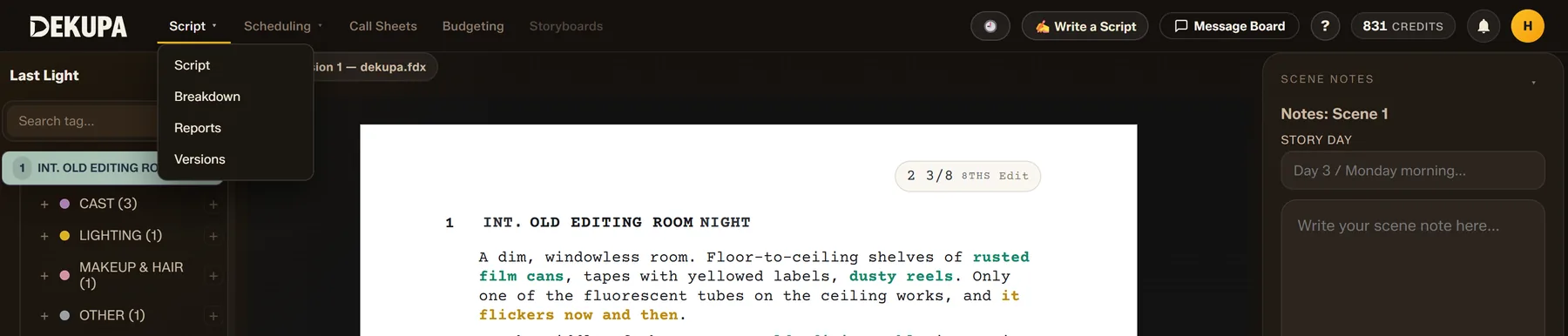
The Dekupa wordmark on the far left takes you back to My projects. The tabs sit next to it:
- Script: hover over it to open Script, Breakdown, Reports and Versions.
- Scheduling: hover over it to open Stripboard, Calendar, Sides and Day Out of Days.
- Call Sheets and Budgeting: open straight away when clicked.
- Storyboards: greyed out, not available yet.
The tab carries the name of the screen you’re on. On the Breakdown screen, the first tab reads Breakdown.
On the right, from left to right:
- Clock icon: Activity. Lists who changed what in the project.
- Write a Script: opens Write, the screenwriting editor.
- Message Board: messages with the project’s crew.
- ?: the help panel and the product tour.
- Credit badge: your remaining credits. Details: What are credits, and when are they spent?
- Bell: announcements and notifications.
- The round account button, showing the first letter of your email: Change password, Crew Access, Language and Sign out. Only the project owner sees Crew Access.
Activity, Message Board and Crew Access only appear while a project is open.
The script screen
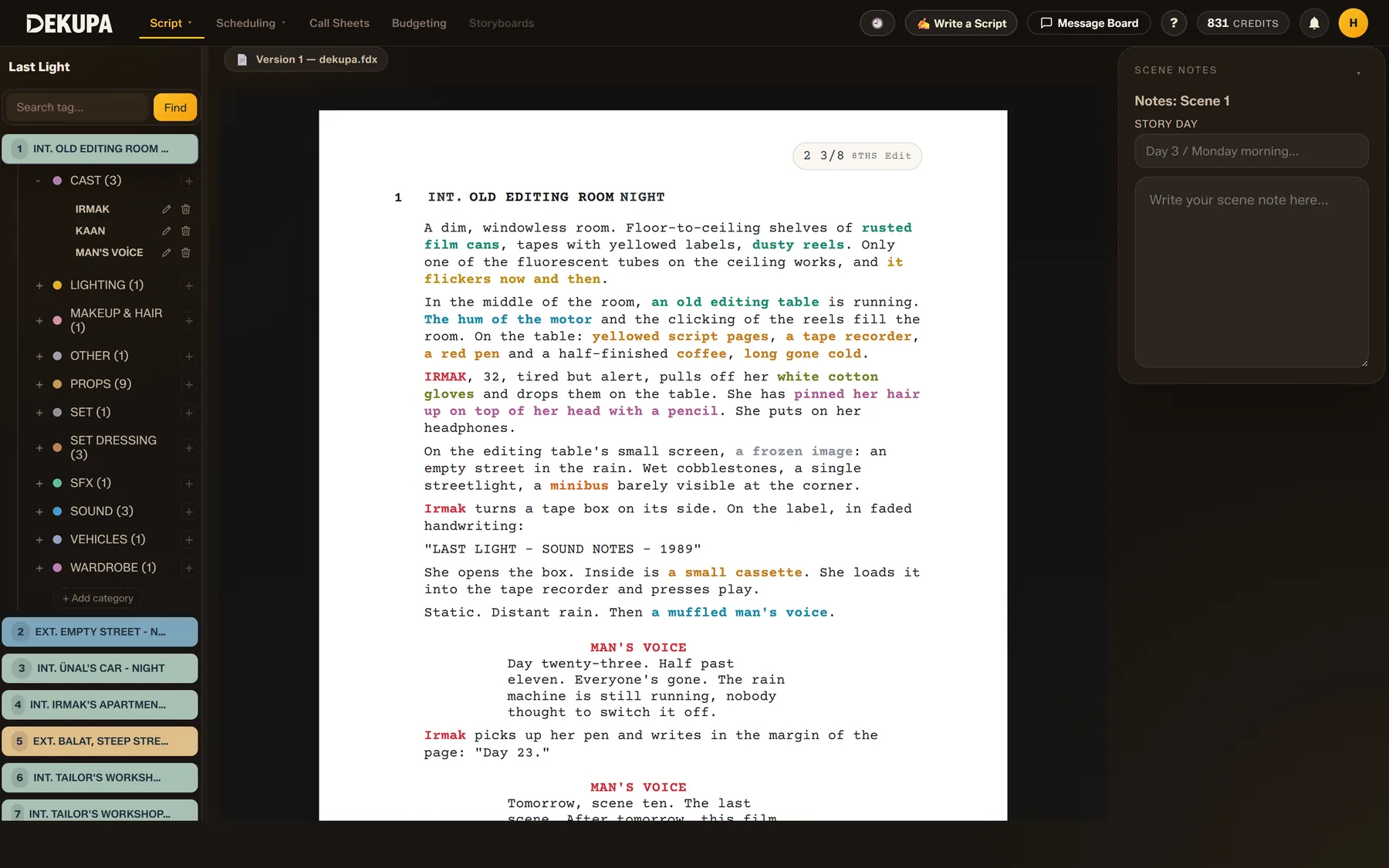
- Left panel: The project name and the AI breakdown card at the top, the Search tag... box and the Find button below them, and the scene list at the bottom. The AI breakdown card only shows before a breakdown starts or after one stops partway. The search looks at tag names, scene headings, the script text and scene numbers. Click a scene: its text opens in the middle and its tags appear right below it, grouped by category. The ✎ on a scene row edits that scene’s details. Drag the panel’s right edge to make it wider.
- Middle: The script text, with the scene’s page length above it. Select a phrase in the text to open the tag menu. Details: How do I run my first breakdown?
- Right: Scene Notes. Write the open scene’s note and its Story day here.
- In a series project, an episode picker and the Manage episodes button appear above the text.
- Bottom right corner: the Feedback button leaves us a note.
If a project is shared with you as read-only, a strip just below the top bar says so. Editing buttons are hidden or greyed out.
Restarting the tour
-
Click the ? button at the top right.
-
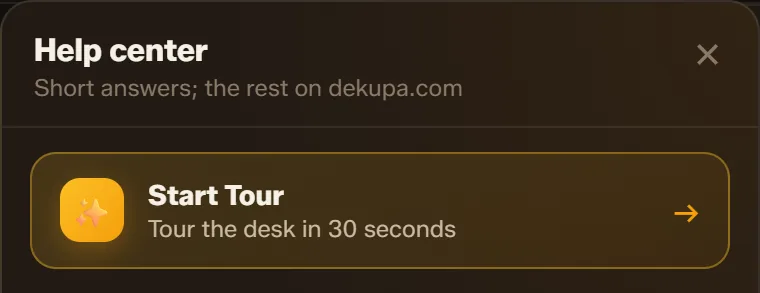
Click the tour button at the top of the panel. The tour walks through the screen you’re on.
-
To close it before the end, press Esc.
If it doesn’t work
- A tab or menu item is missing.
- On a project shared with you, you only see the parts the owner opened to you. Crew members never see the Storyboards tab. Ask the owner for anything that’s missing.
- The notes column on the right is gone.
- It only shows while a scene is open. Click a scene in the list on the left.
- The tour doesn’t open.
- Each screen’s tour runs once, the first time you open that screen in this browser. To see it again, click the ? button at the top right, then the tour button in the panel. Some screens, such as the day list under Call Sheets, have no tour, so the button does nothing there.