
How do I add a tag by hand?
Select the phrase in the script and click a category in the Tag phrase menu that opens; to add something the script doesn’t mention, use the + next to the category name in the left panel.
In the script
-
Click a scene in the left panel to open its text in the middle.
-
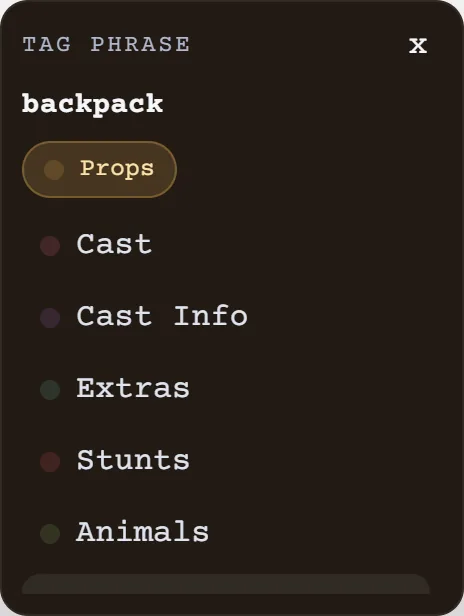
Select the phrase you want to tag with your mouse. For a single word, just click it. The Tag phrase menu opens with your selection at the top.
-
Click a category in the menu’s list. The tag is saved right away, shows in the category’s colour in the text and appears in the list in the left panel.
The top of the menu shows a suggested category: Cast on a character line, Set on a scene heading, Props elsewhere. It’s only a suggestion; to save, you still click a category in the list.
The tag attaches to exactly what you selected. If a word appears twice in a scene, select and tag each one separately.
From the left panel
Use this for something the script doesn’t mention, like a prop you want to add to the scene.
-
Click a scene in the left panel. Its tags are listed under it, category by category.
-
Click the + next to the category name. If the scene doesn’t have that category yet, click + Add category at the bottom of the list and pick it from the menu.
-
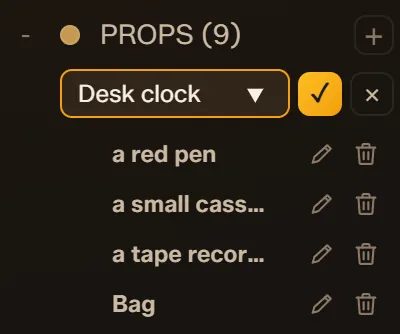
Type the name in the field that opens. Names already in that category in the project come up as suggestions.
-
Press Enter or click ✓. The field stays open so you can add several in a row. Press Esc to close it.
Good to know
- Tag the same name in the same category in another scene and no new element is created: it links to the existing one. Case and accented letters (Turkish ones included) don’t count, so PHONE and phone are the same element.
- Ctrl+Z (Cmd+Z on a Mac) undoes the last tag you added or removed in the script.
- If the category you need isn’t in the list, you can add your own: What are the breakdown categories?
To change or remove a tag: How do I edit or remove a tag?
If it doesn’t work
- Nothing opens when I select text.
- The script is locked while an AI breakdown runs, and the screen shows AI breakdown running; wait for it to finish. On a project shared with you, you may only have permission to view tags. Ask the owner for Edit on Breakdown & Tags.
- The tag shows up for a moment, then disappears and a message appears.
- It wasn’t saved on the server. If the message says you don’t have permission, the project is shared with you and creating new tags is turned off for you: ask the owner for Tag Creation. If it shows another error, refresh the page and try again.
- The same thing ended up as two tags.
- Names written differently (Phone and Mobile phone, say) become two separate elements. To merge them, open Reports under Script in the top menu, click the extra tag and pick the one to keep under Merge.