
How do I get the day's sides as a PDF?
Open the day in Sides, click Sides PDF next to the day’s heading, choose the contents and protection, then Create downloads the PDF; only the person who creates it can download it.
Steps
-
In Sides, click the day’s tile.

-
Click Sides PDF next to the day’s heading. A window opens.
-
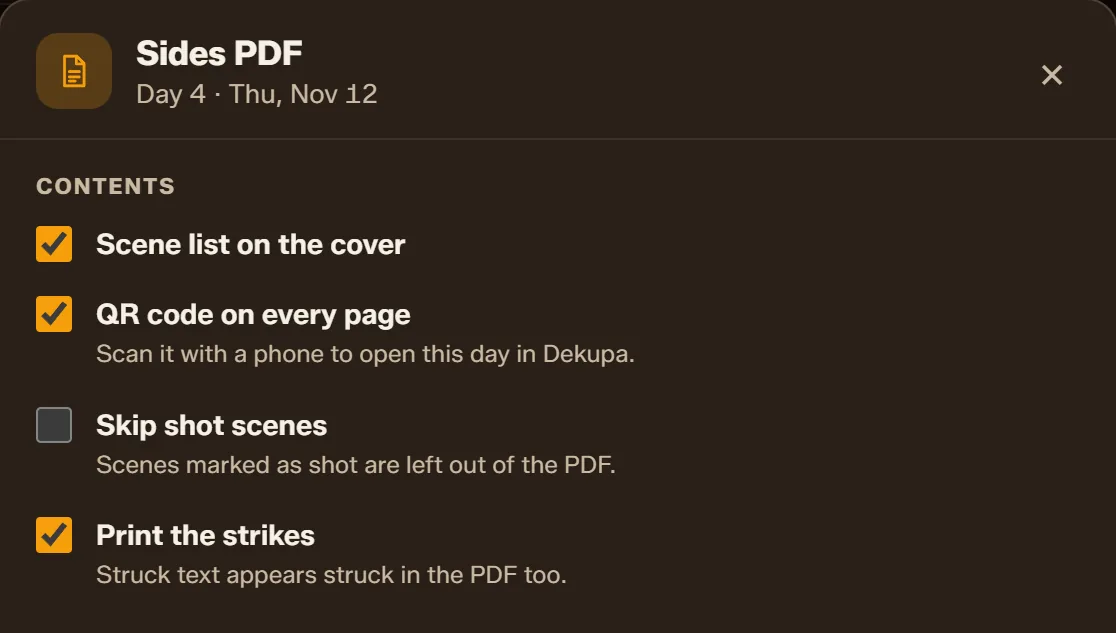
Under Contents, choose what goes in: Scene list on the cover, QR code on every page, Skip shot scenes, Print the strikes. Everything except Skip shot scenes starts ticked.
-
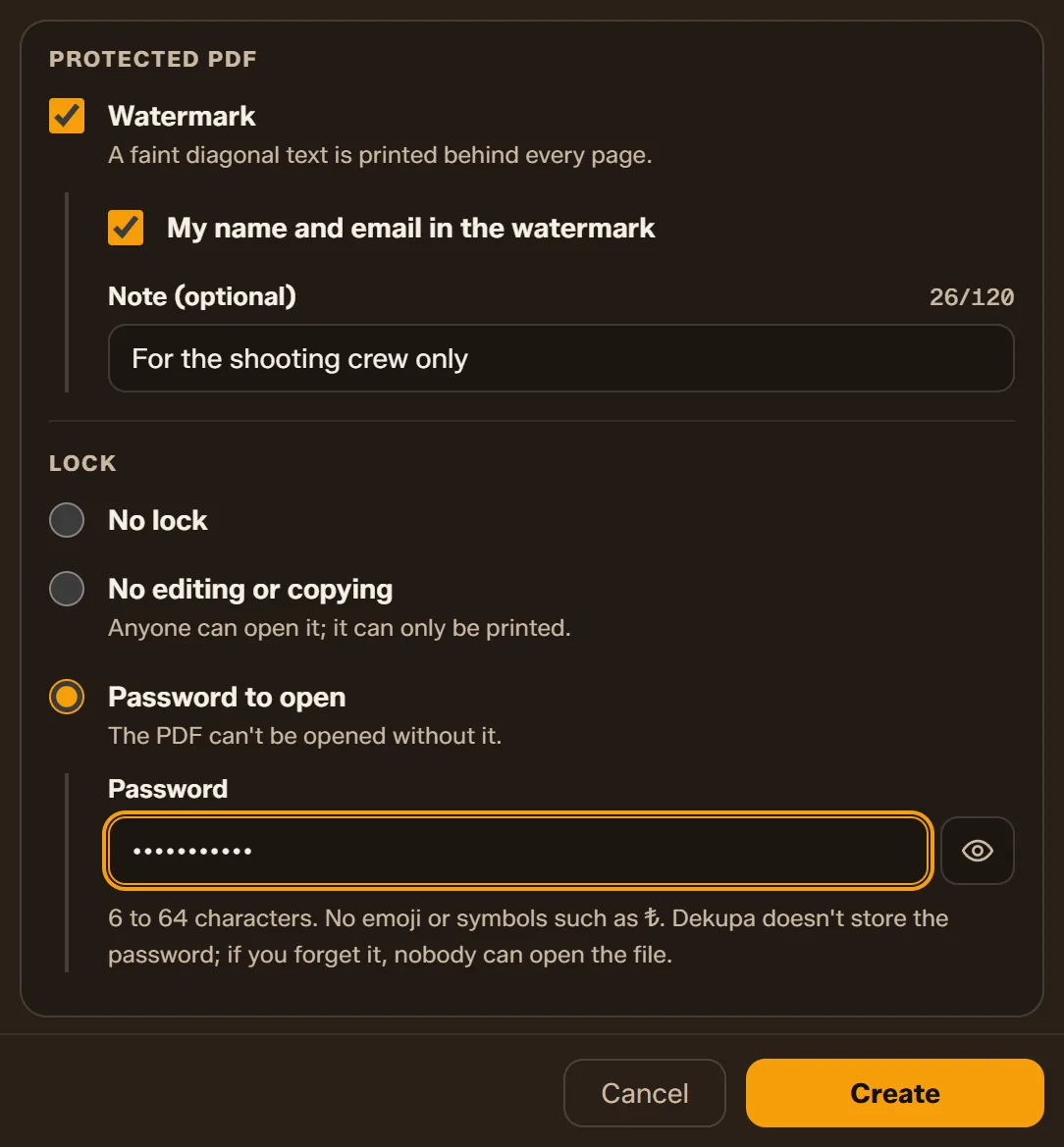
To protect the file, fill in Protected PDF:
- Watermark prints faint diagonal text behind every page. With My name and email in the watermark ticked below it, your name and email appear in it. In Note (optional) you can add a note of up to 120 characters.
- Under Lock, pick one: No lock, No editing or copying (anyone can open it, it can only be printed) or Password to open.
-
If you chose Password to open, type a password of 6 to 64 characters in Password. Letters, digits, spaces and common punctuation work; emoji and currency symbols aren’t accepted.
-
Click Create. When it’s ready, the PDF downloads and the screen says: Sides PDF is ready.
What’s in the PDF
- The cover carries the project name, the date it was created, the creator’s name and email, and below them the schedule name and the day. With Scene list on the cover ticked, the day’s scene list and total pages go on the cover too.
- Each strip starts on a new page, laid out as a screenplay. Dropped strips stay on the cover list only; their pages aren’t printed.
- With Skip shot scenes ticked, shot strips and scenes that count as shot are left out.
- With Print the strikes ticked, strikes print in their own colour. Strikes not made on that strip on that day print faded.
- The QR code opens that day in Sides.
- The file name carries the project name, dekupa and the date.
Password and lock
- Dekupa doesn’t keep the open password anywhere. If you forget it, nobody can open the file, Dekupa included.
- With No editing or copying or Password to open, nobody can lift the lock later. If you need a different file, create a new PDF.
If it doesn’t work
- I can’t see the Sides PDF button.
- On a project shared with you, your Shot Tracking permission may be View. Ask the owner for Edit. The button also stays hidden when none of the day’s scenes has script text.
- I forgot the password of a locked PDF.
- Dekupa doesn’t keep the password, so that file can’t be opened any more. Open the day again and create a new PDF.
- A crew member scans the QR code but can’t open the page.
- The QR code is only a link and gives nobody access. Whoever opens it has to be signed in to Dekupa and have Shot Tracking permission on the project.