
How do I use the message board?
With a project open, click Message Board on the right of the top bar; everyone on the project sees what you post in General, and to talk with just a few people you set up a team with + Team.
Posting a message
-
Open the project and click Message Board on the right of the top bar. The board opens at the bottom right of the screen. If you have unread messages, the button shows how many.

-
Pick a channel from the list on the left: General or a team you belong to. A channel with unread messages has a number next to it.
-
Type in the box at the bottom and press Enter, or click Send. Press Shift+Enter for a new line.
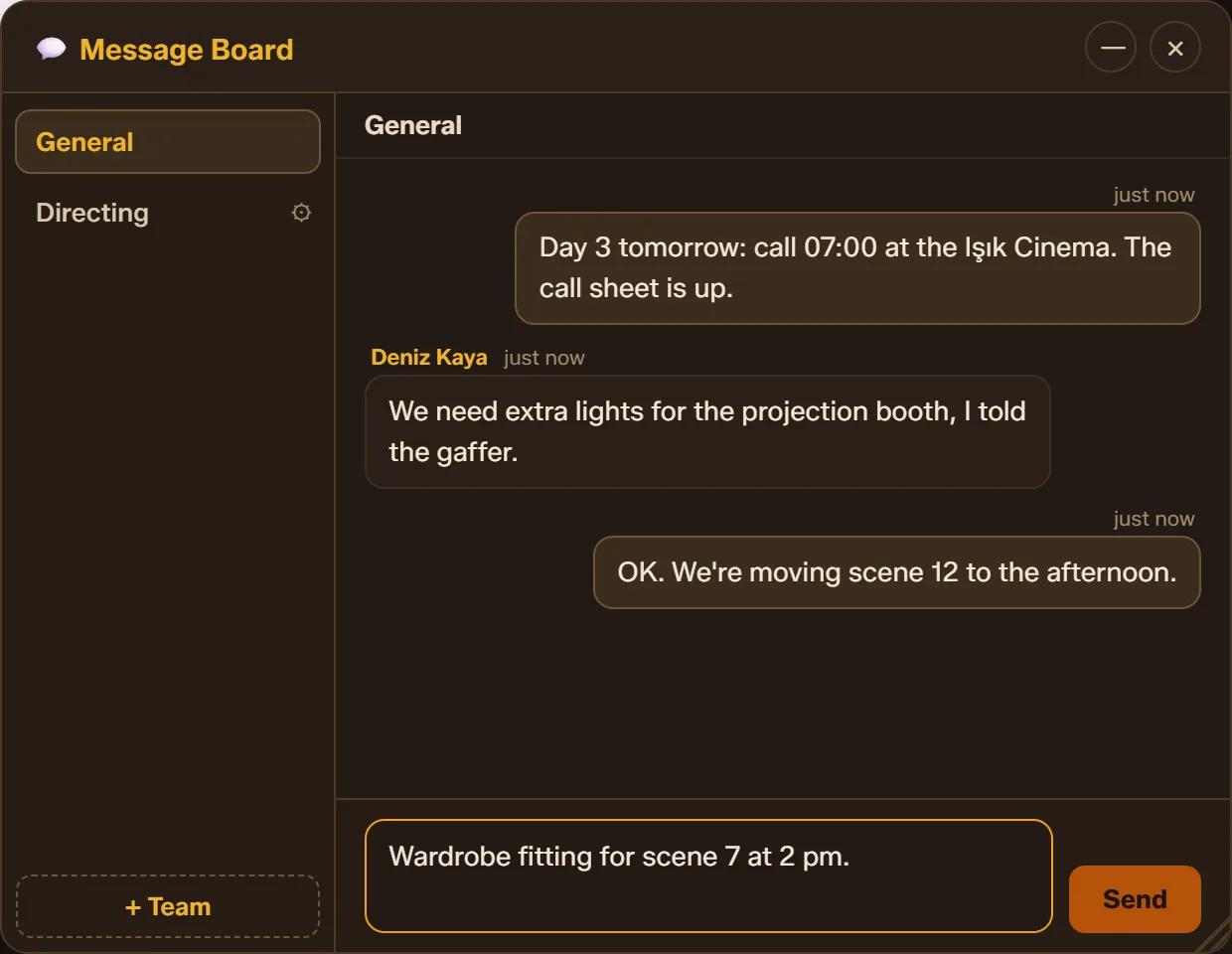
While the board is open, new messages come in on their own within 15 seconds. While it’s closed, the number on the button refreshes every 60 seconds. For older messages, click Load older messages at the top of the conversation.
Setting up a team
-
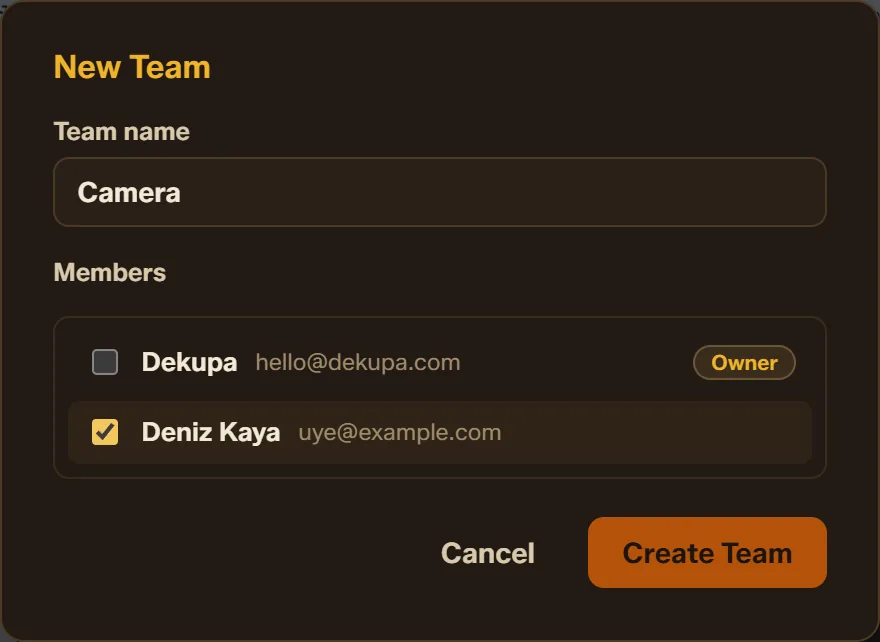
Click + Team under the list on the left of the board.
-
Type a name in Team name.
-
In the Members list, tick the people you want on the team. You’re on it automatically.
-
Click Create Team. The team appears in the list on the left and opens.
Managing a team
The person who set up the team and the project owner can open the Manage Team window with the ⚙ next to the team’s name in the list on the left.
- Change the name, or tick and untick people in the Members list.
- Click Save.
To delete the team, click Delete Team in the same window, then Yes, Delete. The team’s messages disappear from the board, and this can’t be undone.
Who sees what
- General is seen by the project owner and every crew member.
- A team is seen by its members and the project owner. The project owner sees and can read teams they’re not a member of, too.
- Someone removed from the crew can no longer open the board. Their messages stay under their name. Messages from someone whose account has been closed show Departed member.
Good to know
- You can’t edit or delete a message once it’s sent.
- A message can be up to 4000 characters.
- New messages don’t send an email or a notification. You see them from the number on the button when you open the project.
- Drag the board by its header to move it, and drag its bottom right corner to make it bigger or smaller. This browser remembers its position and size for that project.
- The line button on the right of the header (Minimize) shrinks the board to a small bar; click the bar to open it again. While it’s a bar, the unread number doesn’t refresh. × closes the board.
If it doesn’t work
- I can’t see the Message Board button.
- The button only shows on the right of the top bar while you’re inside a project; it isn’t on the My projects screen. On a project shared with you, you need to have accepted the invitation first.
- The person I’m looking for isn’t in the list when I set up a team.
- The list holds the project owner and the crew members who have accepted their invitation. Someone with a pending invitation shows up once they accept. To bring in someone new, the project owner invites them from the Crew Access window.
- Message could not be sent. Try again.
- What you wrote stays in the box. Check your connection and click Send again. If you’ve sent a lot of messages in a short time, wait a little and try again.