
How does the detailed budget work?
Click Switch to Detailed and give each line item an engagement type; payroll lines get the employer’s SGK share added, withholding and VAT are shown separately, and VAT goes into the grand total only if you want it to.
Steps
-
In the Budgeting tab, click Switch to Detailed in the toolbar. The badge above the budget name reads Detailed · Taxed.
-
Open an account and the line items get new columns: Engagement, VAT % and SGK. The last column is renamed Loaded.
-
For each line item, choose from the Engagement list: Payroll, Freelance (SMM) or Invoice. The choice saves straight away.

-
If a line item has a different VAT rate, type it in the VAT % cell. Leave it empty and the engagement type’s default applies; it shows faintly in the cell.
To go back to simple mode, click the same button, which now reads Detailed ✓.
By engagement type
| Engagement | Employer SGK | Withholding | VAT |
|---|---|---|---|
| Payroll | 23.75% of gross, added to the total | 15%, for information | None |
| Freelance (SMM) | None | 20%, for information | 20% |
| Invoice | None | None | 20% |
| Not chosen | None | None | 20% |
- Loaded = gross + the employer’s SGK share. The account, section and grand totals are worked out from this amount.
- Withholding is deducted from gross and doesn’t raise the total. To see a line’s withholding, hover over its SGK cell.
- The VAT % cell also shows that line’s VAT amount. It doesn’t go into the total.
- Contingency is worked out on the loaded total and isn’t applied to VAT.
Summary and default rates
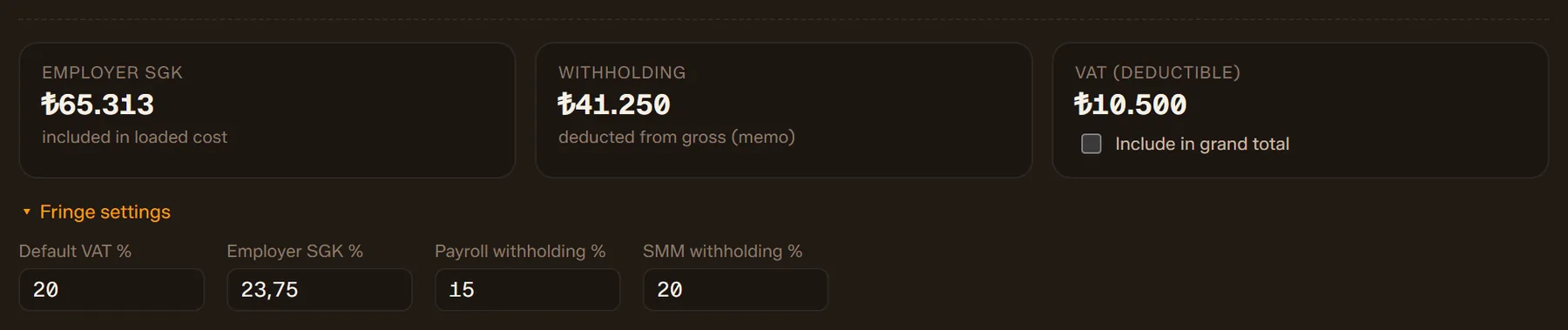
Three boxes sit at the bottom: Employer SGK, Withholding and VAT (deductible). To add VAT to the grand total, tick Include in grand total in the VAT box.
To change the default rates, click the Fringe settings link under the boxes. The Default VAT %, Employer SGK %, Payroll withholding % and SMM withholding % fields open. Changes apply to this budget only. Line items where you typed a VAT rate yourself keep their own rate.
If it doesn’t work
- The SGK column shows no amount.
- The employer’s SGK share is only added to Payroll lines. Choose Payroll in the line’s Engagement column.
- VAT doesn’t show up in the grand total.
- By default VAT stays out of the grand total and is shown separately as deductible VAT. In the VAT (deductible) box at the bottom, tick Include in grand total.
- The total dropped when I went back to simple mode.
- Simple mode only adds up quantity × multiplier × rate, without the SGK share. The engagement types and VAT rates you chose aren’t deleted; they’re worked out again when you switch back to detailed.