
How do I find the scenes a tag appears in?
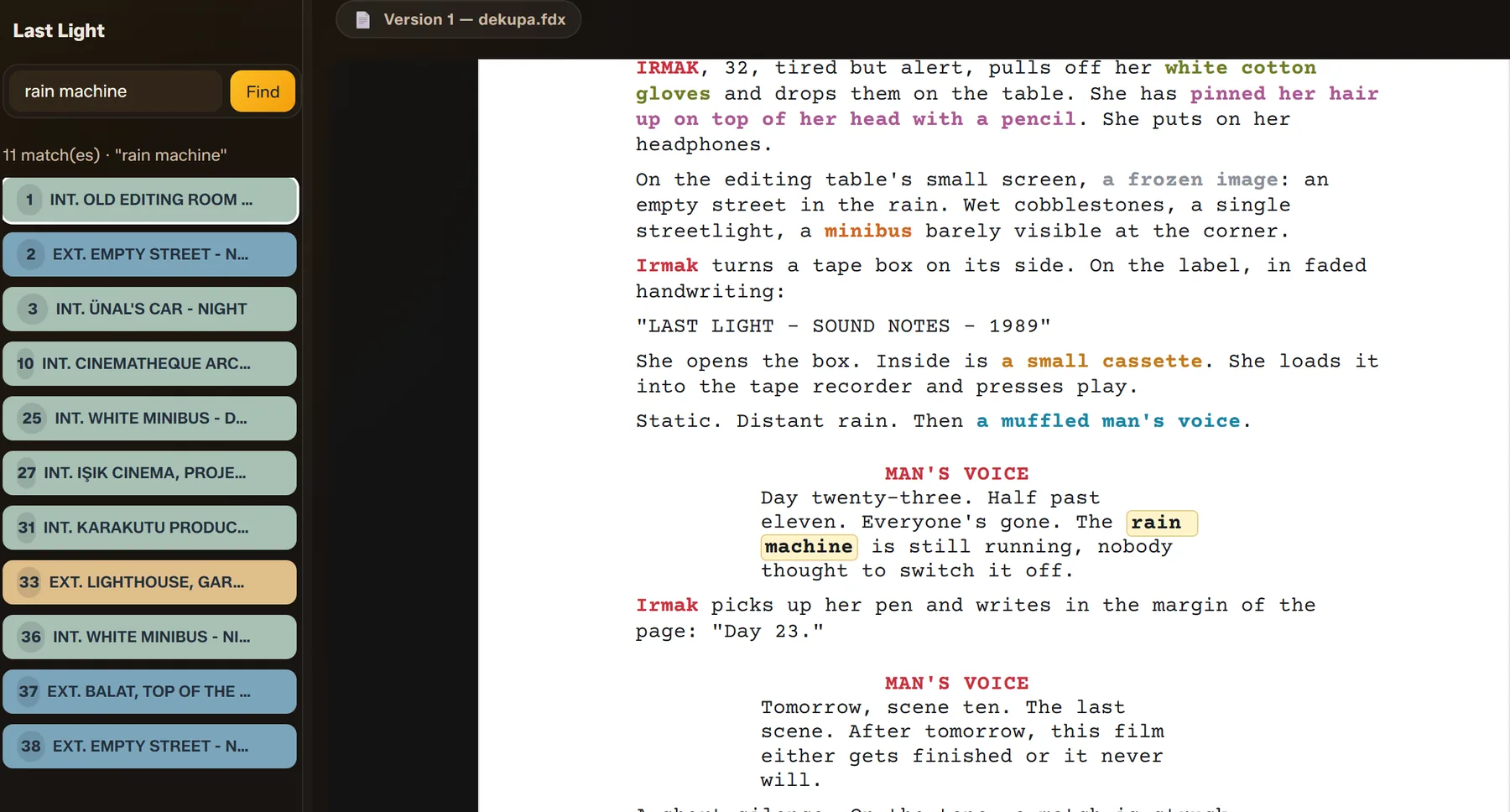
Type the tag’s name into the search box in the left panel and click Find; the scene list narrows to the scenes where that tag or word appears.
With the search box
-
Type the tag’s name into the search box just above the scene list in the left panel. When it’s empty it reads Search tag....
-
Click Find or press Enter.
-
The scene list narrows and shows how many scenes matched. Click a scene: the word you searched for is highlighted in the text. The search stays on as you move from scene to scene.
-
To get all scenes back, clear the box and click Find again.
Search looks at tag names, scene headings, scene text and scene numbers. Case and accented letters don’t matter: typing cafe also finds CAFÉ.
From the tag’s window
-
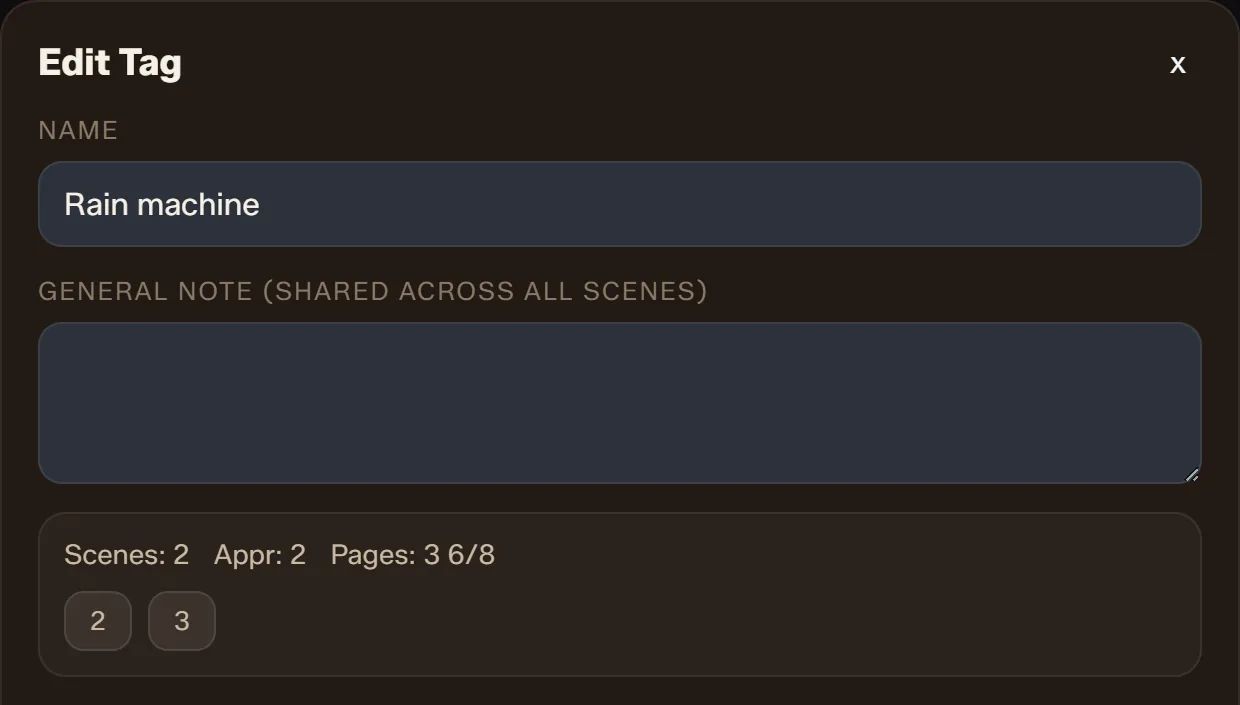
Click the tag in the script and then the pencil icon, or open its category in the left panel and click the pencil on the tag’s row. The Edit Tag window opens.
-
Under the Scenes count, the window lists the numbers of the scenes the tag appears in. Click a number to open that scene.
By category
- In the top menu, hover over Script and open Reports.
- Pick a category on the left. Its tags are listed with how many scenes each appears in. Narrow the list with the Search element… box.
- Click a tag. The Appears in scenes table shows each scene’s number, heading and page length.
To see where else a tag appears inside one scene, hover over it in the script: the other marks of the same element light up too.
If it doesn’t work
- In a series, the scene I’m looking for doesn’t show up.
- Search only looks at the open episode. Choose All episodes in the episode menu above the script, then search again.
- Scenes that have nothing to do with the tag show up too.
- Search also reads the scene text, so a scene where the word appears in the text makes the list. To see only the scenes that carry the tag, click the tag on the Reports screen.
- I want to see every tag in a category.
- On the Reports screen, pick the category on the left. Its tags are listed with how many scenes each appears in; click one to see its scenes.